Add a Row for Refunded Quantity
Updated on
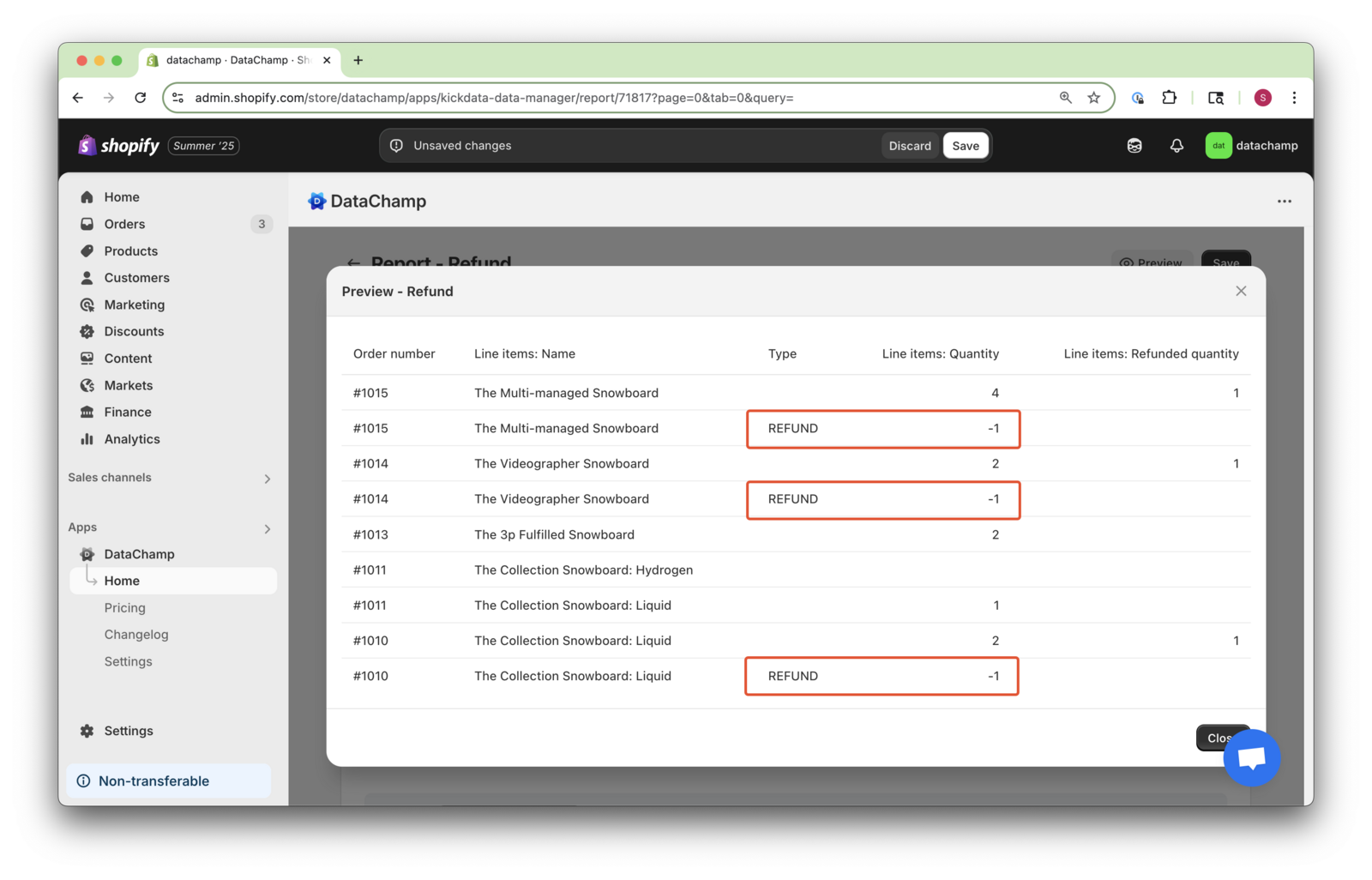
In this tutorial we will show you how to add an extra line that displays the refund quantity directly below the order quantity. We will create a new column that automatically displays the word "Refund" to highlight any order that has been refunded. These features are especially important for improving clarity and providing a better overview for your accounting and warehouse management teams.
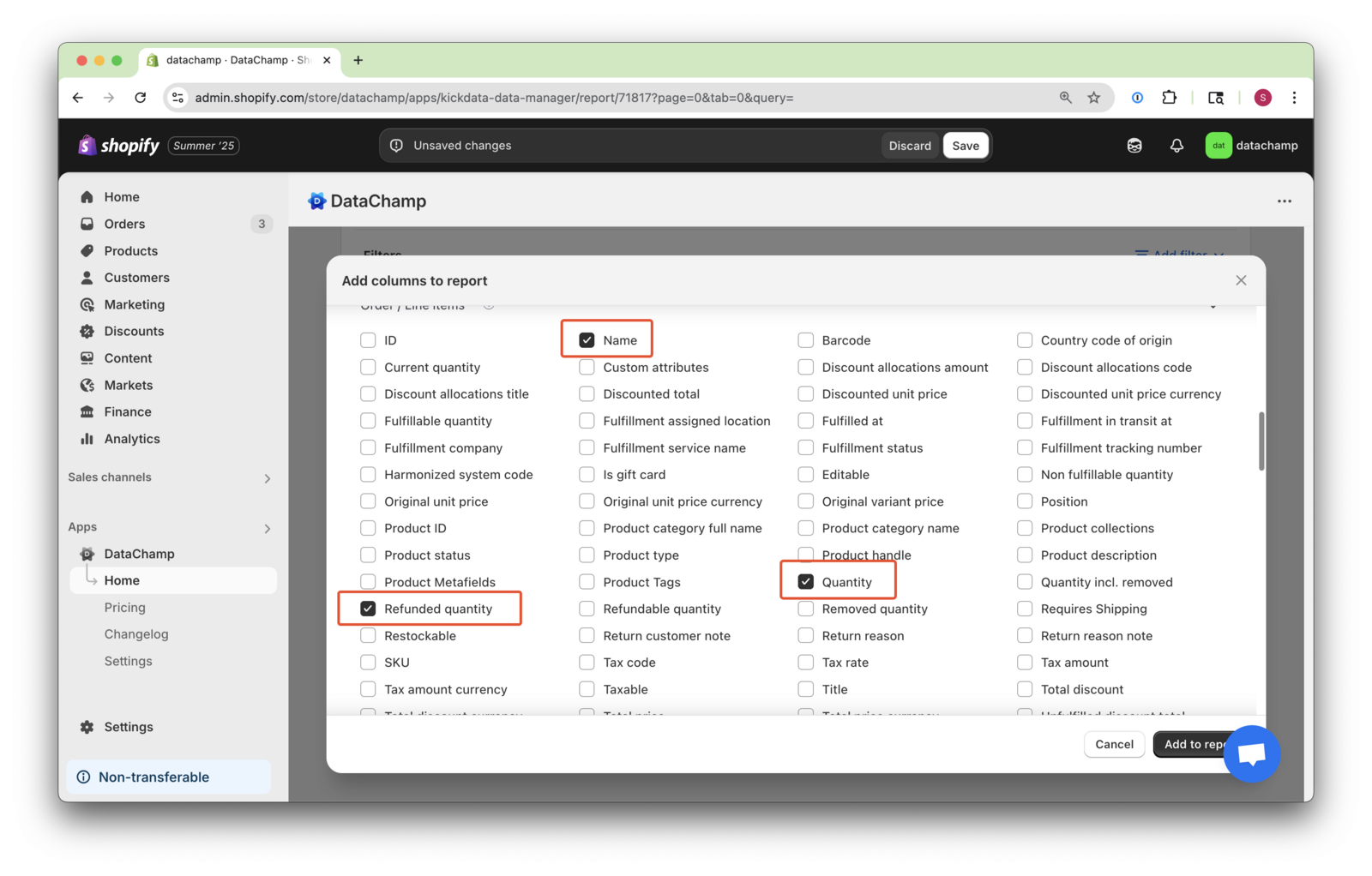
- Create an Order Report and include the necessary columns: Order Number, Name, Refunded Quantity, and Quantity:
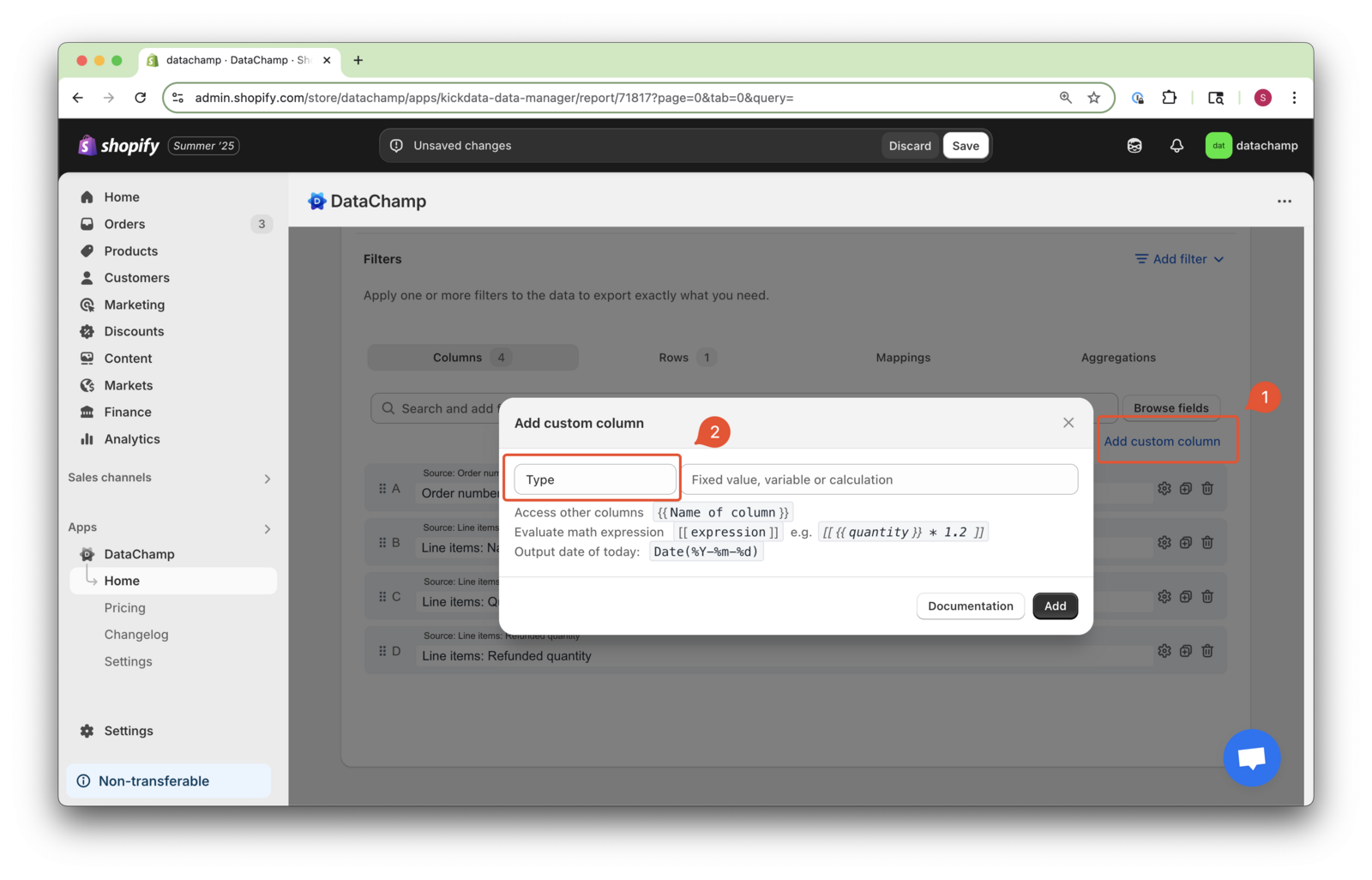
Add a custom column and name it "Type":
- Set Condition
Now, navigate to the Rows tab. We will add a new row that will only appear in the report when an item has been refunded.
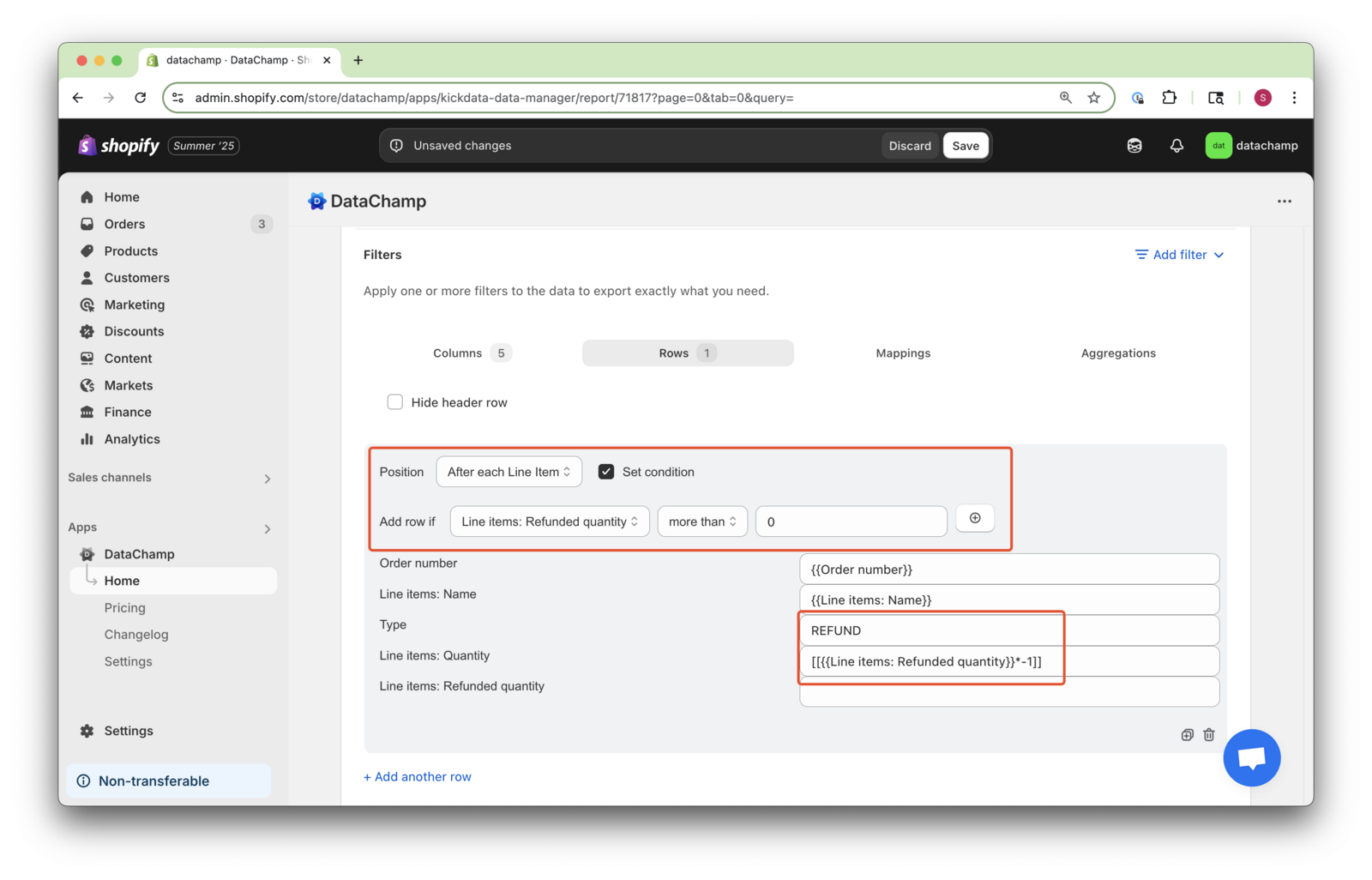
Select "After each line item" and enable the condition by clicking the “Set condition” checkbox.
Set the condition: Add row if: "Refunded quantity is more than 0". This way, the row only appears for refunds.
In the Type field, enter:
REFUND
So everytime a refund occured, the Word "REFUND" will appear in the column.
In the Quantity field, enter:
[[{{Line items: Refunded quantity}} * -1]]
- [[ ... ]]: The double square brackets tell DataChamp to perform a mathematical calculation.
- {{...}}: The double curly brackets provide access to other columns—in this case, the refunded quantity.
- -1: We multiply the quantity by -1 to represent it as a negative value. This is standard practice for accounting and inventory, making it easy to subtract from totals.
- Click Preview to see the refunded quantity displayed directly below the original quantity.
- Now, give your report a clear name, save it and run the report.