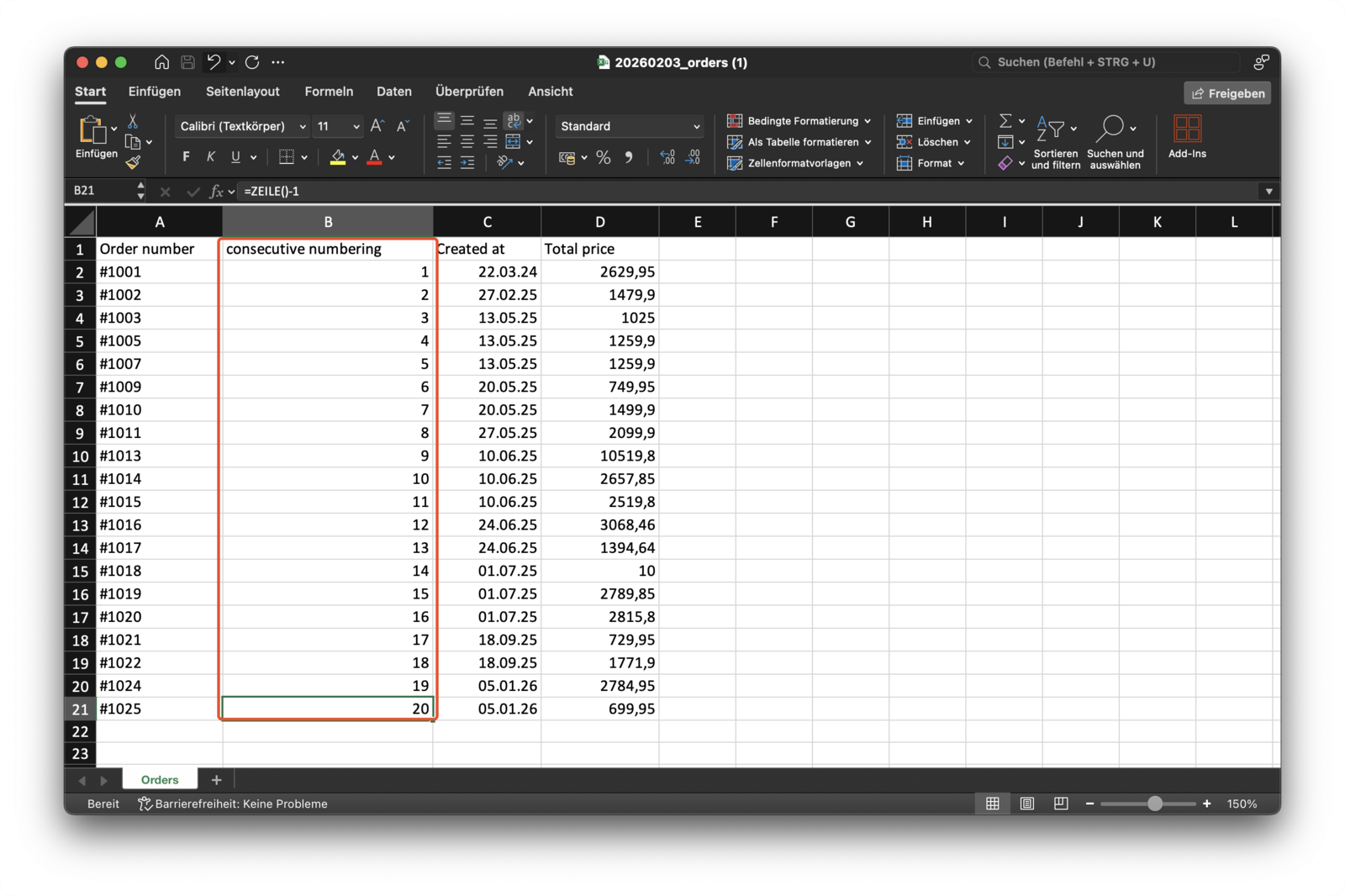
Excel Formulas
Updated on
Using Excel Formulas in Your Export
With DataChamp, you can add custom columns with Excel formulas to your Excel exports.
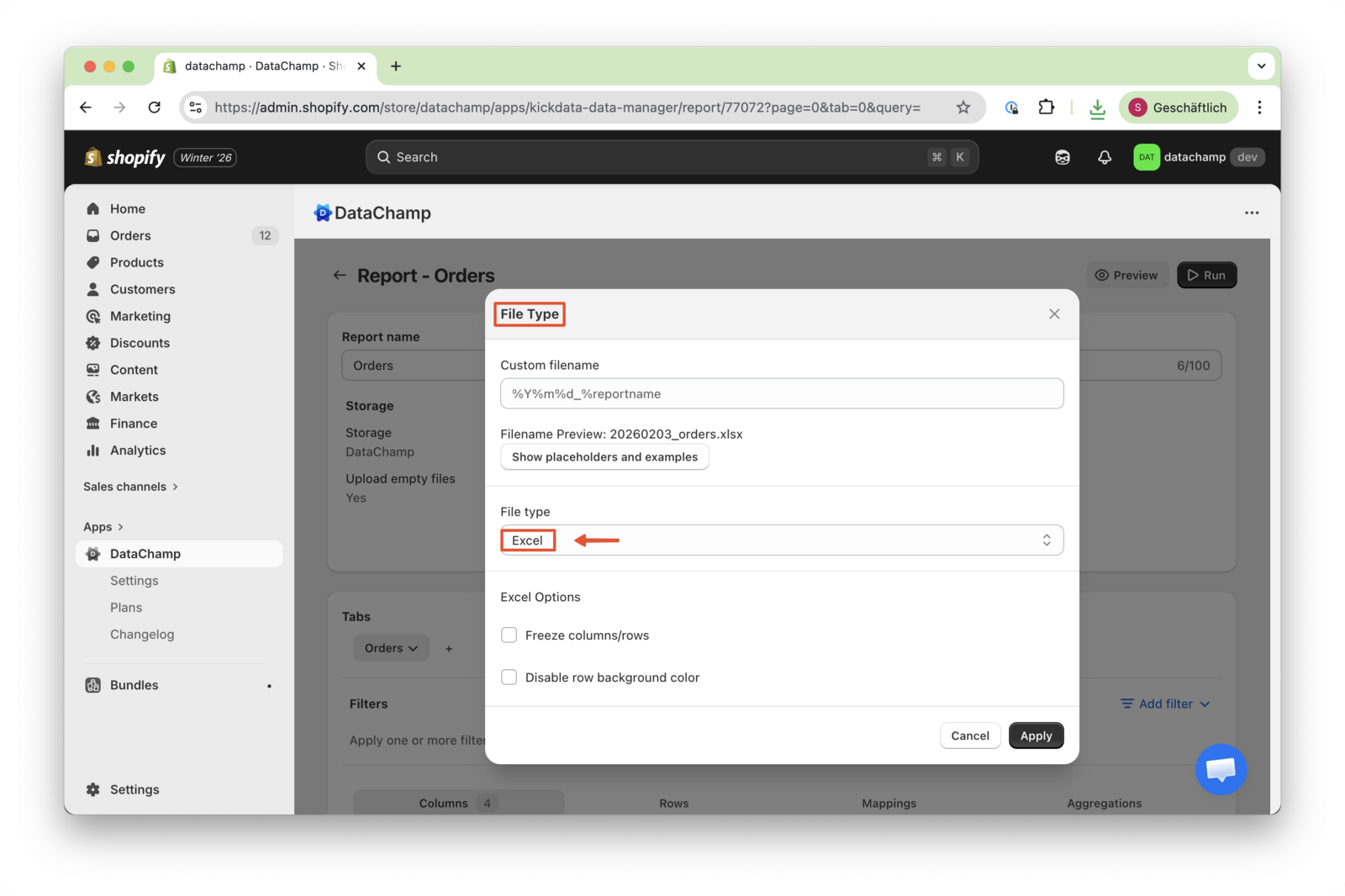
1. Select File Type
First, click on “File Type” and choose “Excel”.
2. Add a Custom Column
You can now add a custom column.
In the Value field, enter an Excel formula, e.g. consecutive numbering: =ROW()-1
The formula must always start with an “=” sign.
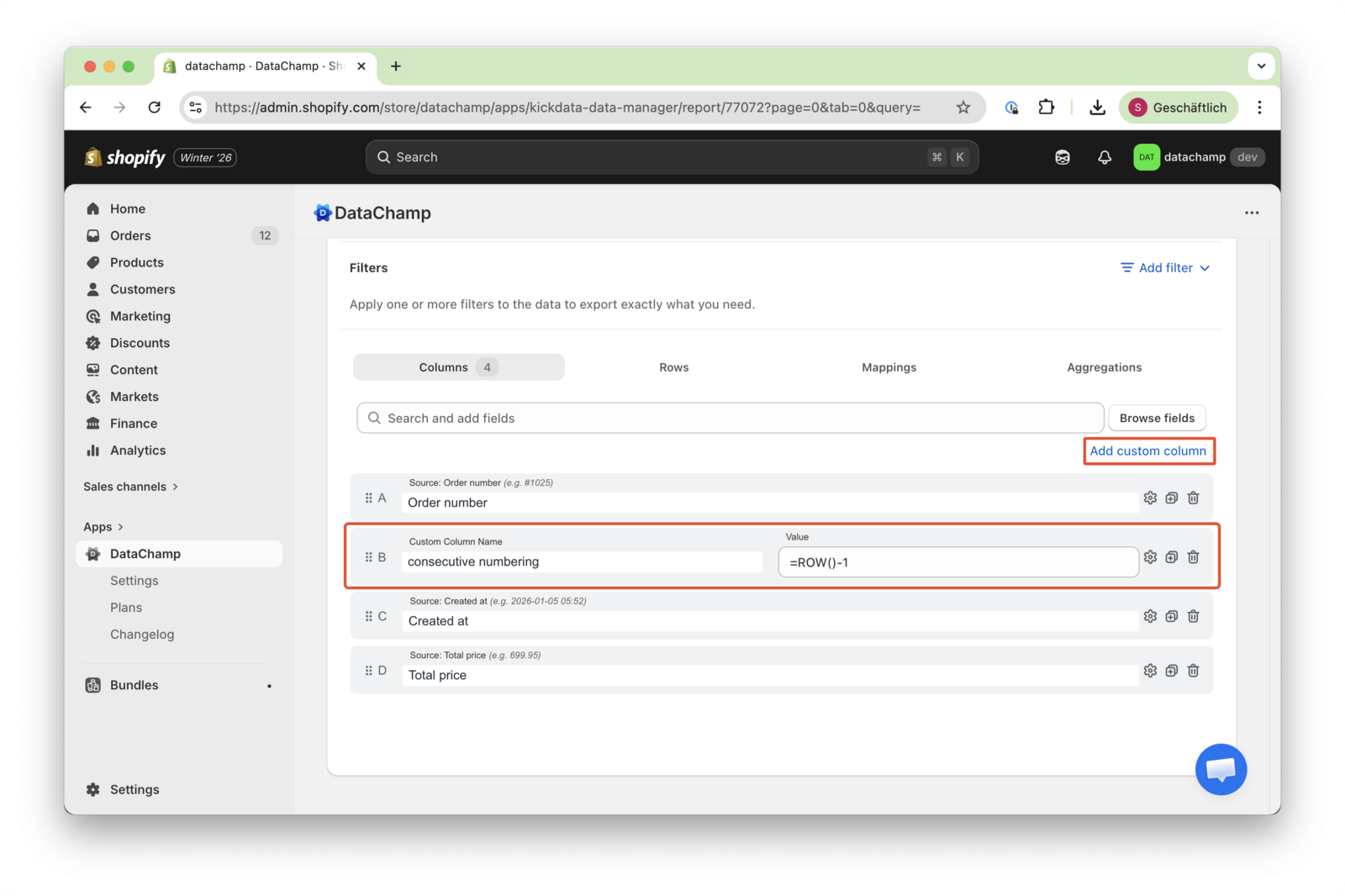
The consecutive number was only an example — you can add the ‘Consecutive number’ field via browsing or the search function as well.
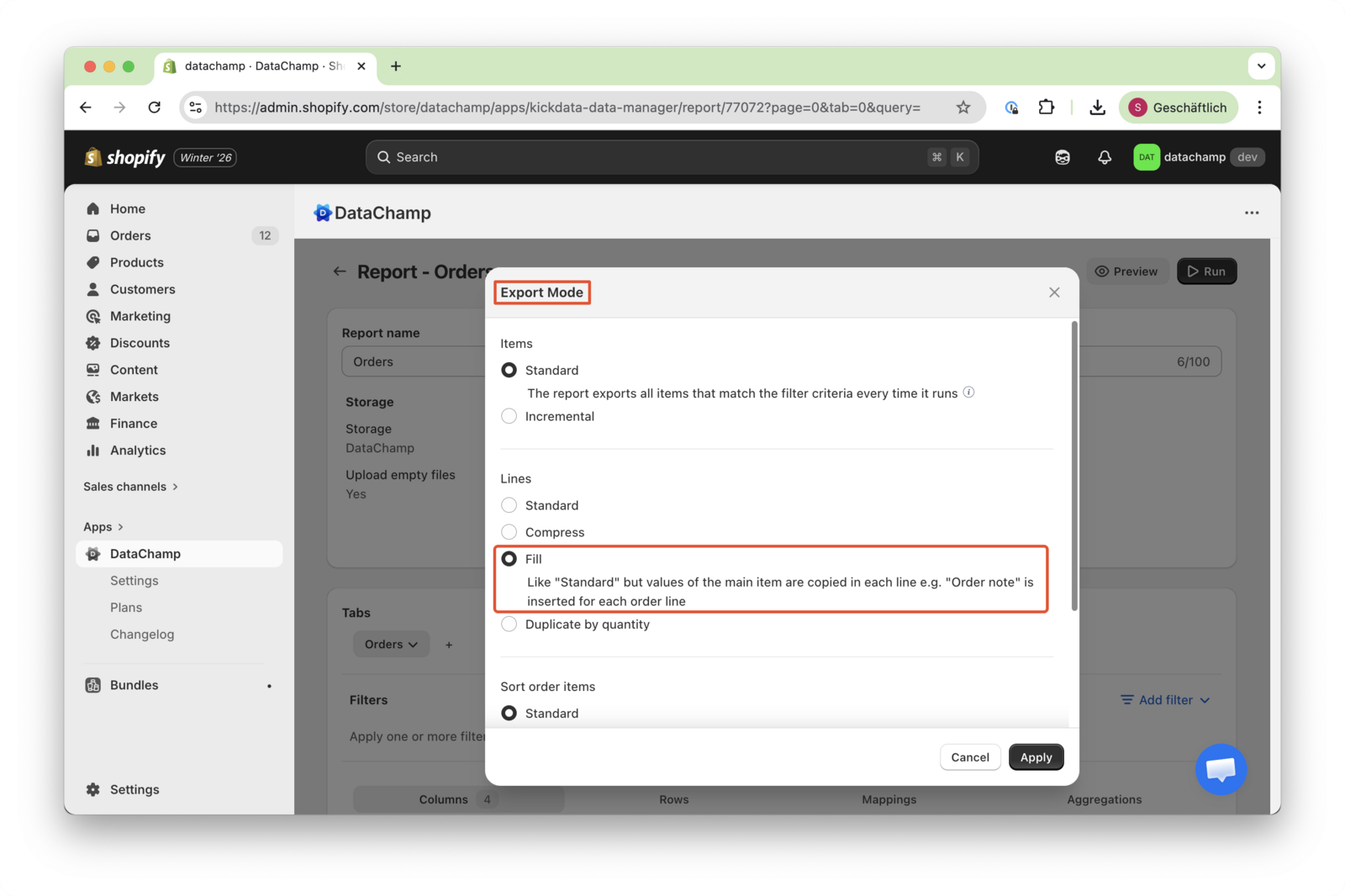
3. Adjust Export Mode (optional)
The Export Mode can also be modified.
For more information, please refer to the related help article about Export Mode.
4. Check the Preview
Click “Preview” to review the results.
Note:
If the calculated value of the Excel formula is not displayed in the Preview:
- Click “Save”
- Then click “Run”
- Download the report
In the downloaded Excel file, the formula results will be displayed correctly.