Calculate Inventory Value
Updated on
Export Inventory and Calculate Inventory Value
In this tutorial, you’ll learn how to calculate the inventory value of your stock using DataChamp.
Inventory value refers to the total cost of all products currently in stock.
It’s calculated using the formula:
Inventory Value = Available Quantity × Unit Cost
Step 1: Create a New Report
- Create a new report in Datachamp and select "Locations" as the report type.
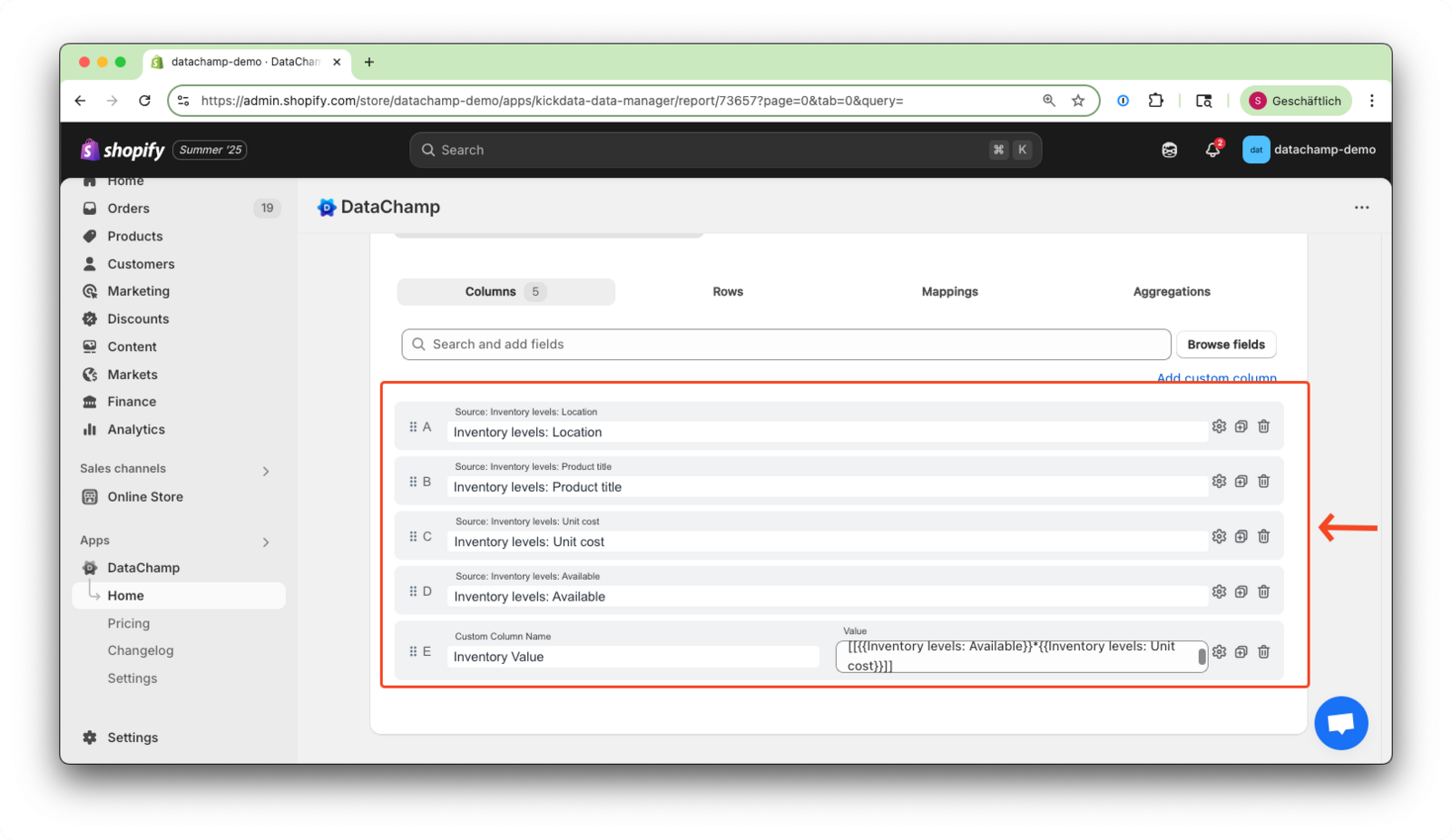
- Add the columns you need:
- Location
- Product Title
- Unit Cost
- Available
Step 2: Add a Custom Column
We now create a calculated column to compute the inventory value.
| Custom Column Name | Value | Purpose |
|---|---|---|
| Inventory Value | [[ {{Available}} * {{Unit Cost}} ]]]` | Multiplies stock quantity by unit cost |
In DataChamp, use double square brackets [[]] to write formulas and double curly brackets {{}} to reference column names.
Step 4: Add a Filter to Show In-Stock Products Only
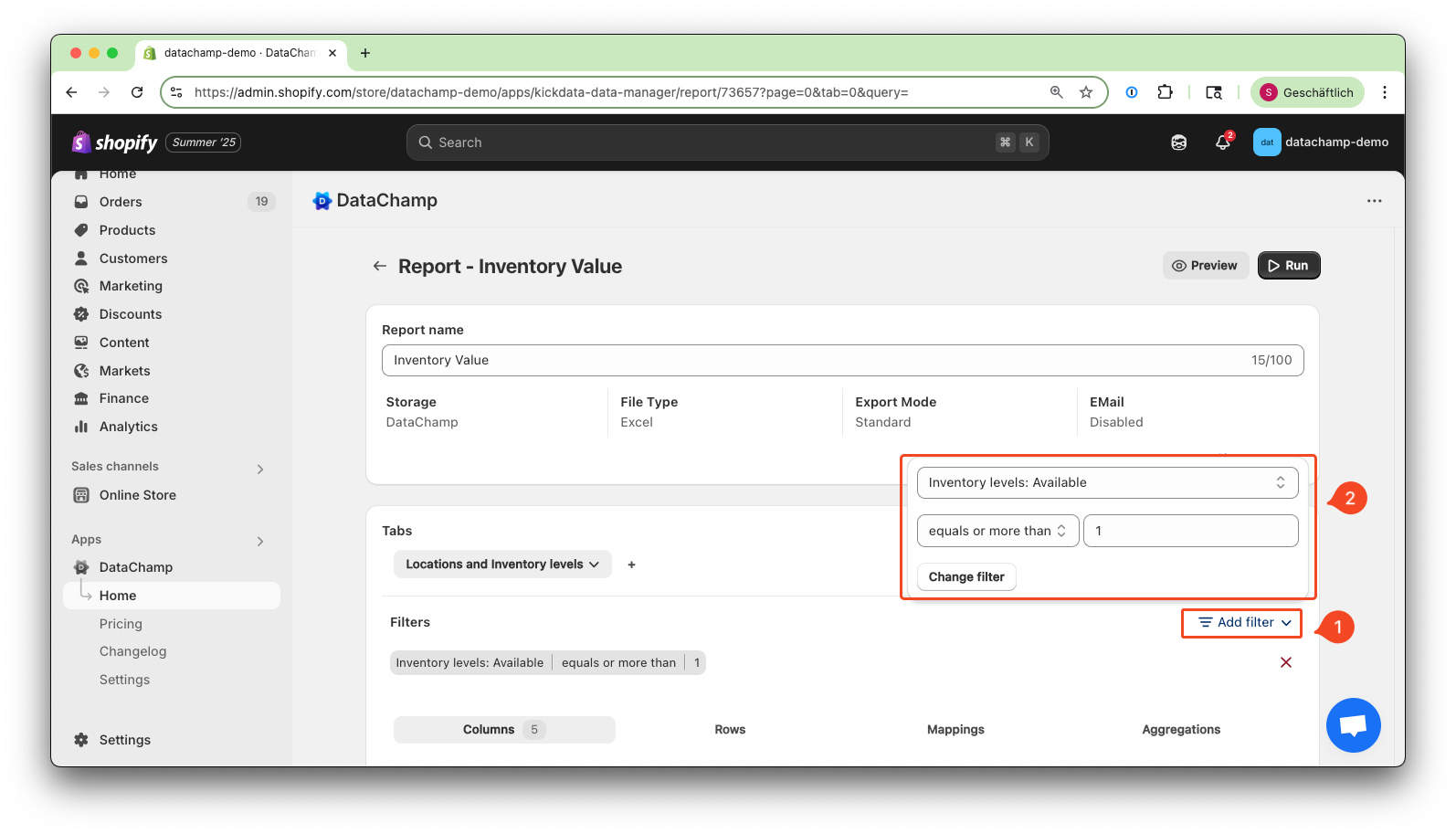
To limit the report to only available stock, apply the following filter:
| Filter | Condition | Value |
|---|---|---|
| Available | equals or more than | 1 |
Step 5: Preview and Save the Report
- Preview the report
- Give your report a clear name, such as: “Inventory Value”
- Click Save and Run Report.