Create New Report
Updated on
Create a New Report
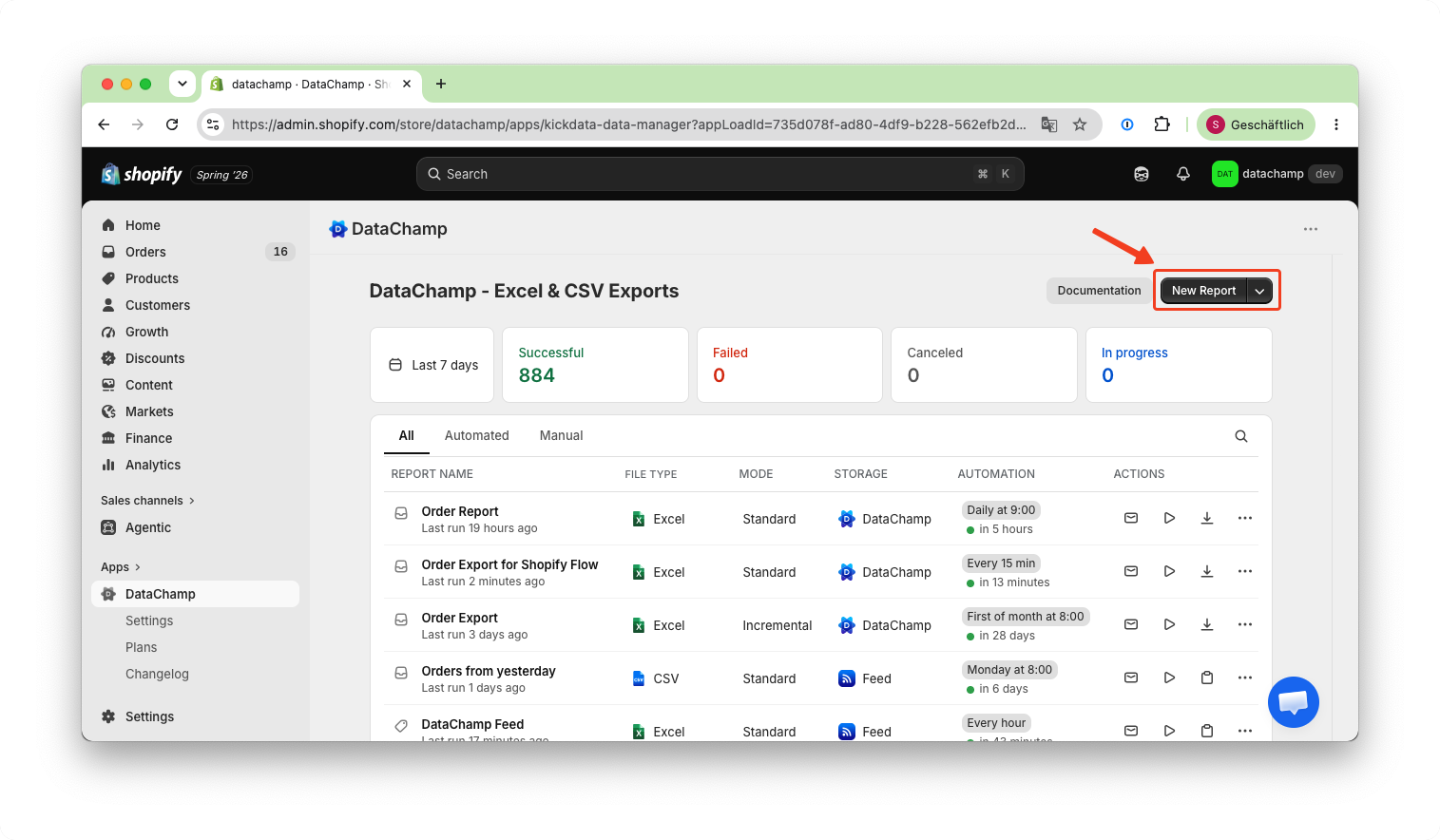
Create a new report by clicking the “New Report” button.
- Choose from various report types: Orders, Products, Locations, Collections, or Payouts.
- Select one of the available templates — or start the report from scratch with the "Basic Report".
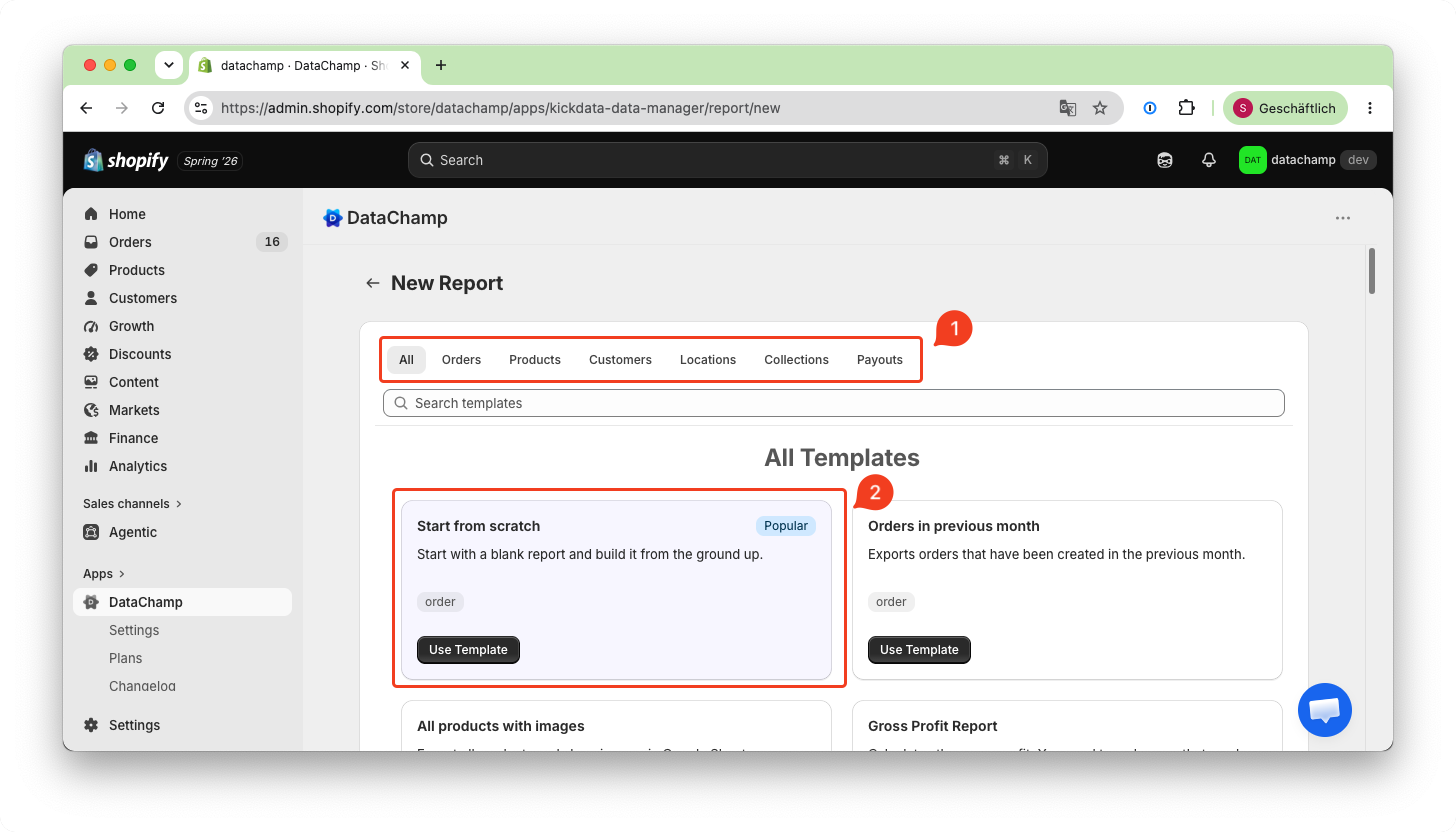
That’s it! You can now begin customizing your report using filters, mappings, and other settings.
In the top section you can find all available settings:
- Name – Define your report name.
- Storage Options – Choose where to store the exported data: FTP, Dropbox, Google Drive, Datachamp and DataChamp Feed
- File Type – Choose between Excel or CSV formats.
- Export Mode – Select how the data should be processed (Standard or Incremental)
- Email Notification
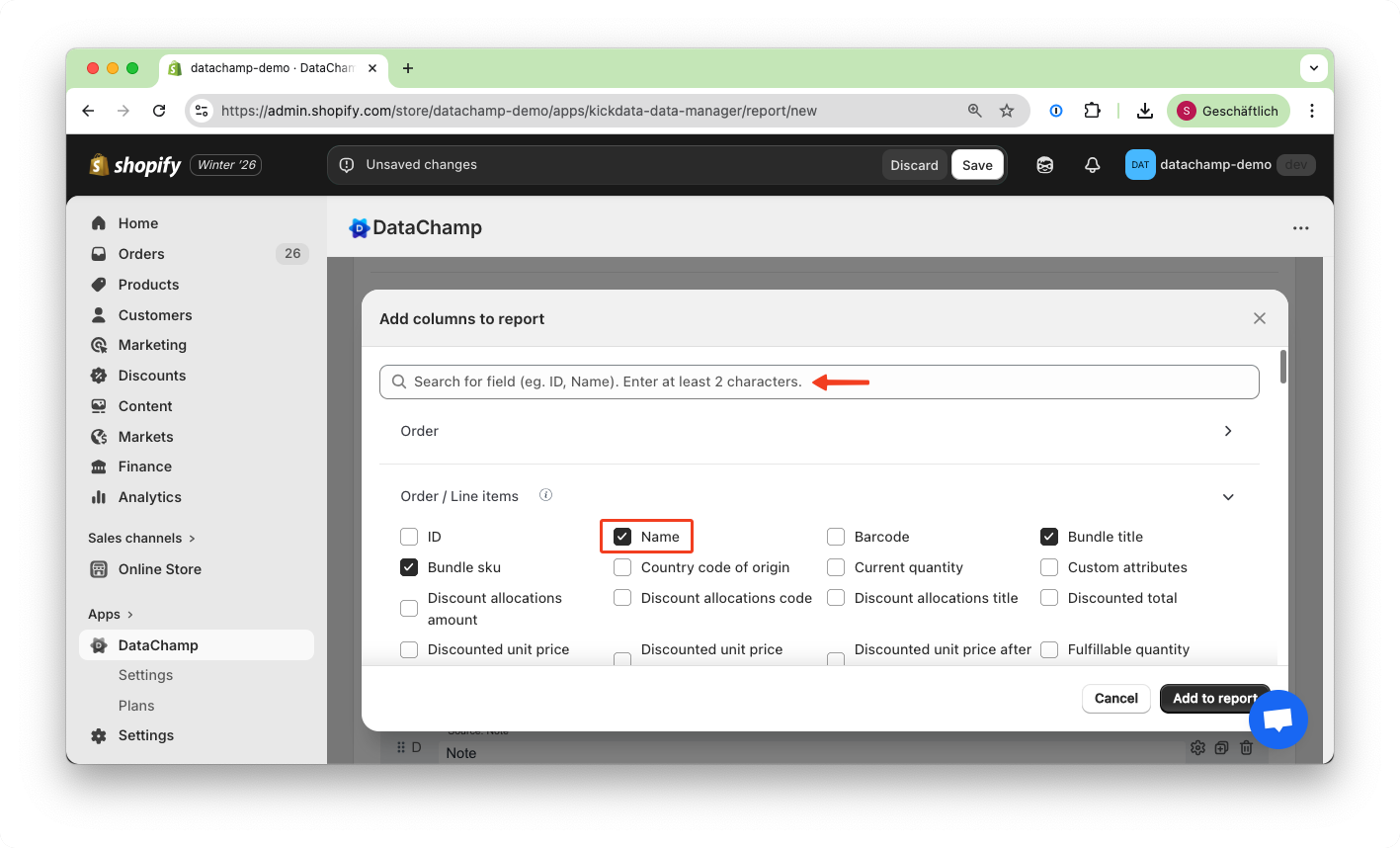
At the bottom of the report, you can browse or search for fields:
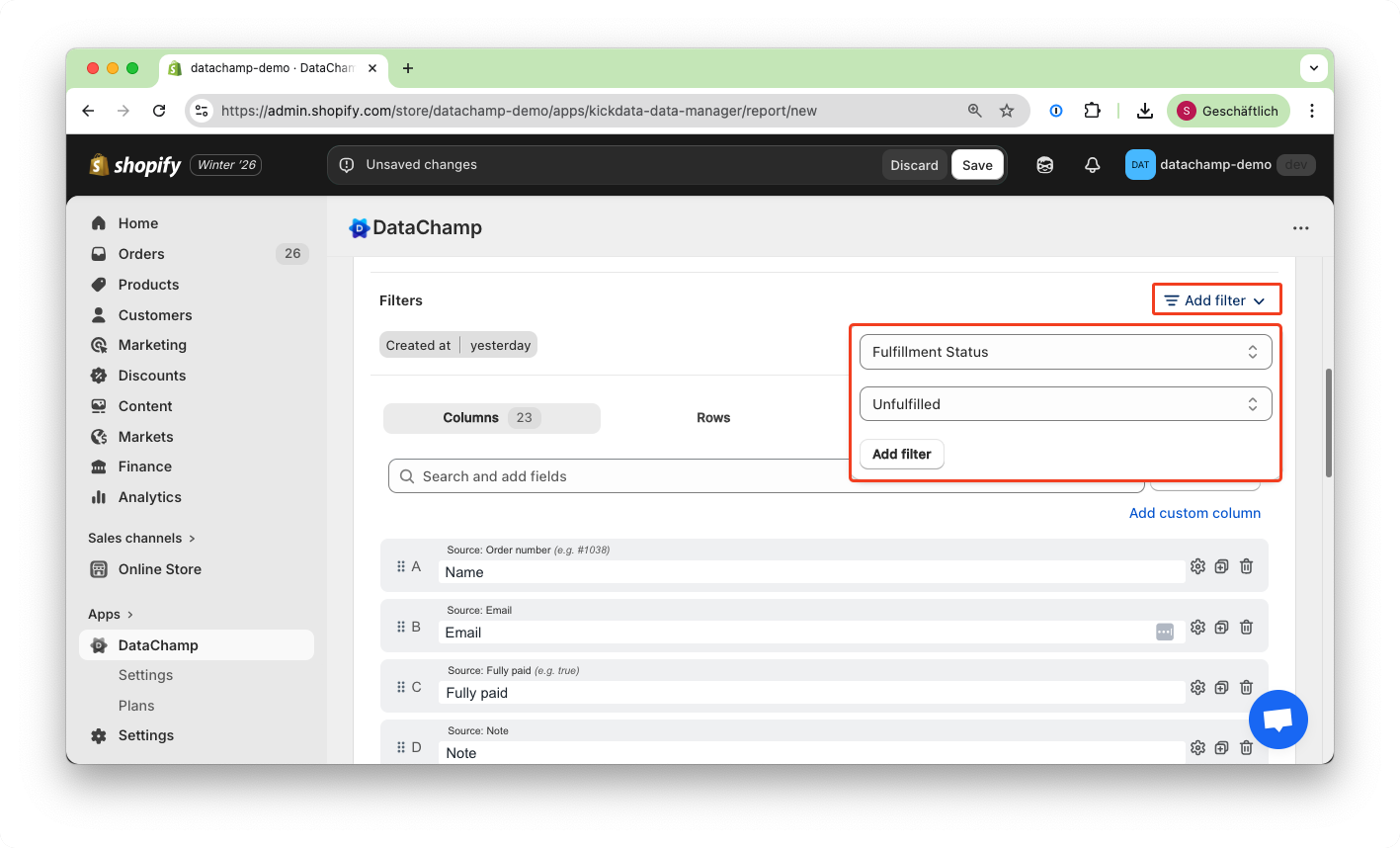
Click "Add filter" to add a filter:
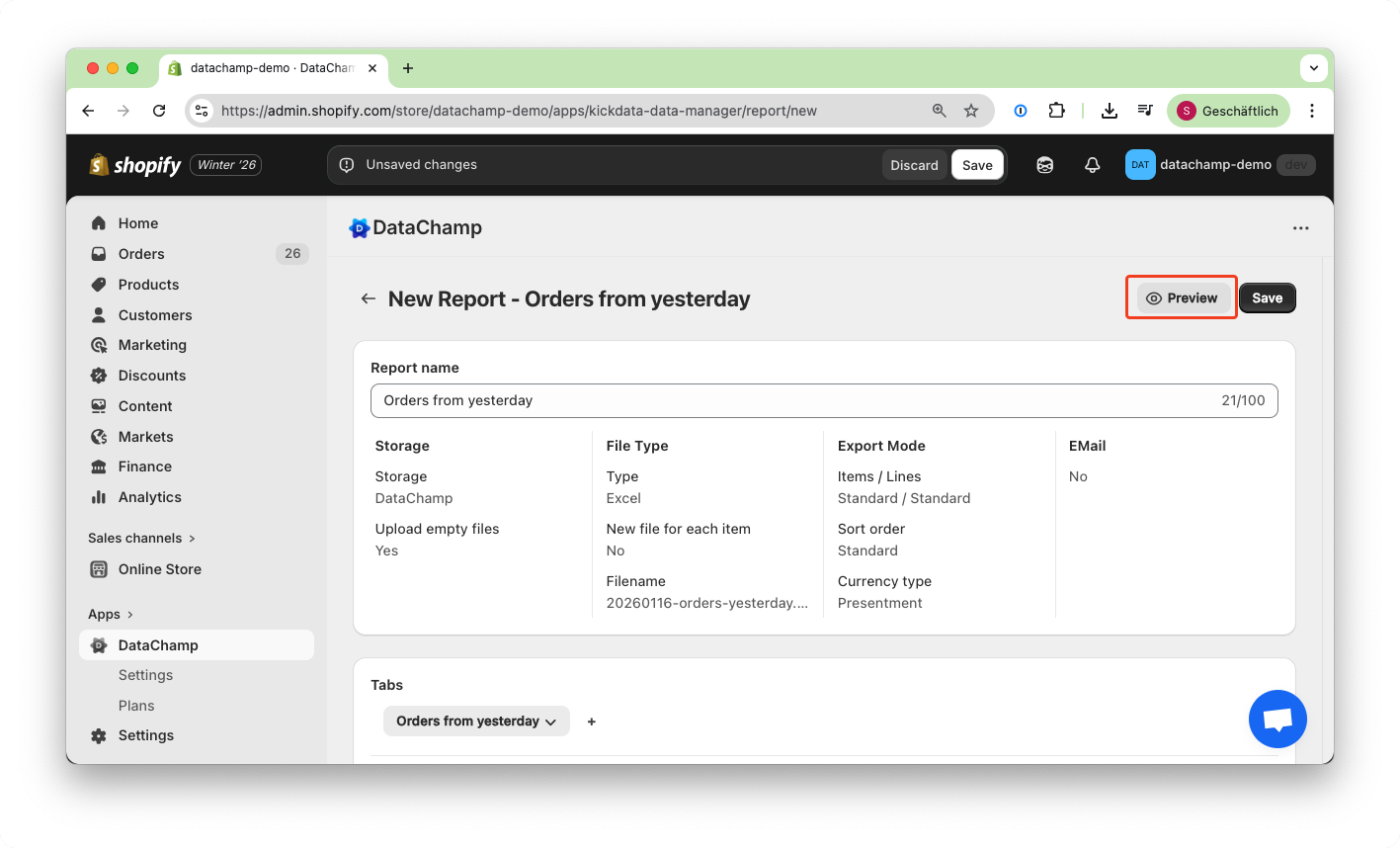
Take a first look at your Report using the "Preview Button":
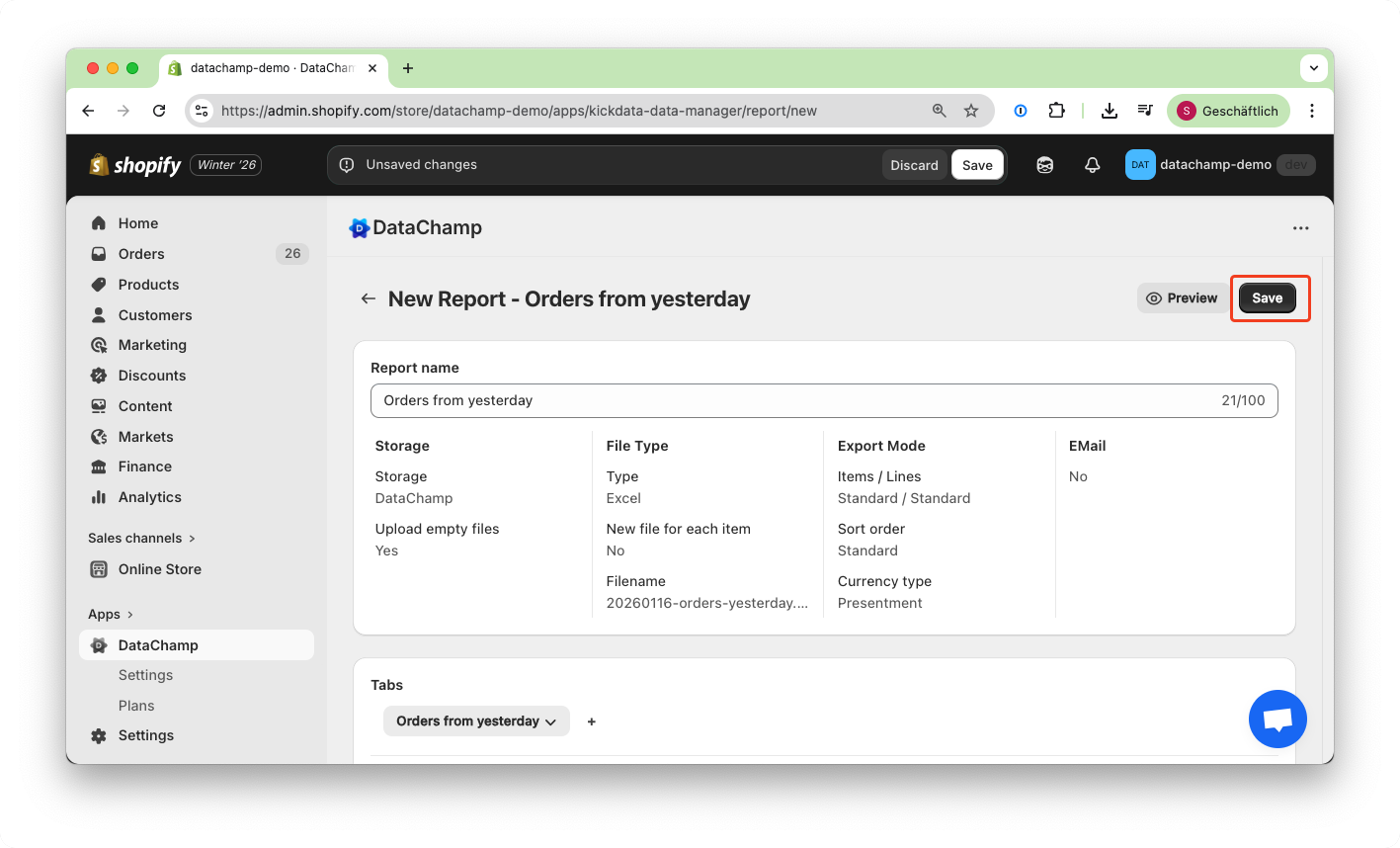
To save and run your report, click on "Save" and "Run":
If you need any help, you can:
- Explore our helpdesk articles
- Watch our YouTube or TikTok videos
- Send us a message — we’re happy to assist you!
YouTube Video
You can also watch our YouTube Video: