Replace a Single Row with Multiple Rows
Updated on
(e. g. for creating an Order Picking list)
This tutorial explains how to break down a set product (= a product created as a single item in Shopify without using a bundle app) into its individual components. For example, if you sell a PC-Set that includes a pc, a keyboard, and a monitor, you may want to separate these items for reporting or order picking. This guide shows you how to do exactly that.
If you are using a bundle app to create your bundles, please refer to our separate article here: How to Export Bundle Orders from Shopify with Datachamp
Steps to Split a Set Product into Individual Components:
- Filter the set product (optional)
If you only want to export the PC-Set, apply the following filter:
- "Line item: Name" includes “PC-Set”
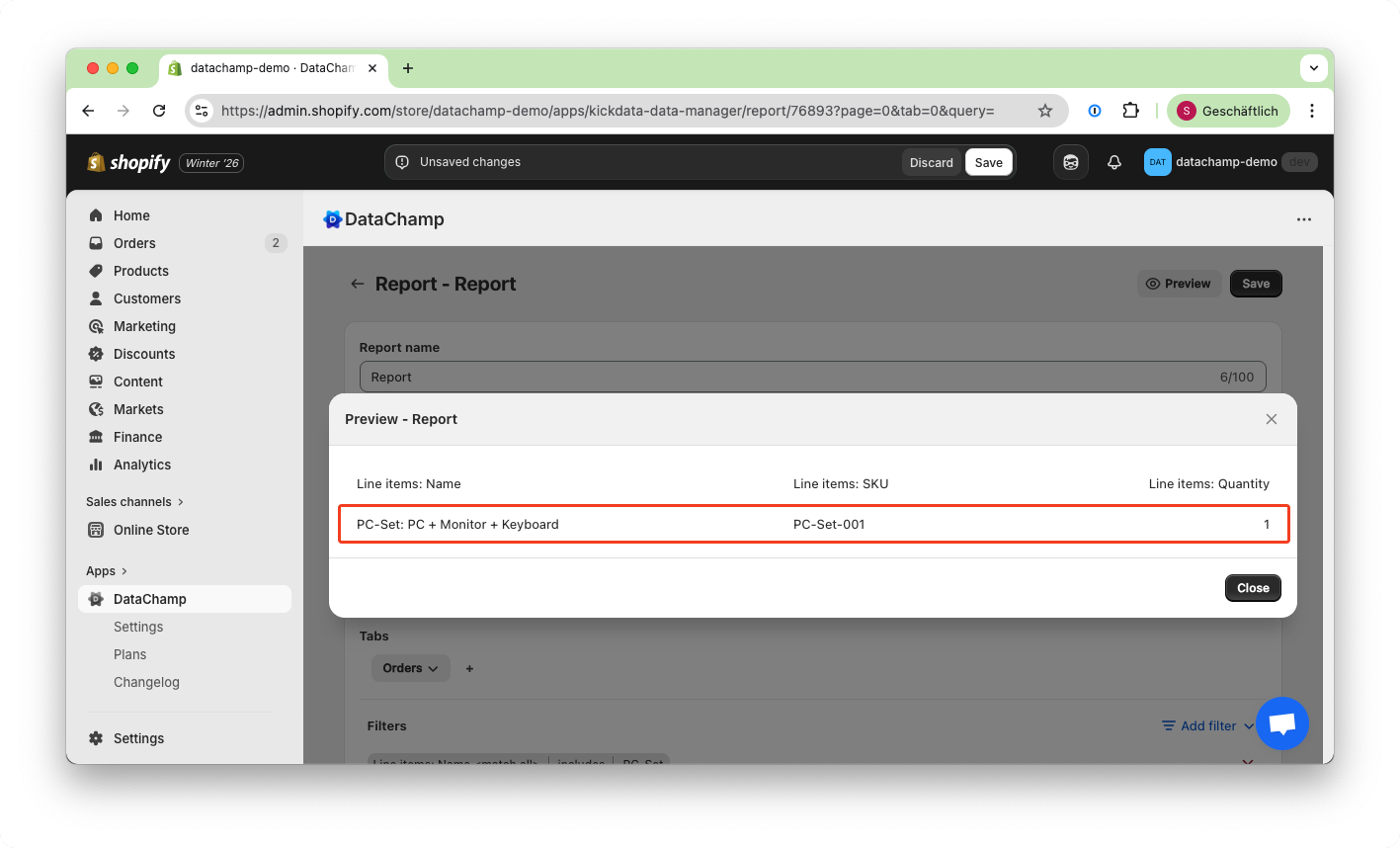
If you click Preview, you will see that the set product (PC-Set) is exported as a single row.
- Add the set components
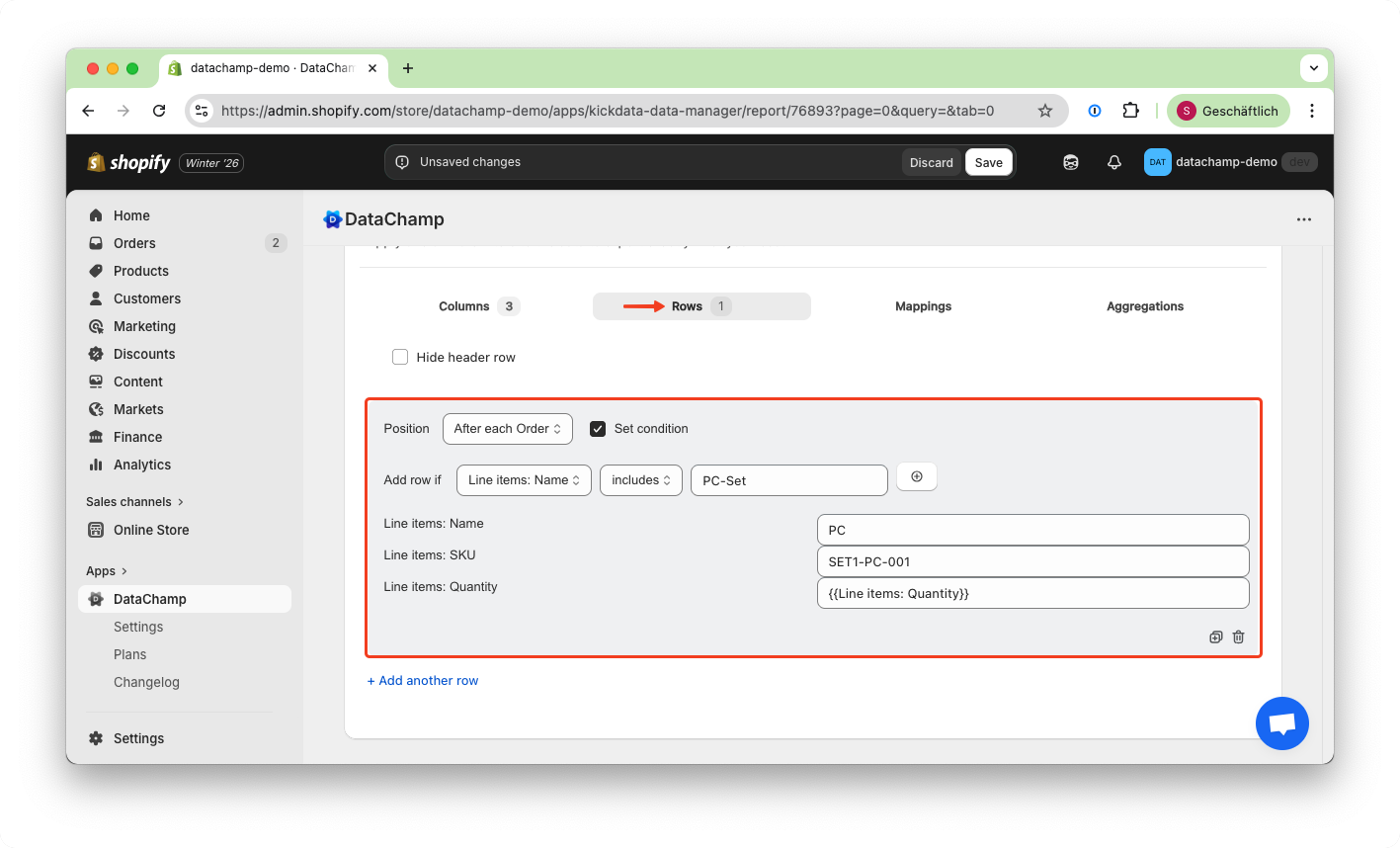
Since we know which components the set contains, we will now add them manually. Therefore we go to the Rows-Tab:
- Add the first component row: click "Add"
- Set Position to "After each Order"
- Click "Set condition" and choose: Add row if “Line items: Name” includes “PC-Set”
- Enter product details
In the new row, enter the component details, for example:
- Name: PC
- SKU: SET1-PC-001
- Set the correct quantity
For the quantity, use curly brackets to reference the actual ordered quantity.
- Repeat for other components
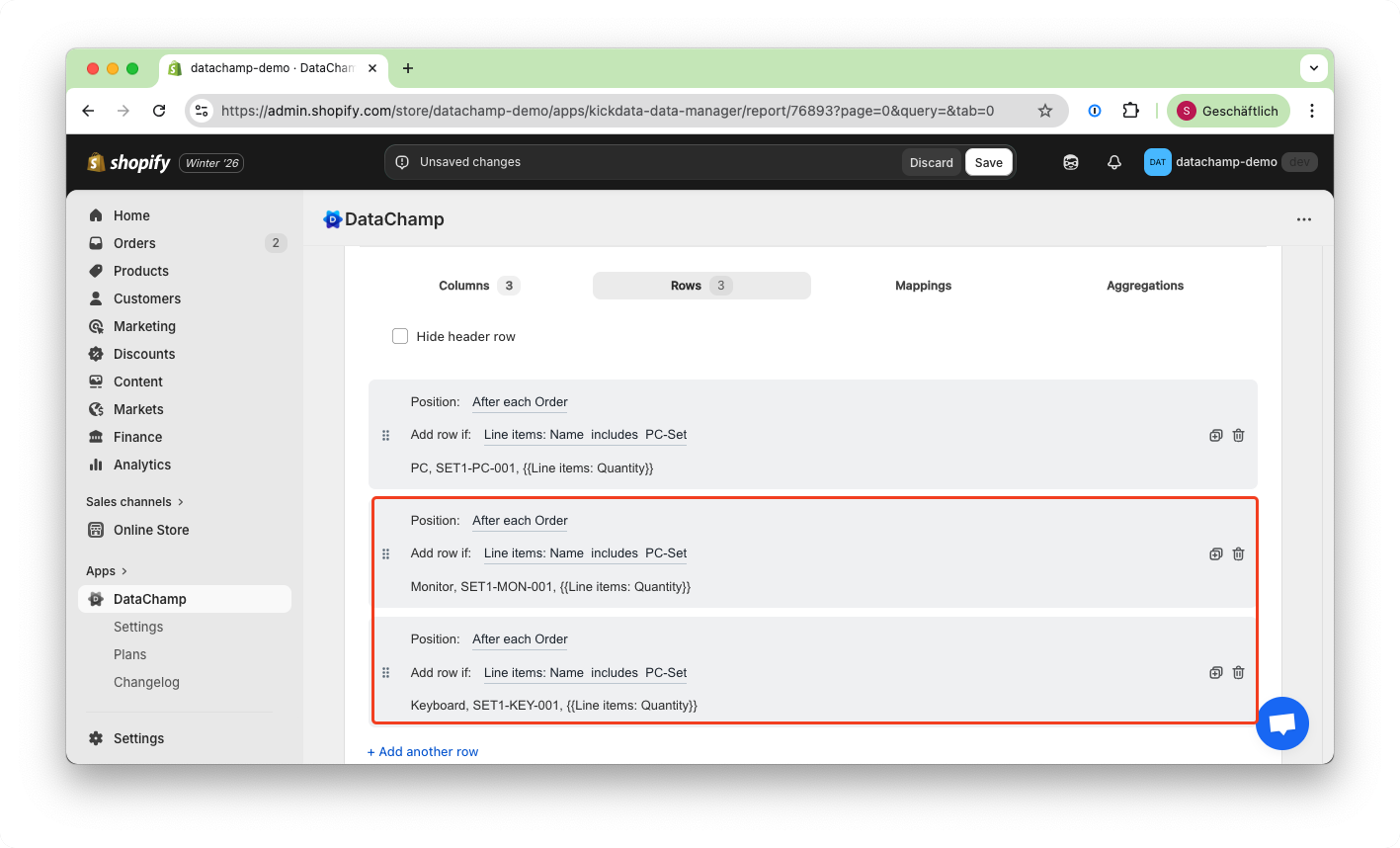
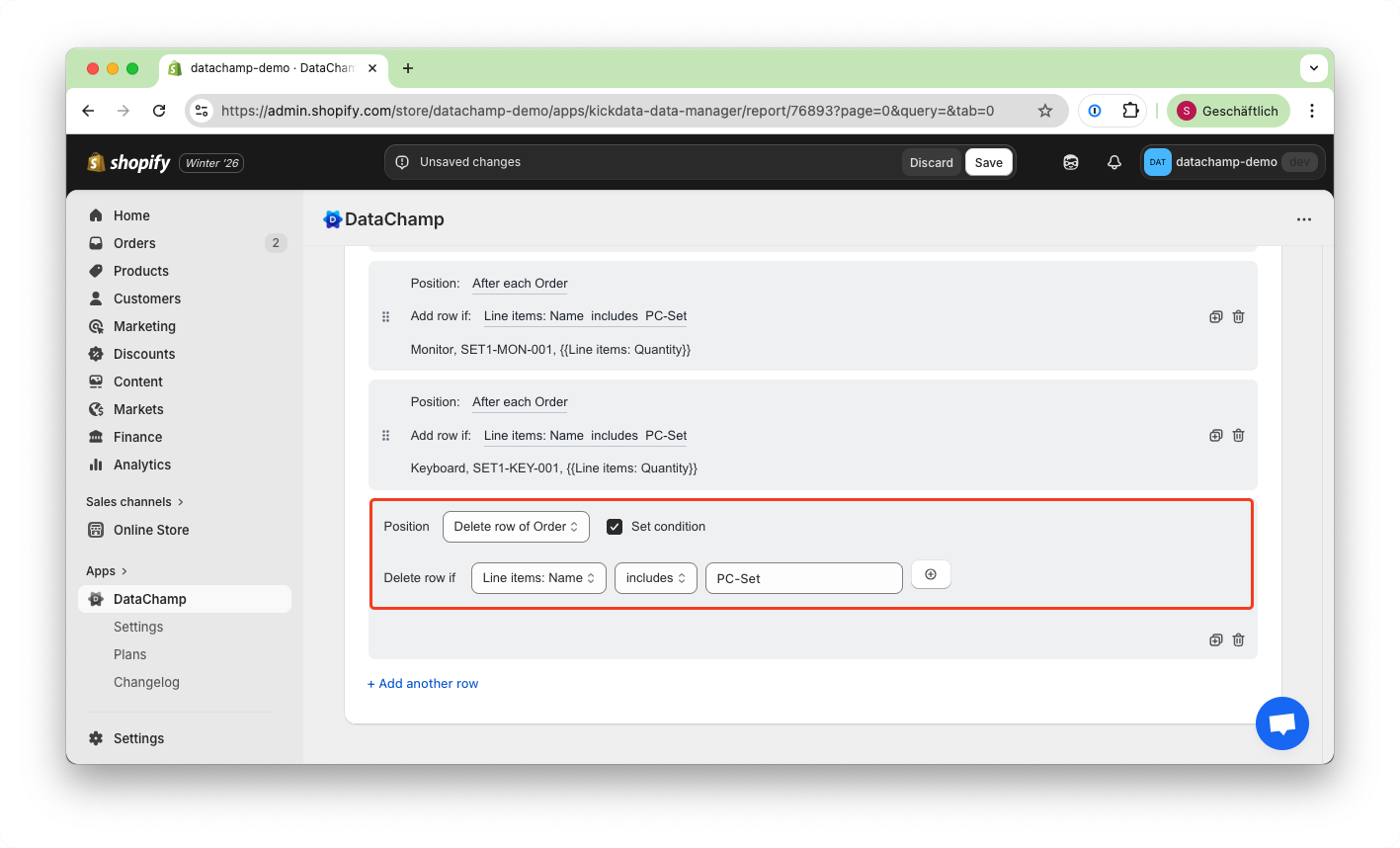
Repeat the same steps to add rows for the remaining components (e.g. keyboard, monitor).
- Preview the result
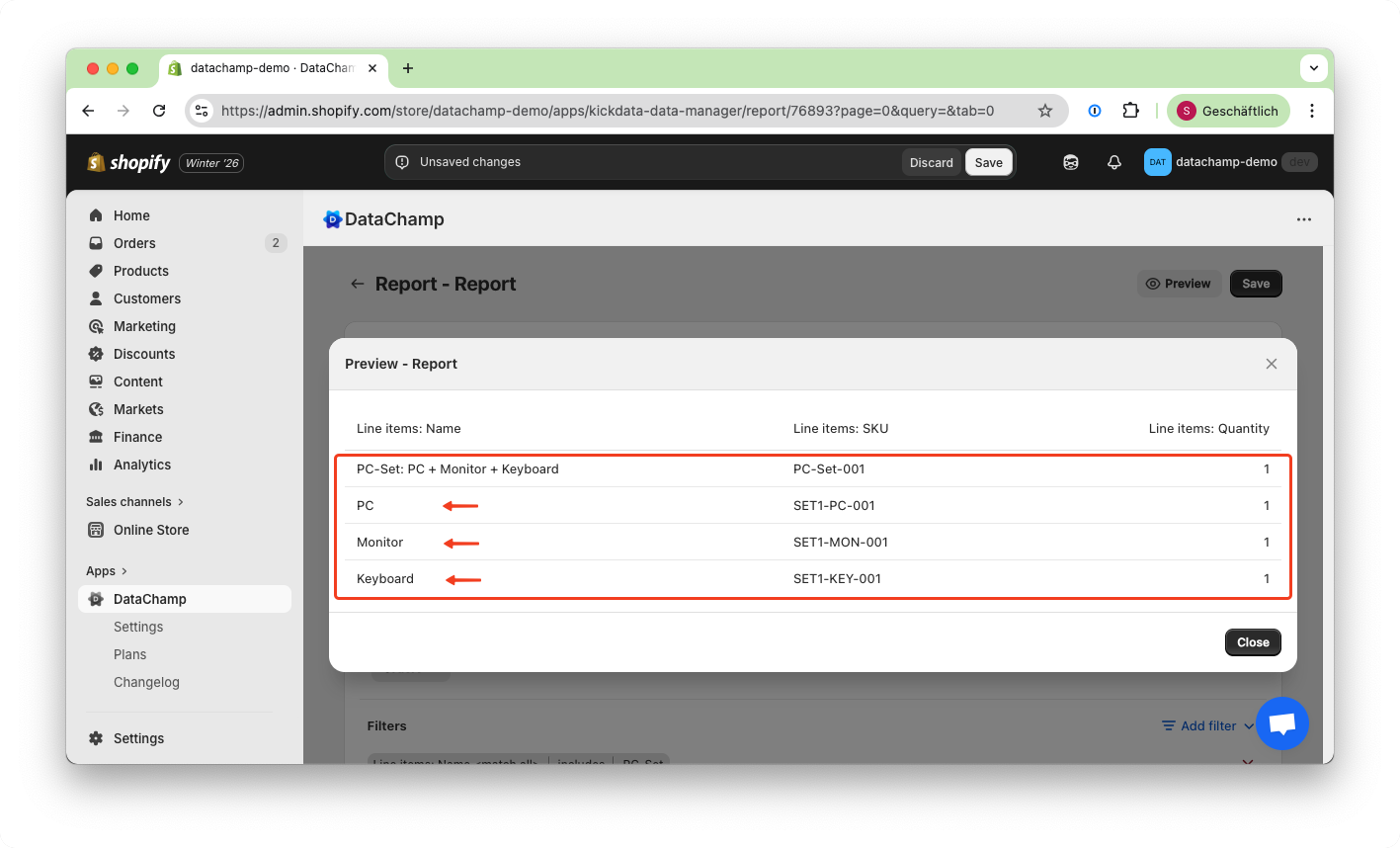
Click Preview again and you will see that the set product is split into its individual components.
- Hide the original set row (Optional)
If you don’t want the original PC-Set row to appear in the export:
- Add another row
- Set Position to "Delete row of Order"
- Enable "Set Condition"
- Add the condition: "Line items: Name" includes “PC-Set”
- Save and run your report