Custom Fulfillment Services
Updated on
Custom Fulfillment Service - Send Overview of New Orders
In this tutorial, I’ll show you how to create a custom fulfillment service in Shopify and automate daily order reports using DataChamp. This setup is perfect for sending new unfulfilled orders directly to external warehouses — like our example warehouse in Vienna.
If your Shopify store uses custom fulfillment locations ( Settings → Shipping and Delivery → Accounts and Integrations → Carrier Accounts and Fulfillment Services → Manage Integrations), you can use DataChamp to send details of your unfulfilled orders to third-party fulfillment services.
- Create a new report
- Click on the "New Report" button and select "Orders".
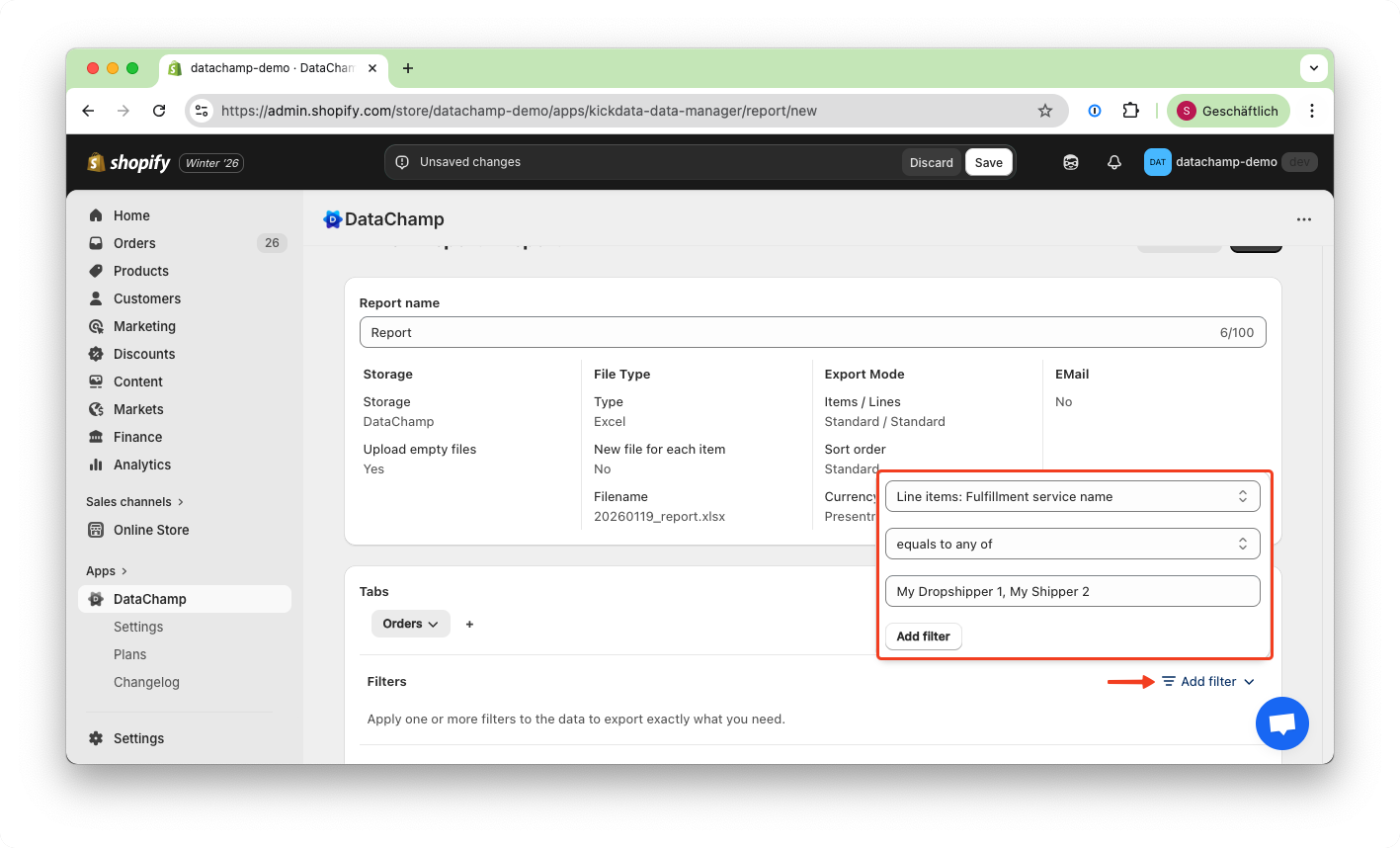
- Add a filter for "Line Items: Fulfillment Service Name"
- Enter the exact name of your custom fulfillment service (as listed in Shopify settings).
- If filtering multiple services, separate them with commas.
- Add additional filters (recommended)
- Additional filters improve performance and prevent export limitations.
- We recommend using a simple filter: "Fulfillment Status: Unfulfilled" or "Partially Fulfilled".
- Other useful filters: "Financial Status: Paid" or "Created At: Last 1 Day"
- Set Export Mode to "Incremental"
- This ensures that each order is sent only once to your fulfillment service.
- Add an email notification (optional)
- Enable emails by clicking on “E-Mail” and “Yes.” Then enter an email address and customize the subject and message.
- We recommend sending test emails to yourself first.
- Preview the Result
- Click on the "Preview Button" to check to result of the report.
- Save and Run the report
- Click "Save & Run" in the upper right corner.
- Start your report
- In the dashboard, click the "Play" icon to run your report.
- Add a scheduler (optional)
- In the dashboard, click the scheduler icon to automate your exports.
- You can schedule your report to run hourly, daily, or at custom intervals.