Append Rows in Google Sheets with Custom Columns
Updated on
In this tutorial, we’ll show you how to append rows to a Google Sheet while keeping a custom column for manual notes or other details. This is useful if you want to export new orders to the same Google Sheet file daily, without overwriting existing data.
Steps to Append Data in Google Sheets:
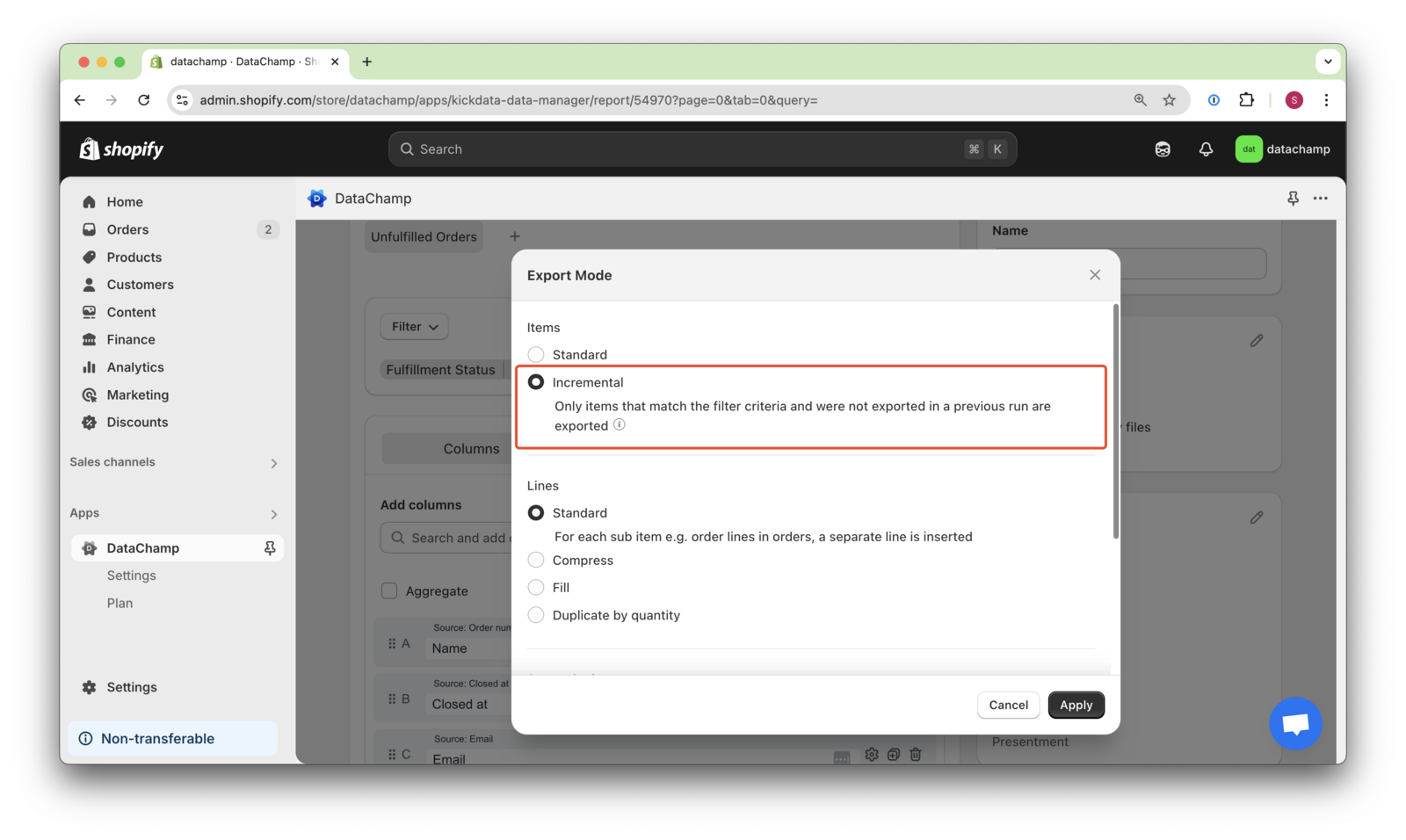
- Set Export Mode to "Incremental"
- In the Report Settings, change "Export Mode" to "Incremental".
- This ensures that only new orders (those not previously exported) are included.
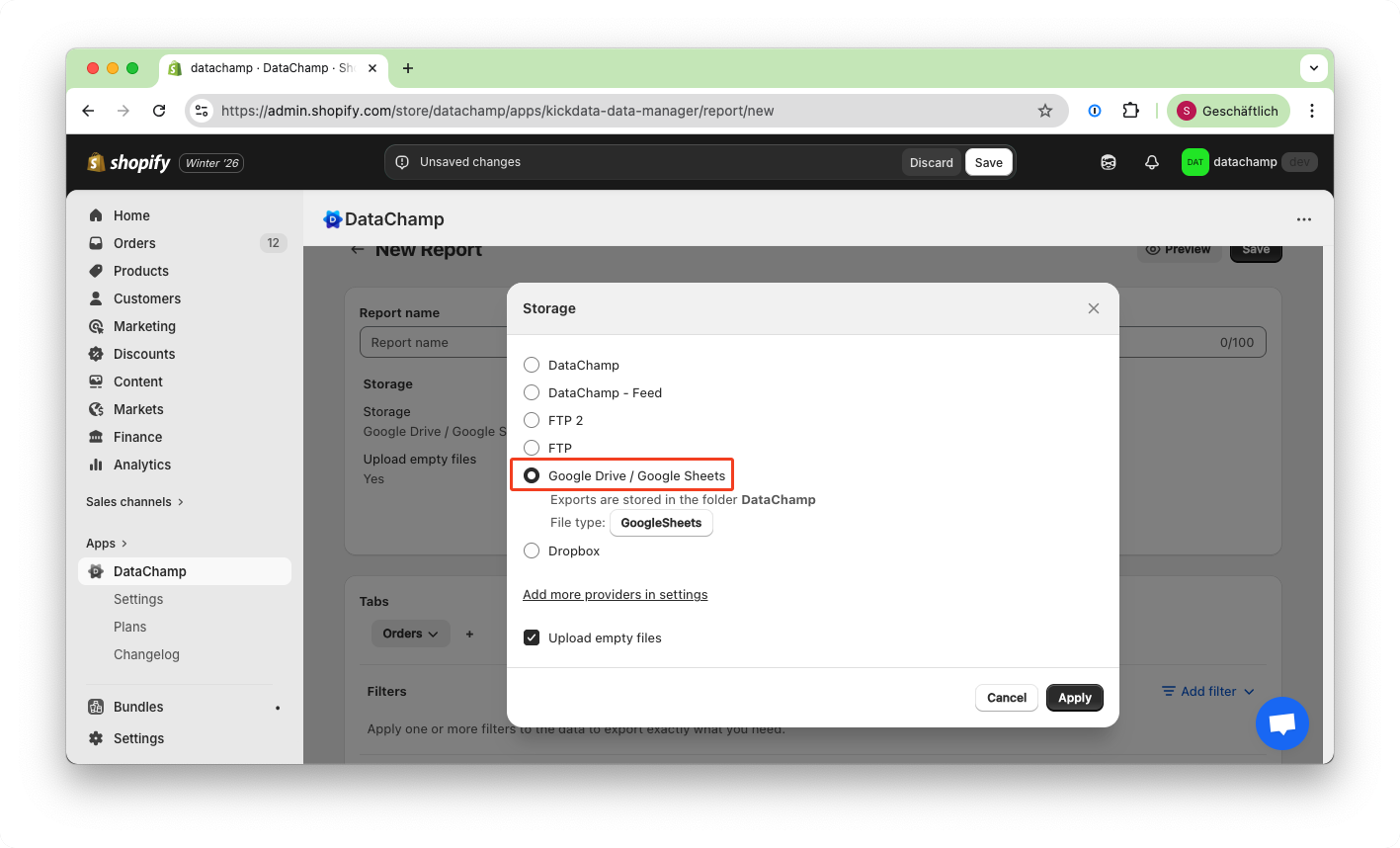
- Change the storage to "Google Drive / Google Sheets"
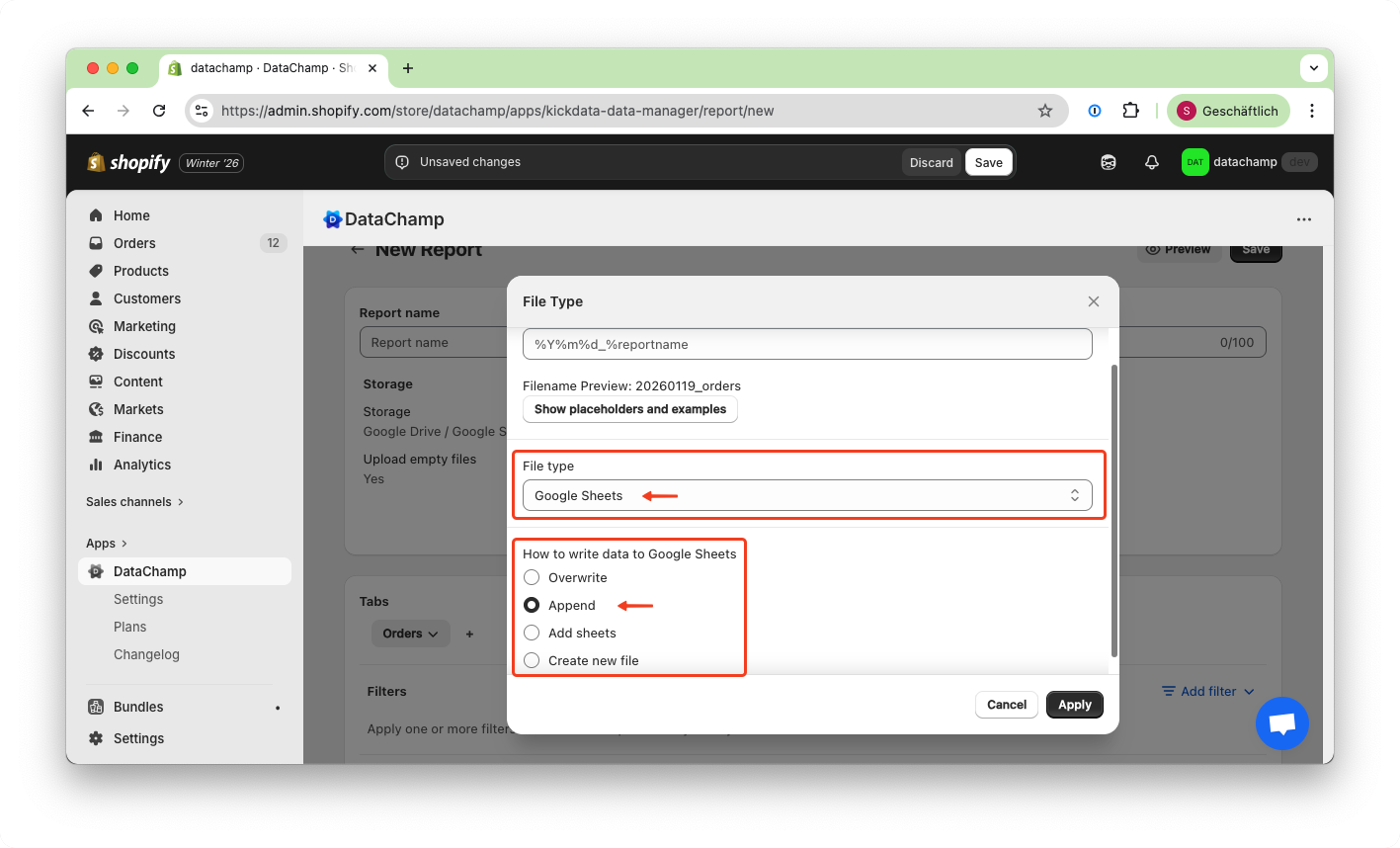
- Change File Type and Append Data
- Set "File Type" to "Google Sheets".
- Select "Append" as the export method => this prevents overwriting existing data and instead adds new rows.
- Save and run your report
- Click on "Preview" and check your report.
- Then save and run your report.
- DataChamp will now only append new rows while keeping existing rows unchanged, allowing you to update them freely.
Import:
- You must add the custom columns in DataChamp for them to be recognized and retained.
- If they are not added in DataChamp, they may be overwritten when new data is appended.