Additional Line from Column Value
Updated on
In this tutorial, we'll show you how to add extra rows using any data field:
For example, if you want the "SKU" to appear as an additional line before each order line, follow these steps:
- Create a new report
- Click on the "New Report" button and select "Orders".
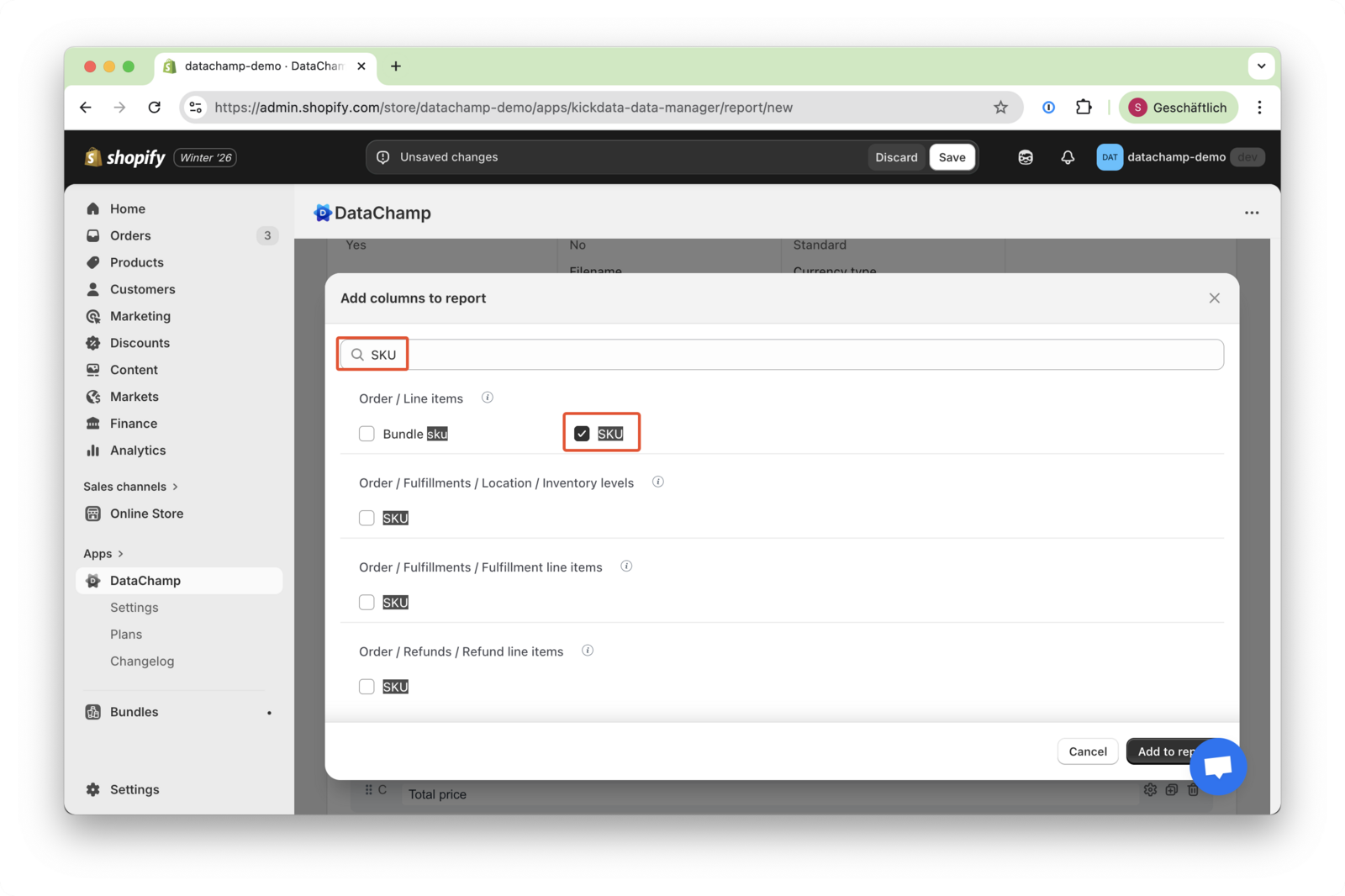
- Choose the necessary columns
- Don’t forget to select "Line Item: SKU".
- Add an additional column
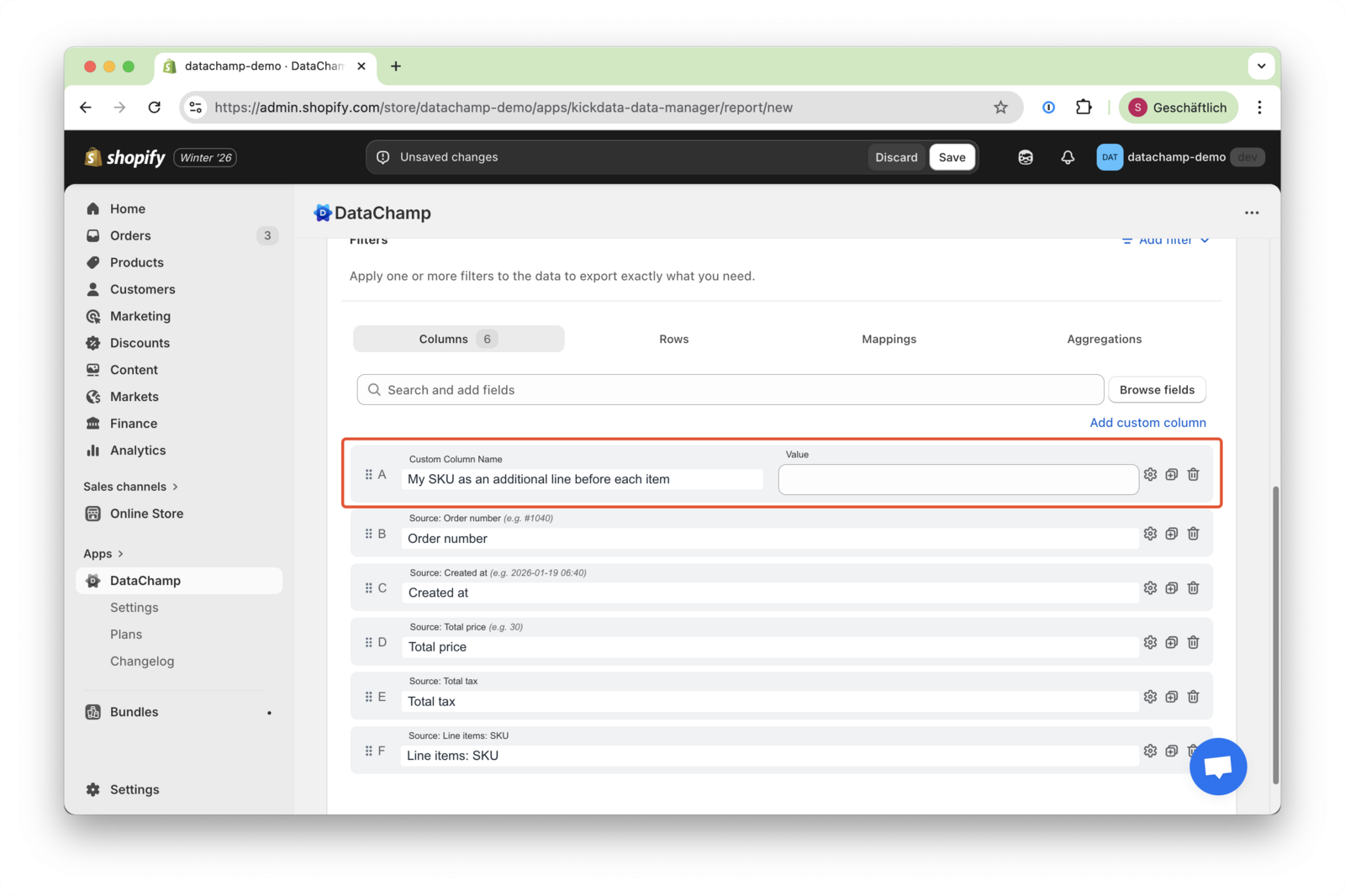
- Set up the custom column by entering a Column Name (e.g., "My SKU as an additional line before each item").
- Leave the Value field empty.
- Drag this column to the first position.
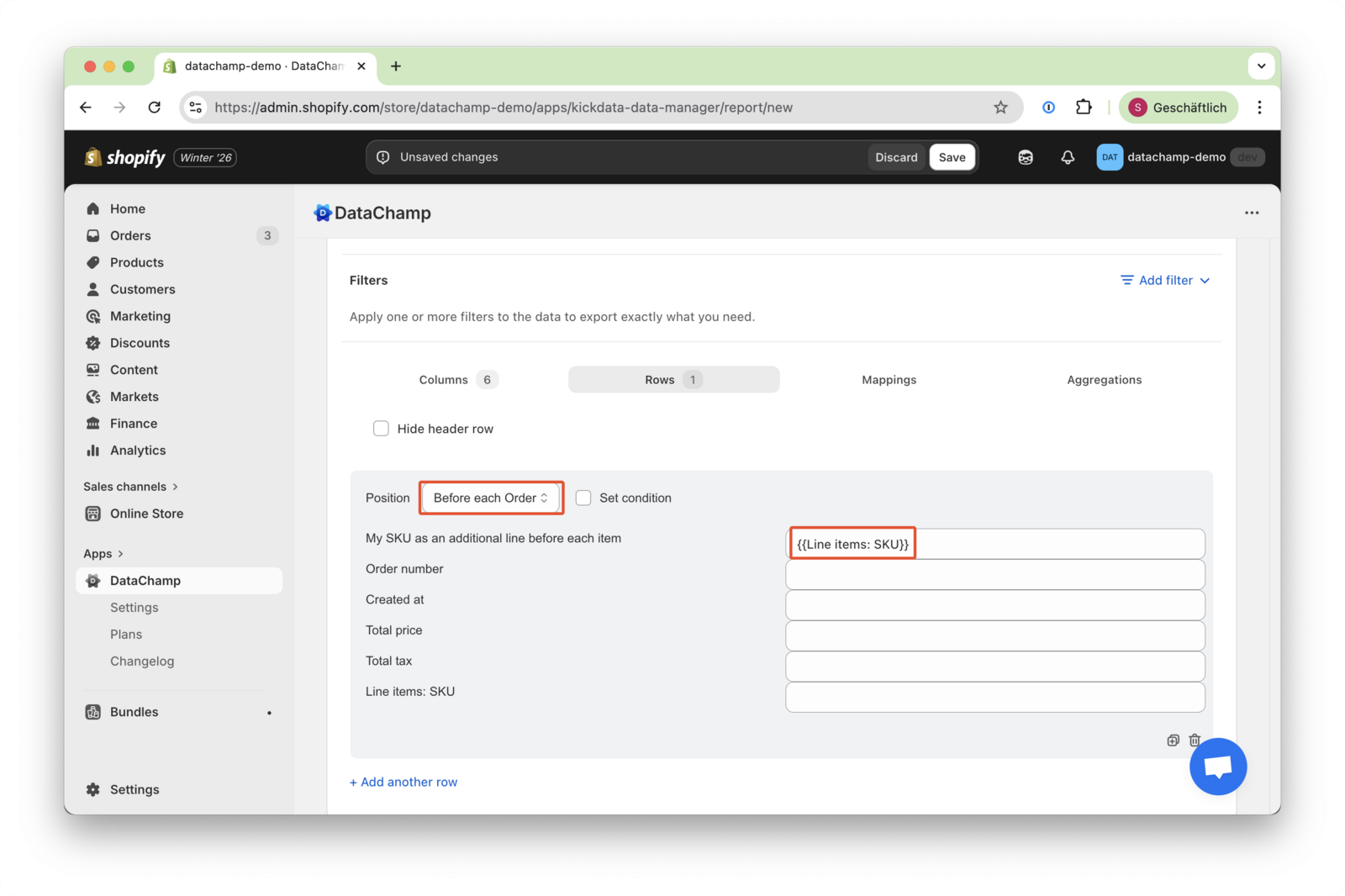
- Go to the rows tab.
- Add a row "before each order" and set the value of "{{ Line Item: SKU }}" to your additional row.
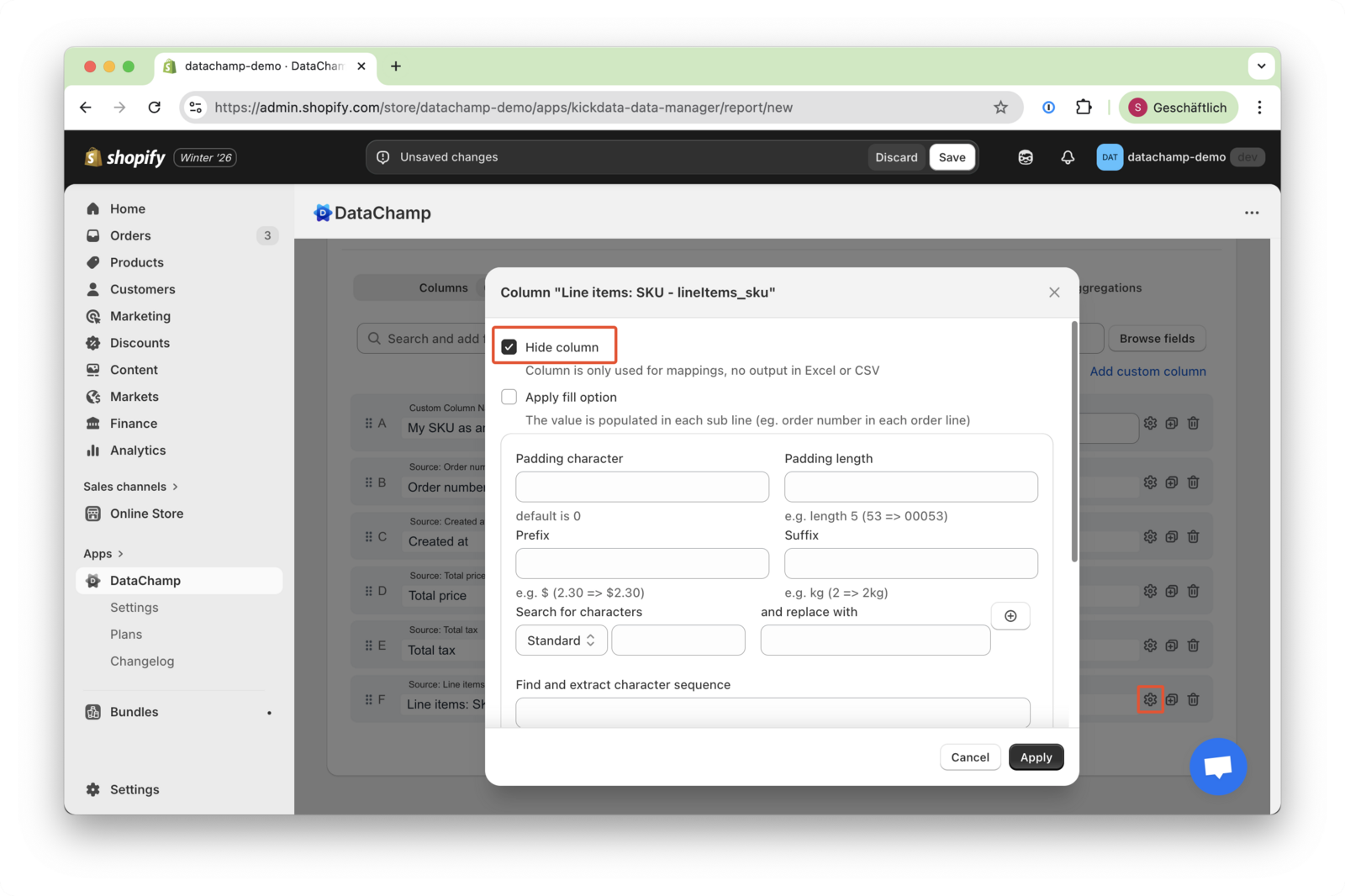
- Hide column (optional)
- If you no longer require the SKU column, you can hide it.
- To do this, open the Columns settings by clicking the settings icon and select “Hide columns.”