Export a Seperate File per Item
Updated on
Sometimes, there's a need to export a separate file for each item, either for integrating with another system or just for organizational purposes. DataChamp provides a solution for this specific requirement. In this tutorial, we'll guide you through the process of configuring a report with these settings.
This feature isn't included in DataChamp by default. Reach out to our Support team at hello@datachamp.io, and we'll enable it for your shop.
Take a look at our YouTube video on Export Options, where we explain how to export a separate file for each item, export as Excel, CSV, or TXT, and adjust encoding options:
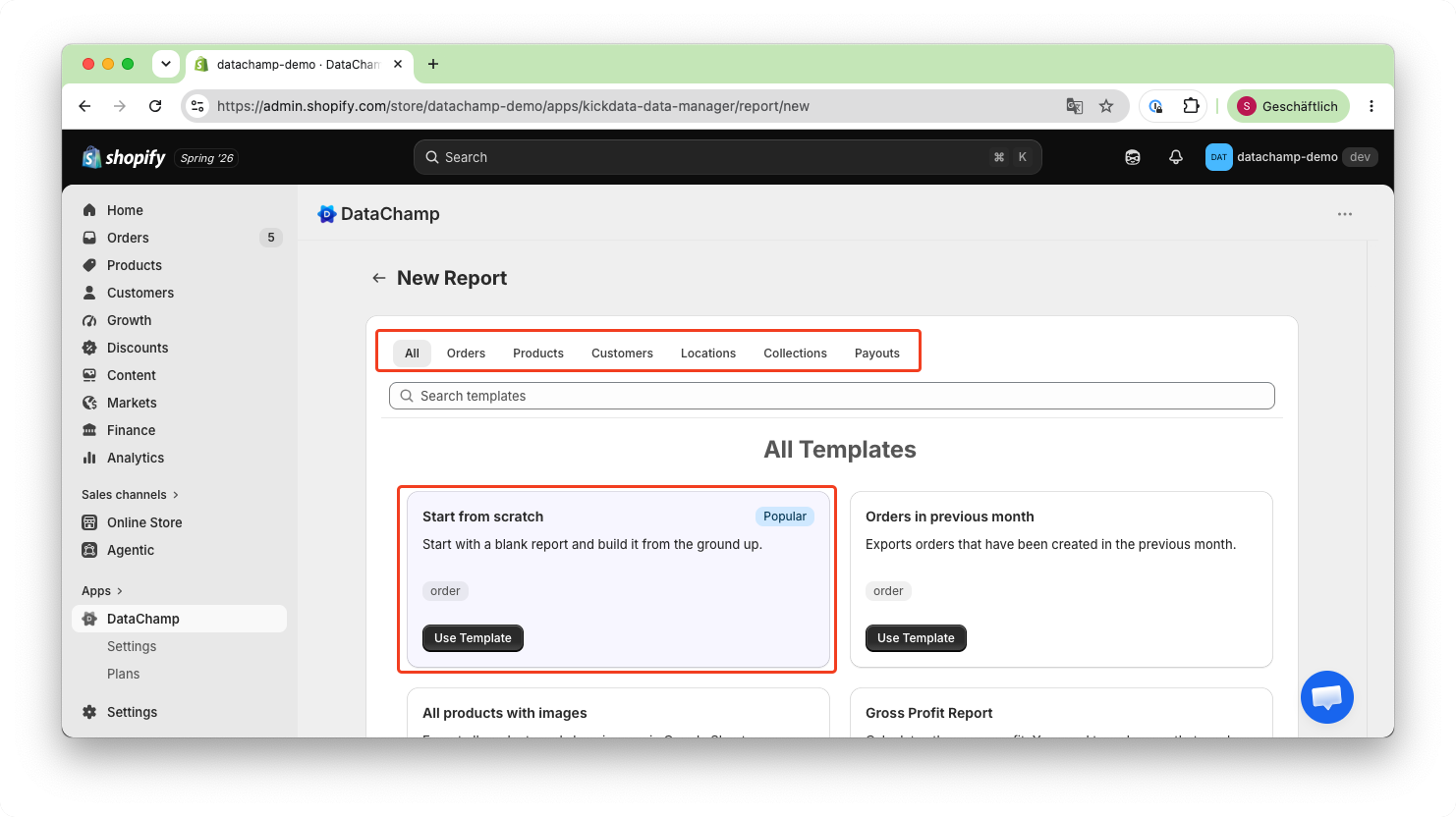
- Create a new report and Select the desired category
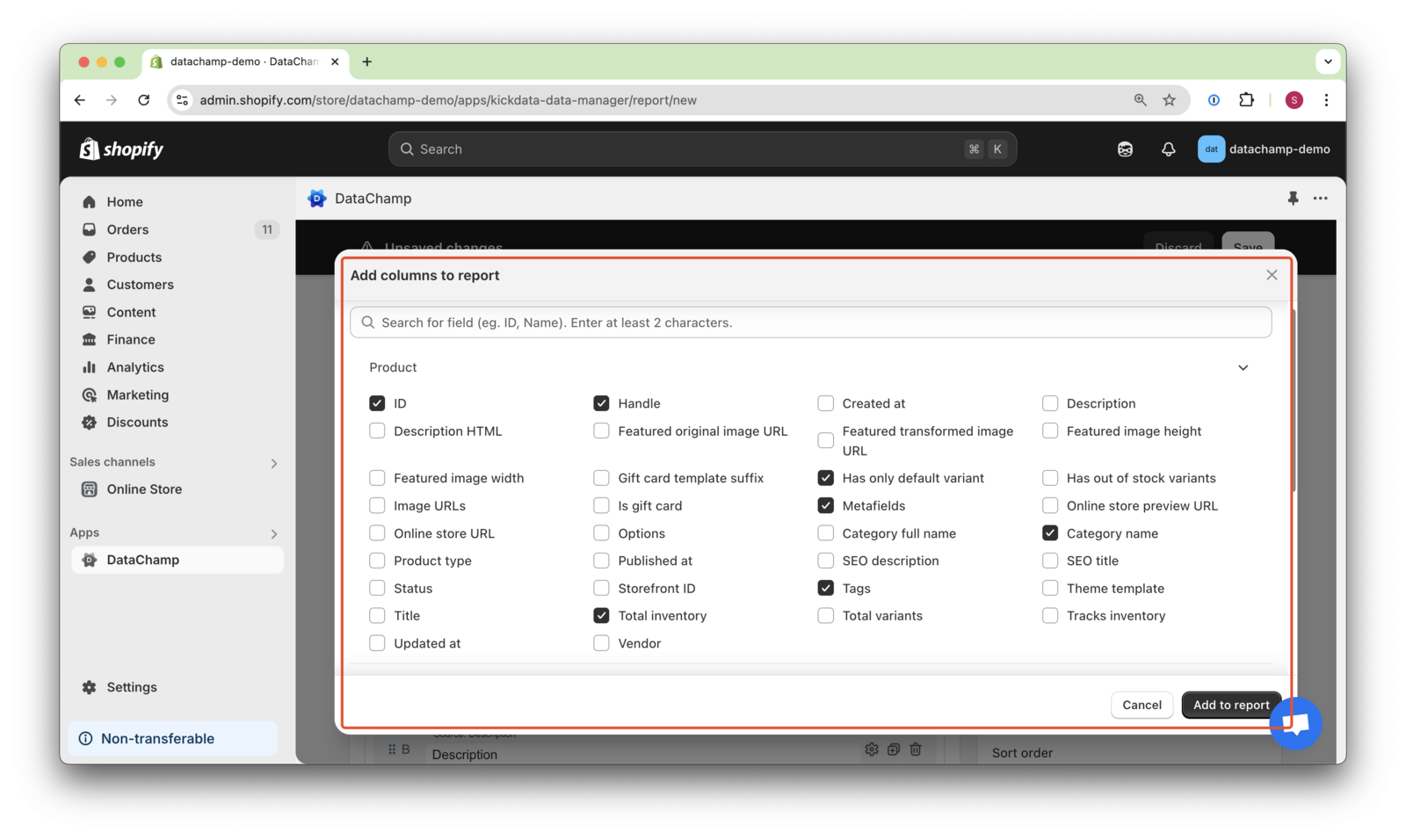
- Add columns
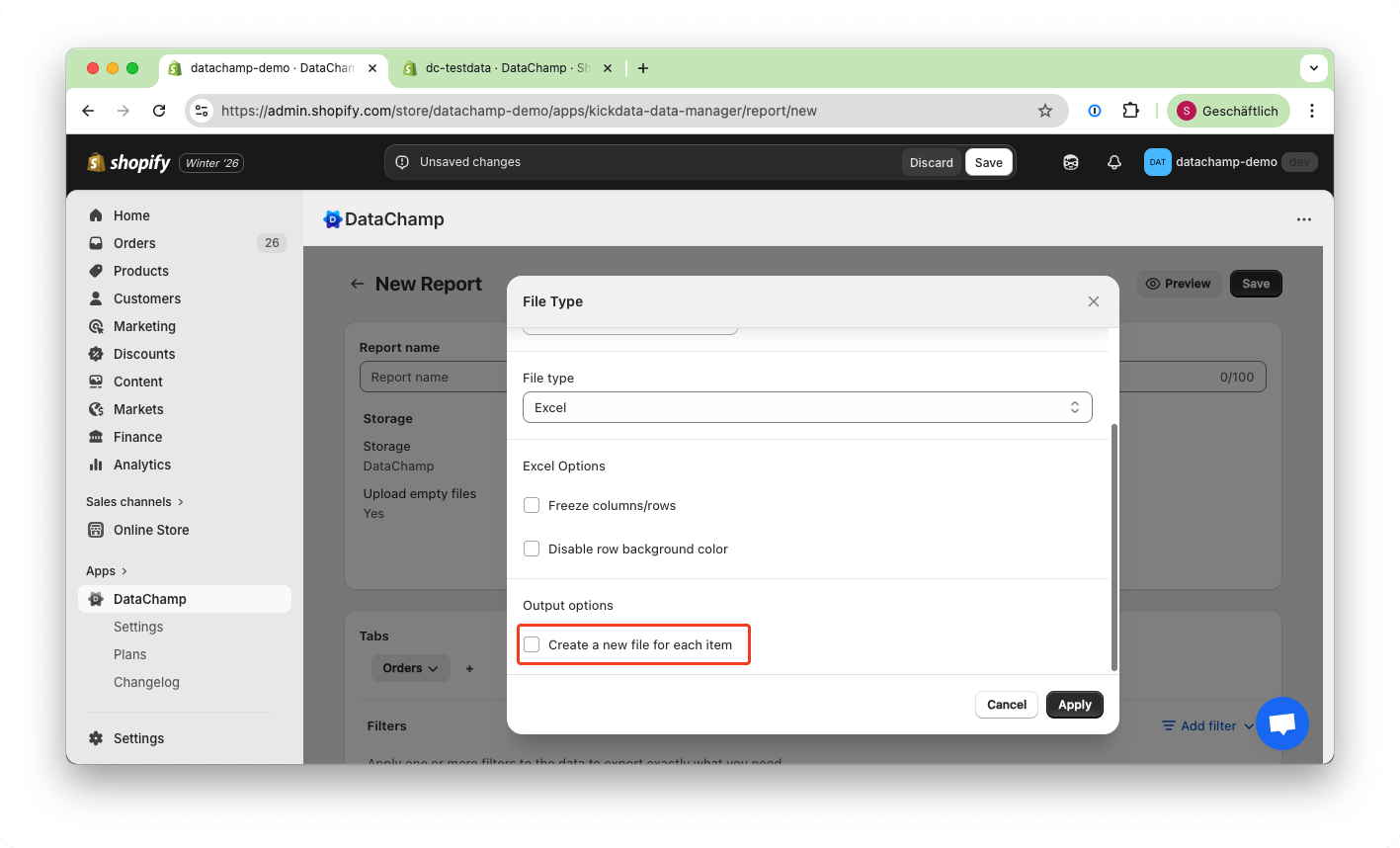
- Enable "New file for each item".
This option is available on request. To activate it for your exports, please contact us:
💬 Chat with us via our website
📧 Email us at hello@datachamp.io
When reaching out, please provide your shop name, and we’ll take care of the rest!
- Set up the Storage
- Choose your preferred storage option from the available choices.
- Set up E-Mail notifications
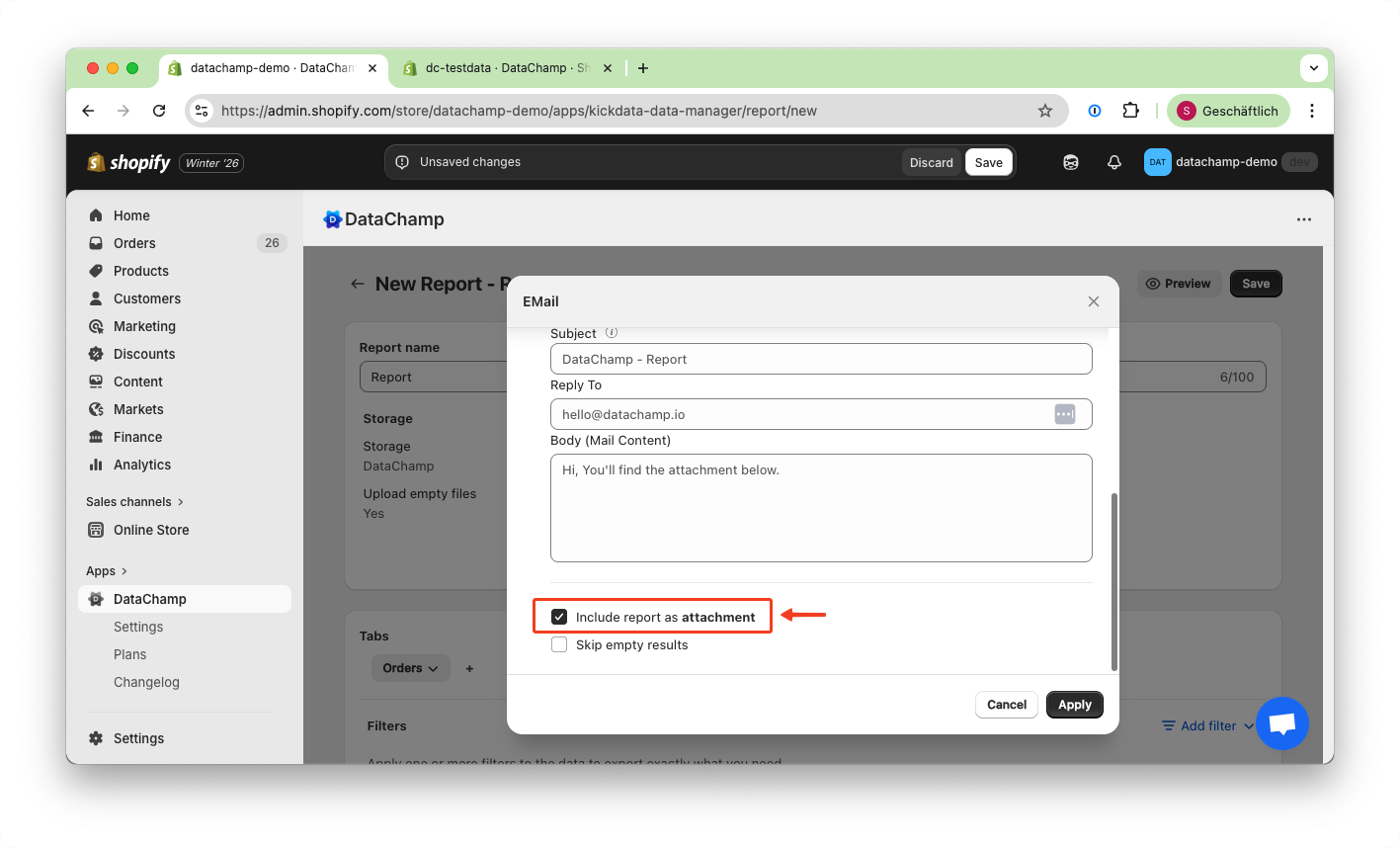
- If necessary, configure email notifications to receive the exported files. Enable the "Include report as attachment" setting in the Settings.
- Preview the Result
- Click on the "Preview Button" to check to result of the report.
- Save & Run the Report
- Click "Save" and " Run" in the upper right corner.