Incremental Exports Feature
Updated on
DataChamp offers incremental exports, allowing you to export only new data since the last report run. This feature simplifies data management and ensures that you don’t duplicate previously exported records.
Steps to Set Up an Incremental Export
- Configure Your Report
- Select the data fields you need ( e.g., order number, fulfillment status).
- Apply Filters
- Set the date filter: Select orders updated "since the last 2 days."
- Filter by fulfillment status and choose "Fulfilled."
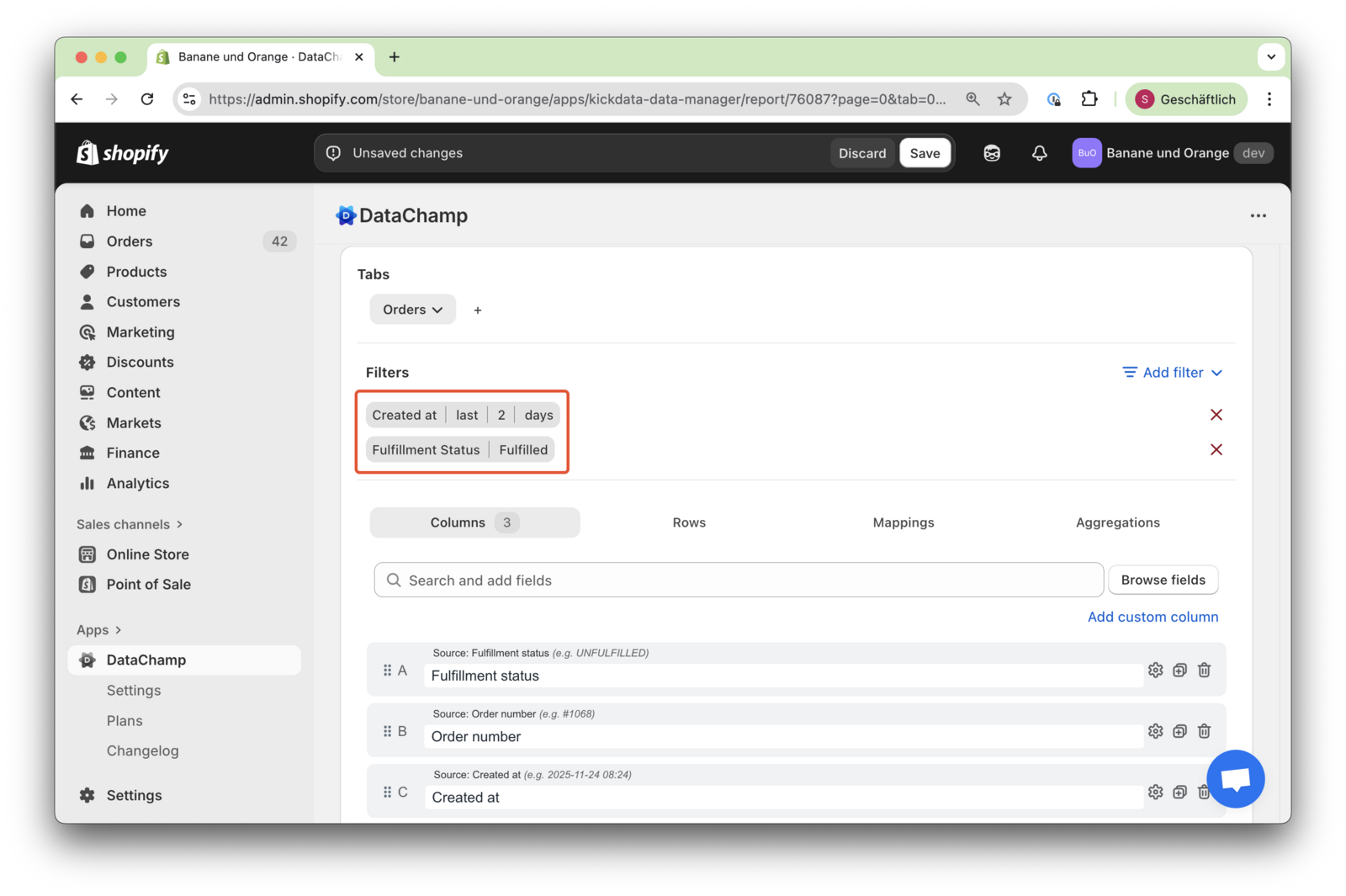
- Enable Incremental Export Mode
- Switch the Export Mode to "Incremental."
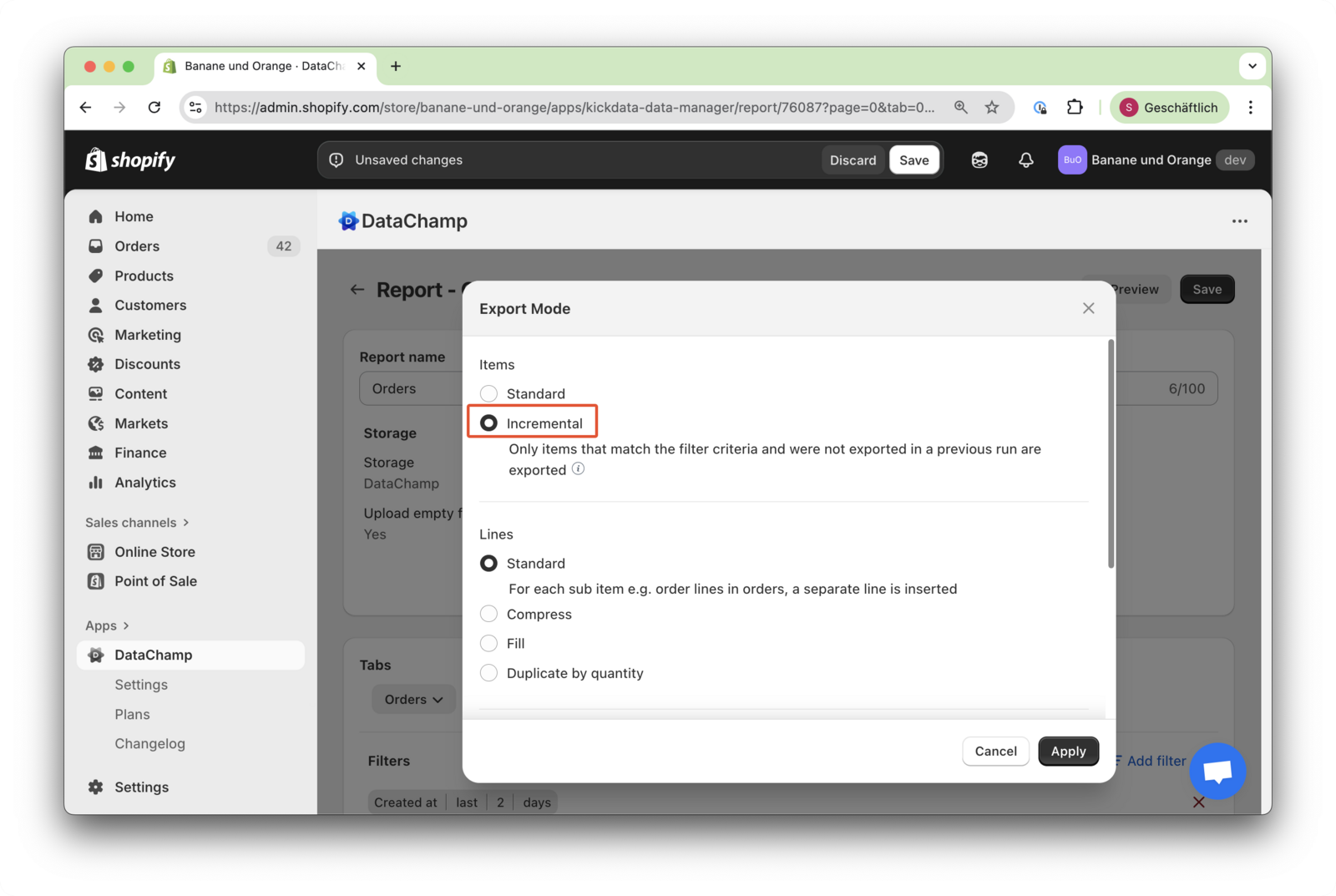
- Preview, Safe and Schedule the Report
- Click on the "Preview Button" to check to result of the report.
- Save your report.
- In the report overview, find "Set Scheduler" and set it to "Daily."
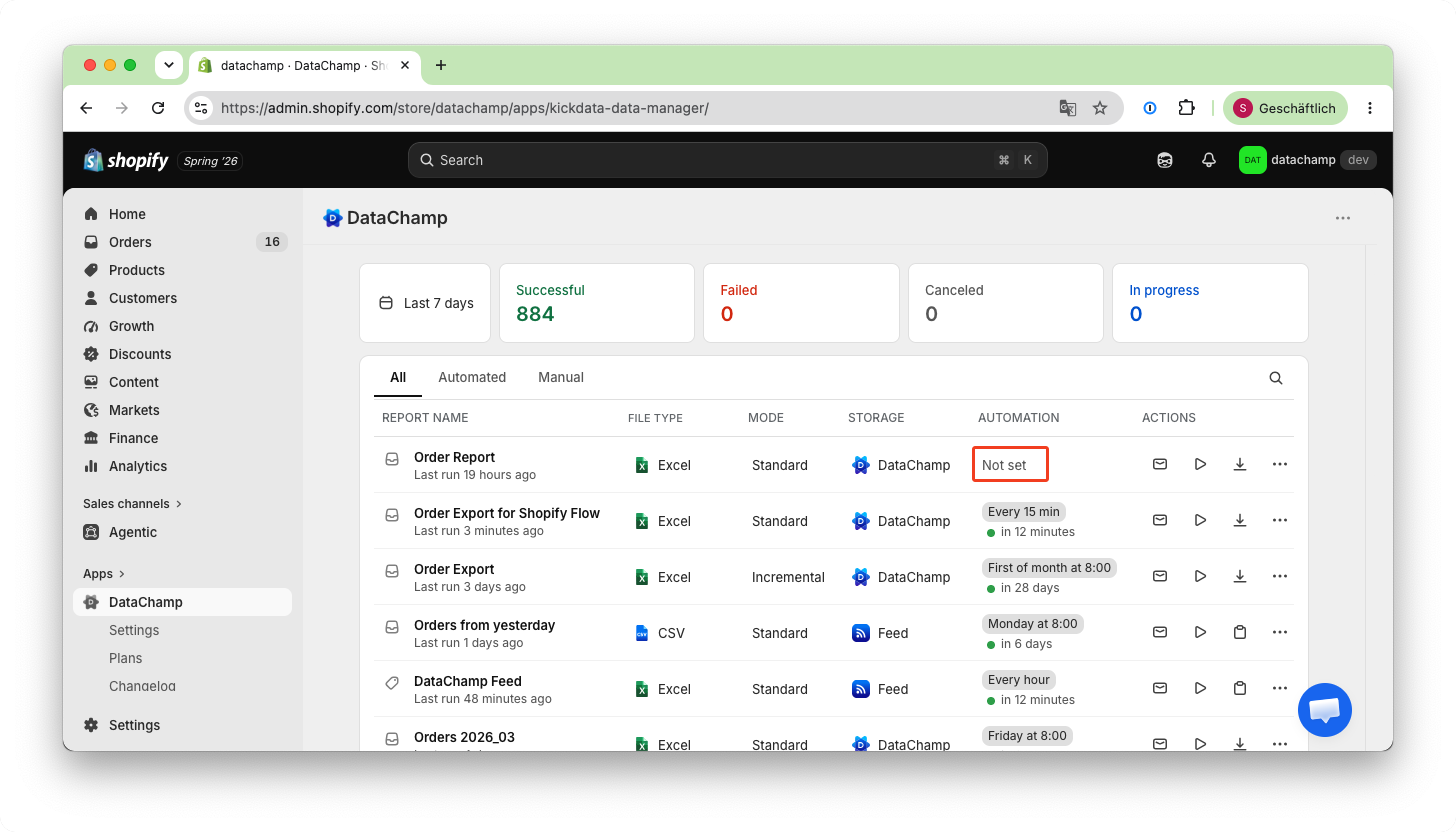
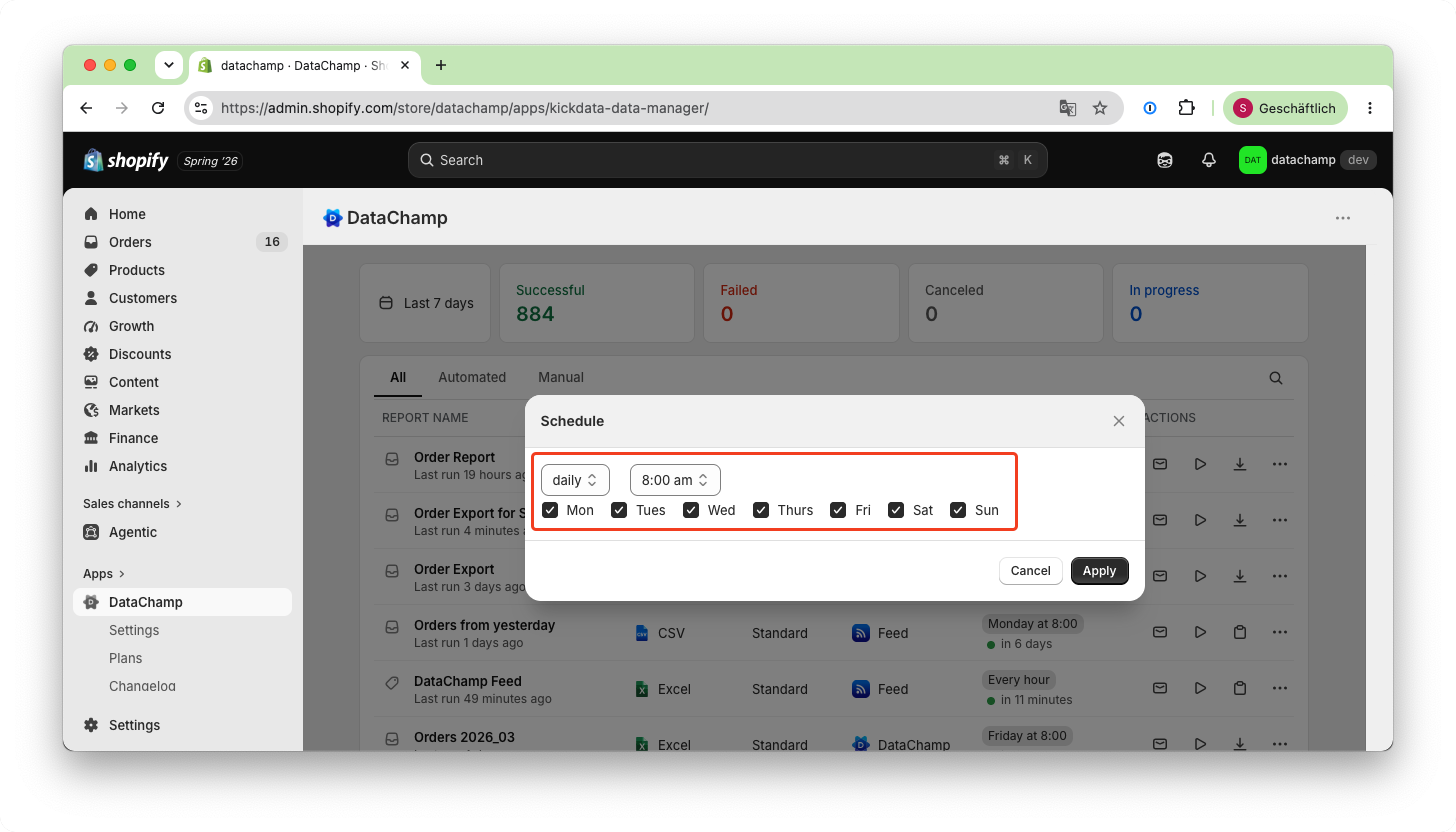
Use the DataChamp template called "Fulfilled Orders (Incremental)" and configure a daily schedule based on these steps.
Testing the Incremental Export
To verify that incremental exports work correctly, we can run a test:
- Manually trigger the export at different times, for example:
- 09:16 AM
- 09:17 AM
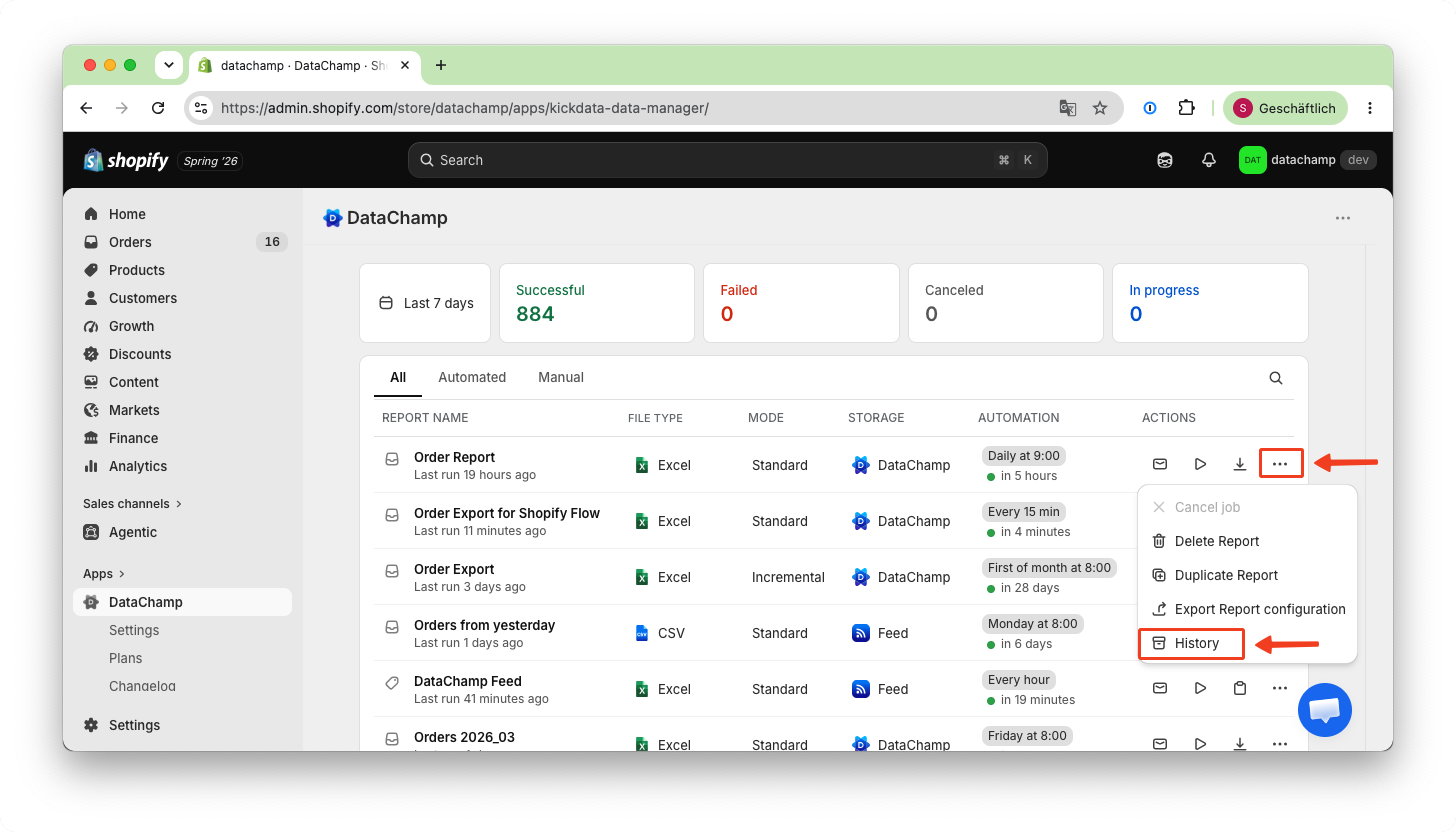
- Open the Export History
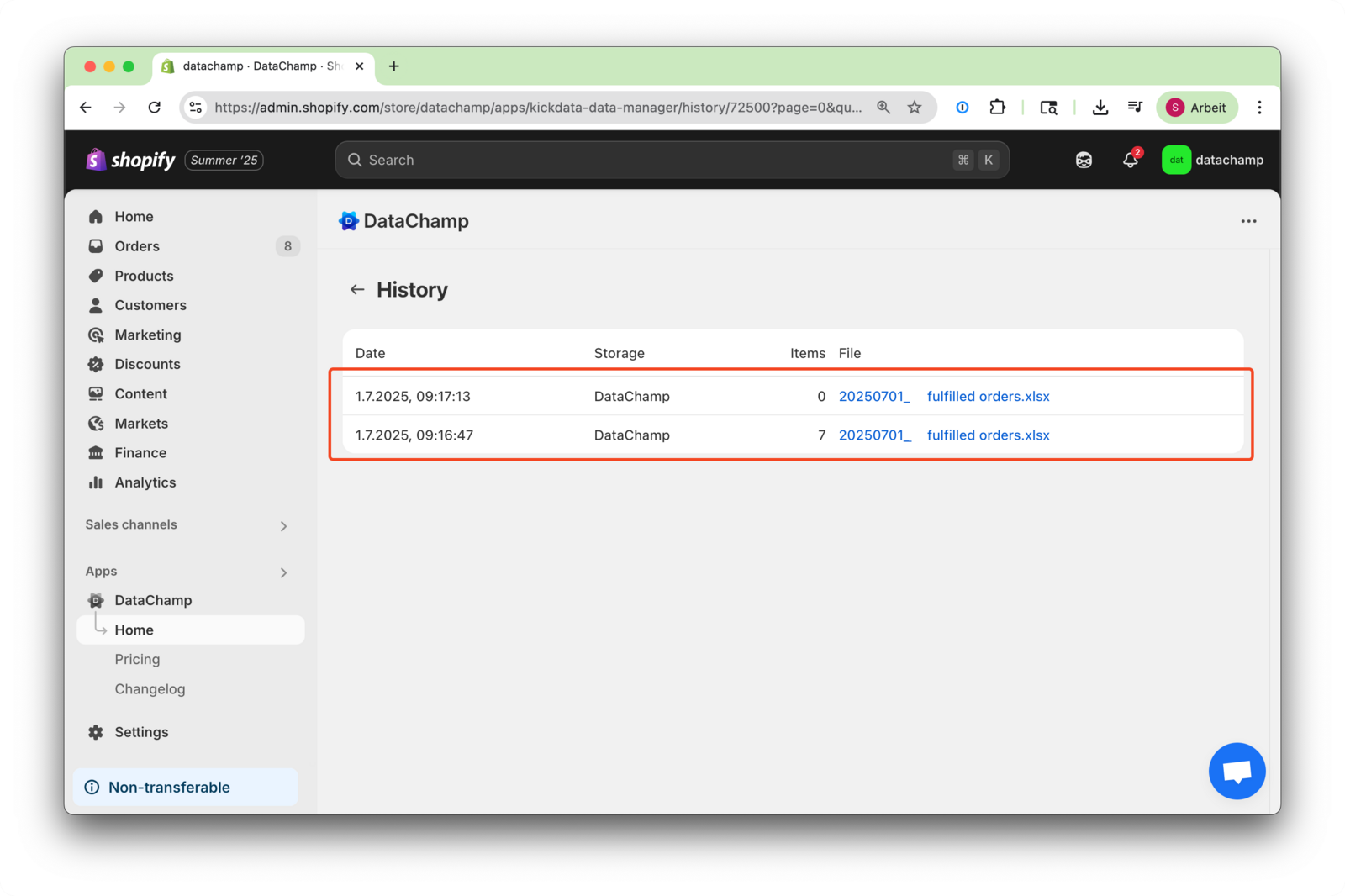
- As shown in the screenshot below, the first export at 09:16 AM contains 7 items, while the second one at 09:17 AM contains none:
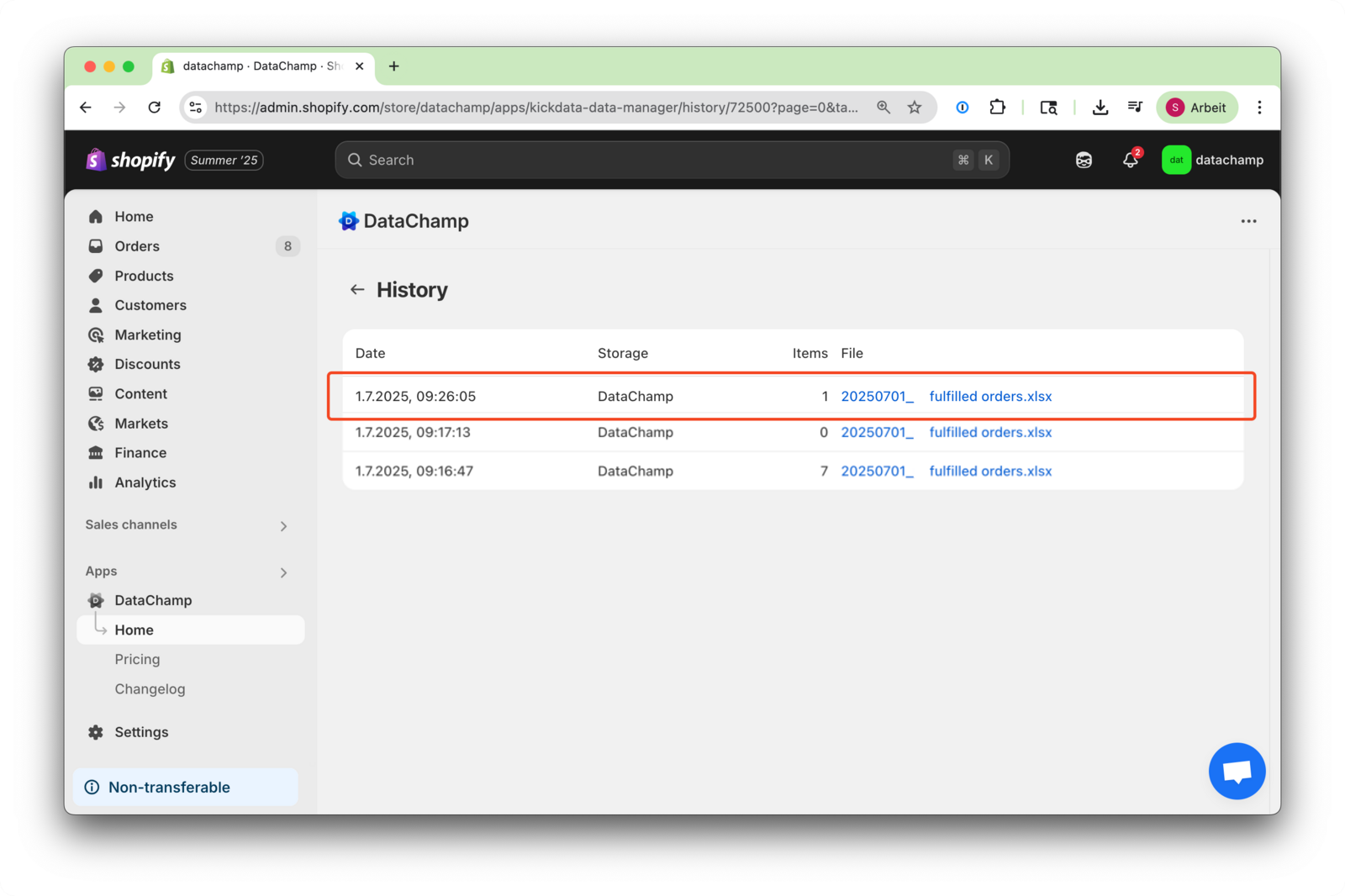
- With a new order in the system, the export will capture just that one fulfilled order:
Also, take a look at: Incremental Exports