Rows
Updated on
Customize the header row
"Hide header Row" 1: No header row will be in the output file (Excel, CSV)
Add additional rows
2:
- after header row
- as first row
- as last row
- before each new item
- after each new item
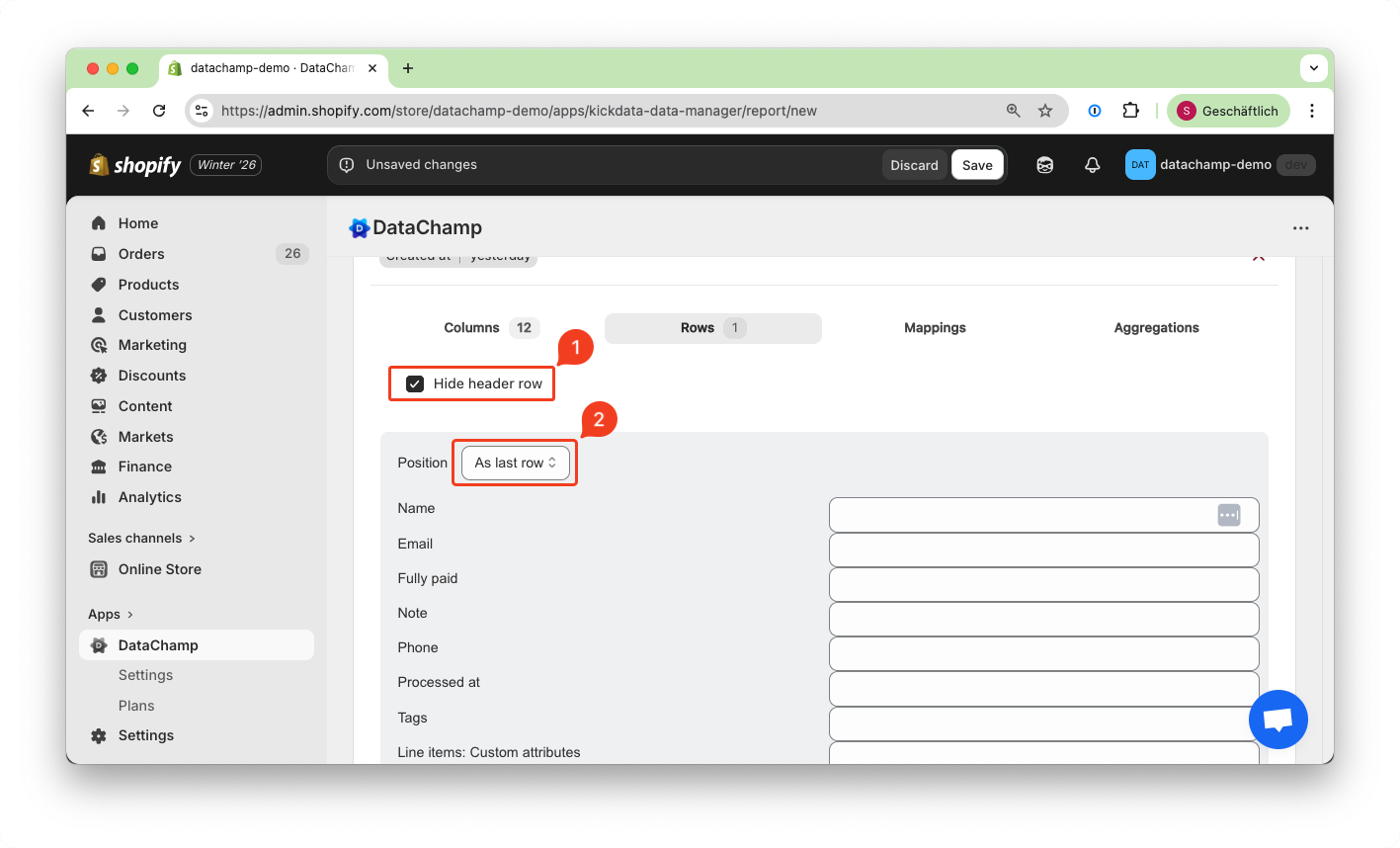
If you use the position "before each new item" or "after each new item", you can access the values from other columns in the row, do calculations or apply advanced search and replace functions.
For more details, please refer to: Set the Value of a Column
Use Excel formulas to calculate sum, average, ...
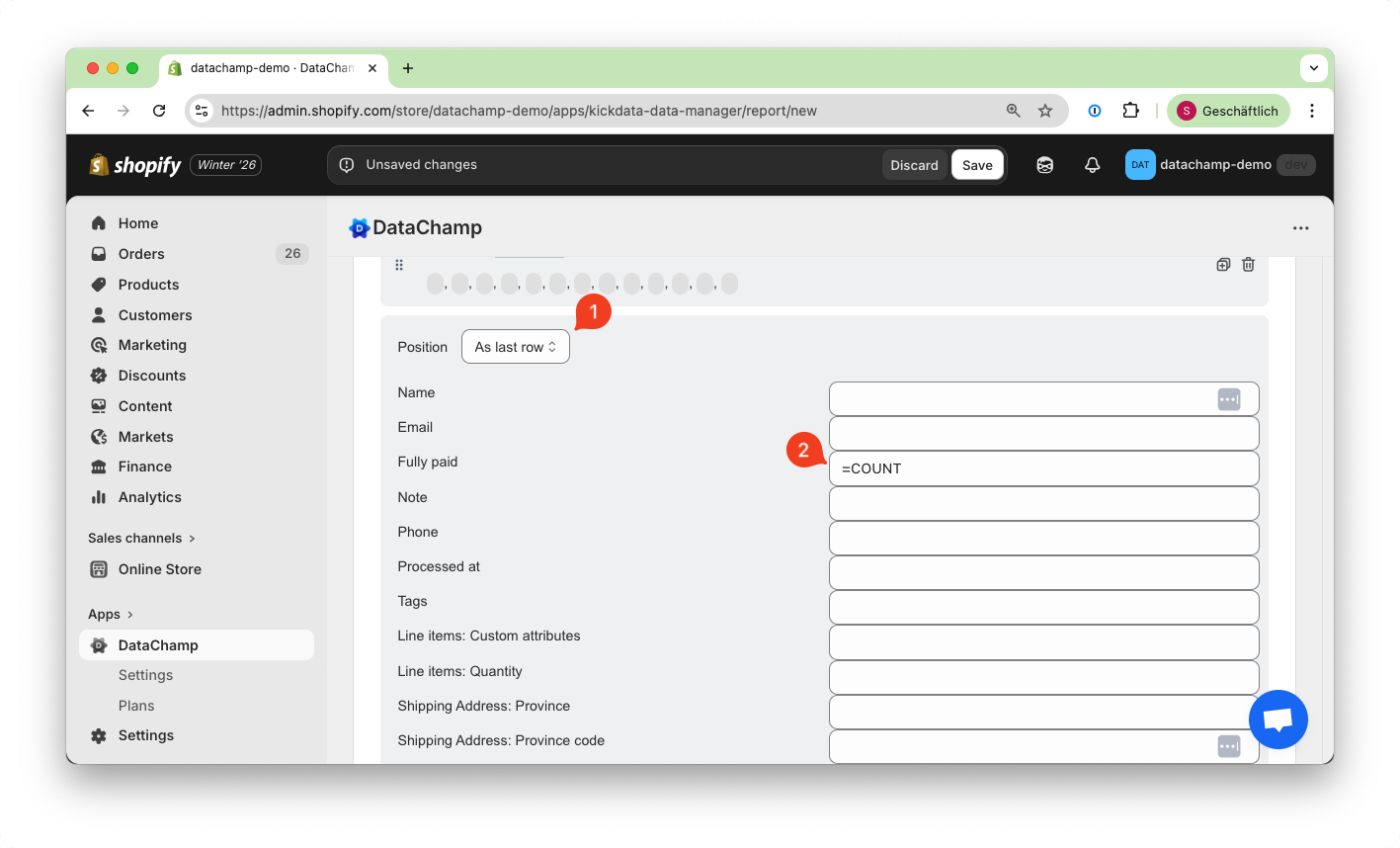
This will work only for rows "as last row" 1.
You can use any Excel formula to calculate values based on the column above, such as "SUM" or "AVERAGE". Just like in Excel, start your input with an "=" sign, for example: =SUM, =AVERAGE, or =COUNT 2.
You can add as many "as last row" entries as you want, as shown in this example: