Product Feed
Updated on
Provide a Product Feed
In this tutorial, we’ll show you how to easily create a product feed:
A product feed is primarily used to send or synchronize product data with external platforms or merchants, ensuring that prices and product information are always up to date. DataChamp will generate a download link containing the latest products from your Shopify store.
Example Feed URL: https://app.datachamp.io/feed/43b366e99157602d934027e0
Product feeds can be used by platforms such as idealo.de, billiger.de, and many more.
Steps to Create Your Own Product Feed:
- Create a New Report
- Select “Products” as the report type and choose the “Basic report” or one of our handy templates.
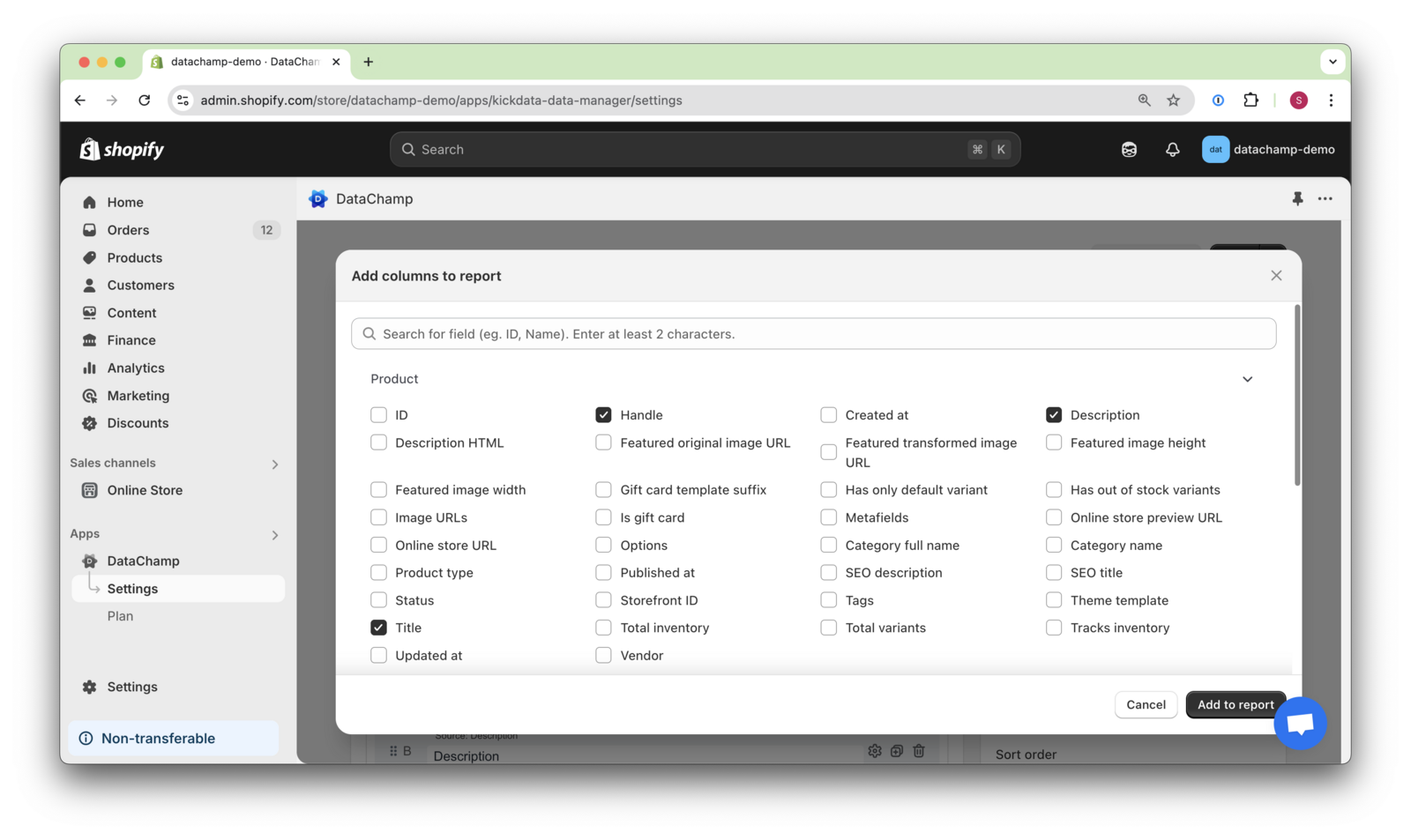
- Add Required Fields
- Choose all the fields you want to include in your feed (e.g., handle, description, price).
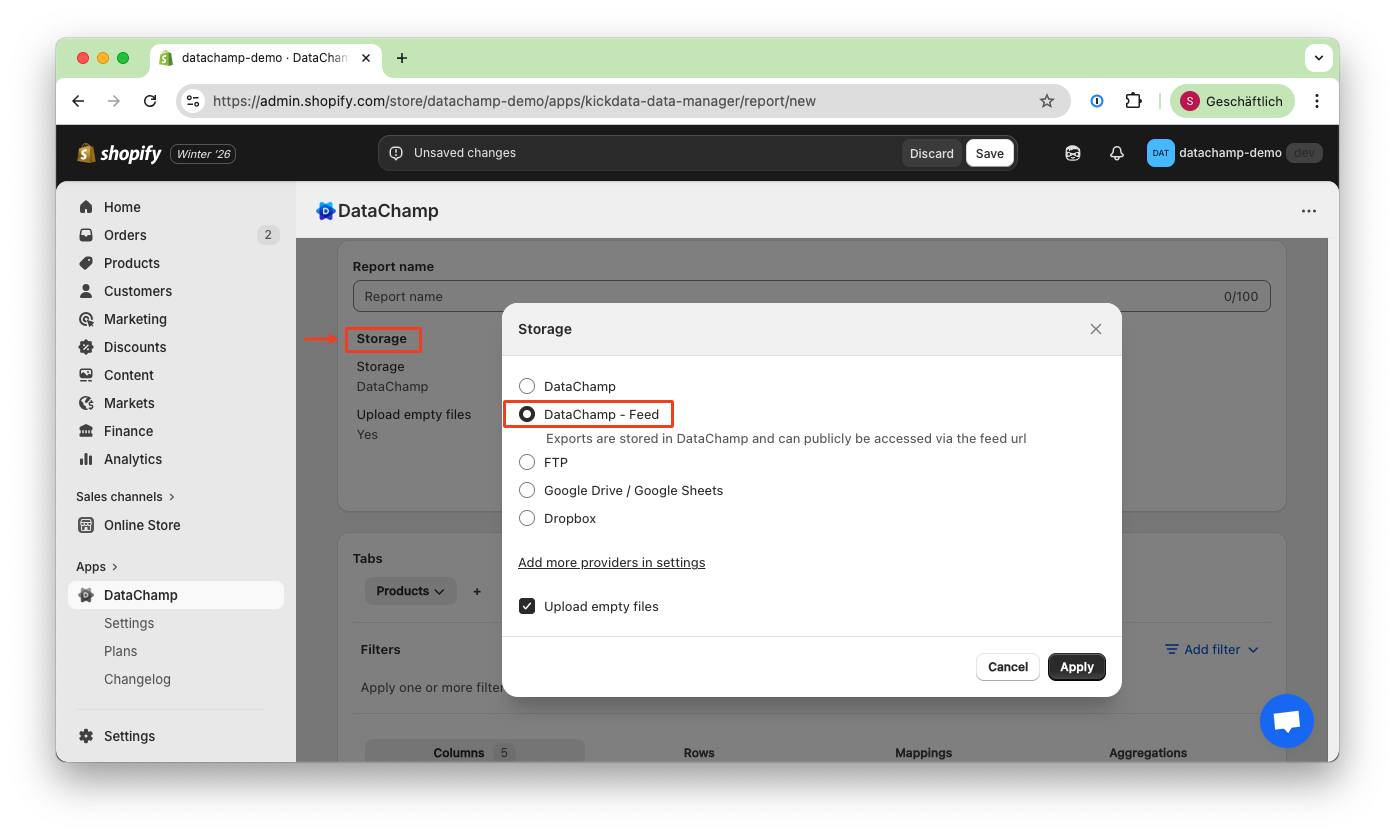
- Configure Storage Settings
- On the upper side, click Storage and select "DataChamp - Feed".
- Preview the Result
- Click on the "Preview Button" to check to result of the report.
- Save & Run the Report
- Give your report a name.
- Save your report and click on the "Run report" button.
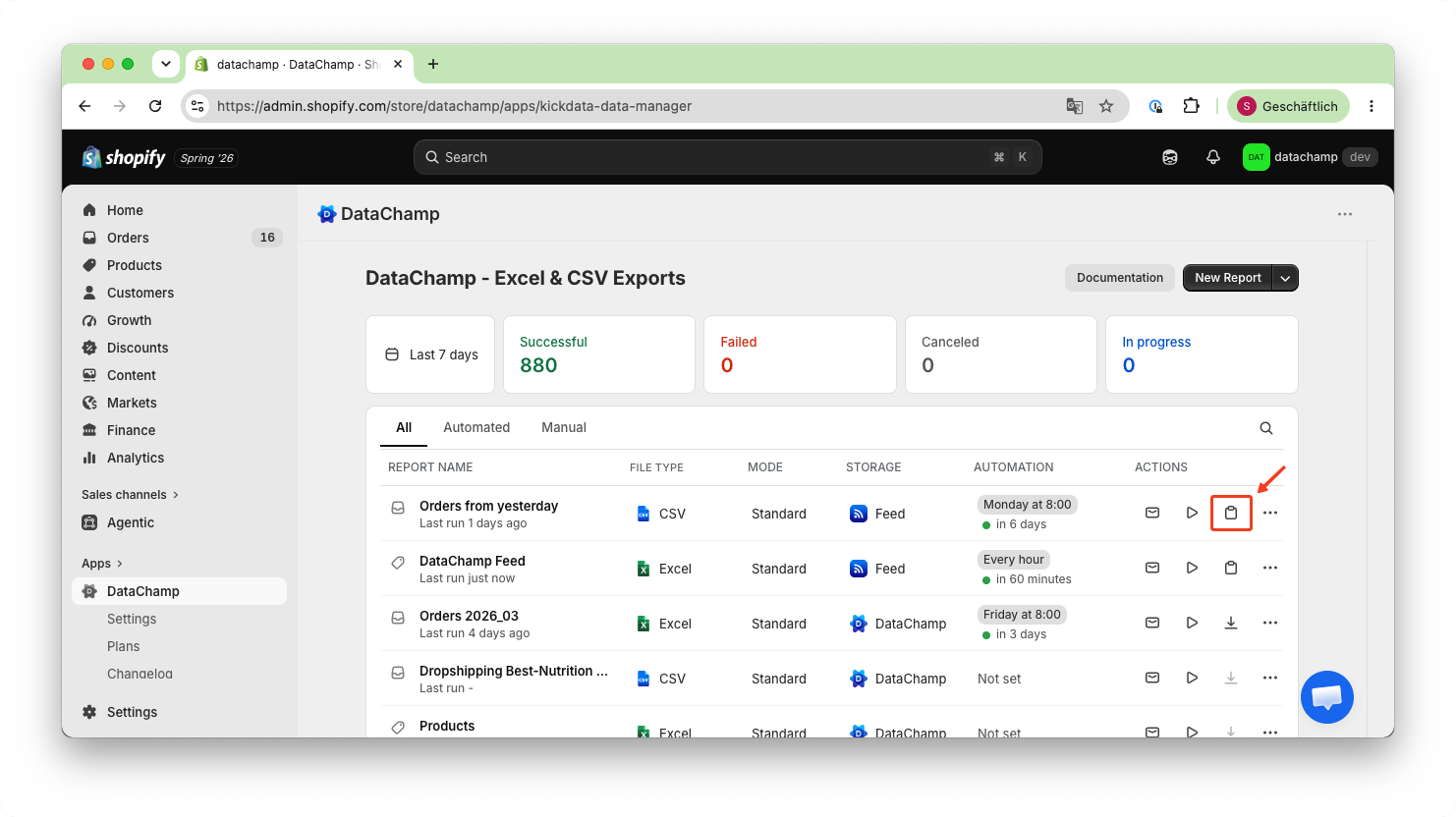
- Share the Feed URL
- Copy the generated feed URL to your clipboard.
- Test the output and provide the link to your partners.
- Set Up a Scheduler
- Click "Set Schedule" and choose an appropriate interval.
- A daily update is often a good choice, but check with your partner on how frequently they retrieve the feed.
If you do not set up a scheduler, the feed will not update automatically. New products, price changes, and inventory levels will remain unchanged until you manually run the report.