Set the Value of a Column
Updated on
Here you can find our YouTube tutorial:
The value of a column can be set in the Report Editor:
Access Selected Columns and Evaluate Mathematical Expressions
- Insert a column value
- Find the field you need (browse or search), e.g. Current total price
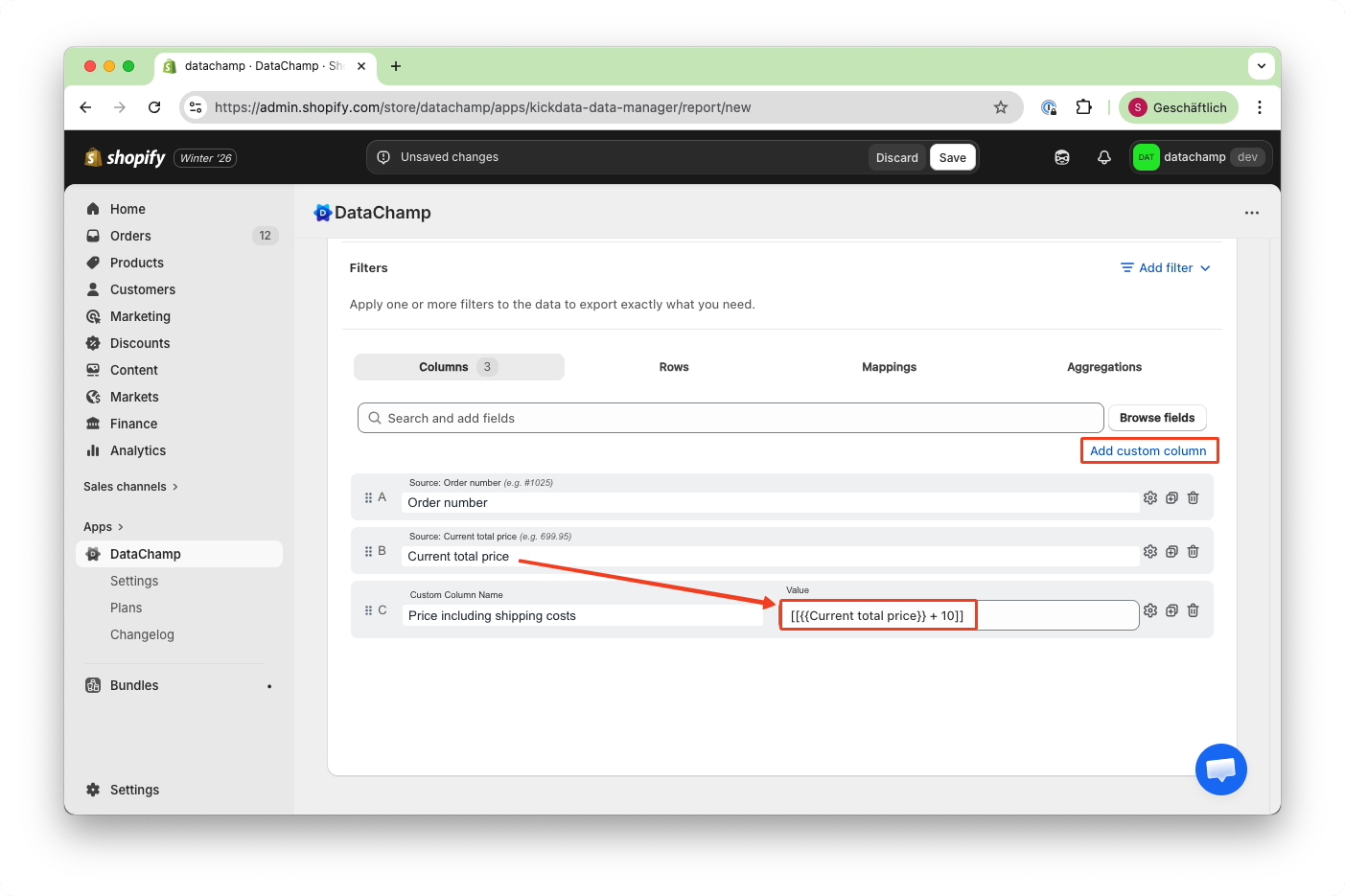
- In a custom column, reference it using double curly braces:
{{Current total price}}
The name must match the column name in the Layout tab exactly (spelling and spaces). Best practice: copy & paste the name.
- Apply a mathematical expression
You have the flexibility to use all functions listed on the math.js page. Simply enclose your expression within double square brackets [[ ]].
- Important notes
- Math expressions work only in mappings or custom fields with variables
- Syntax always follows this structure:
[[ formula with {{column names}} ]]
- Examples
[[ 1.2 * ( {{Line items: Weight of product variant}} + 4.5) ]]
[[ sin(45 deg) ^ {{Line items: Quantity}} ]]
[[ {{Line items: Total price}} - ({{Line items: Total discount}}/1.2) ]]
If you need more complex functions, take a look at the function library.
Use DataChamp Functions
Please check Date Format for more details.
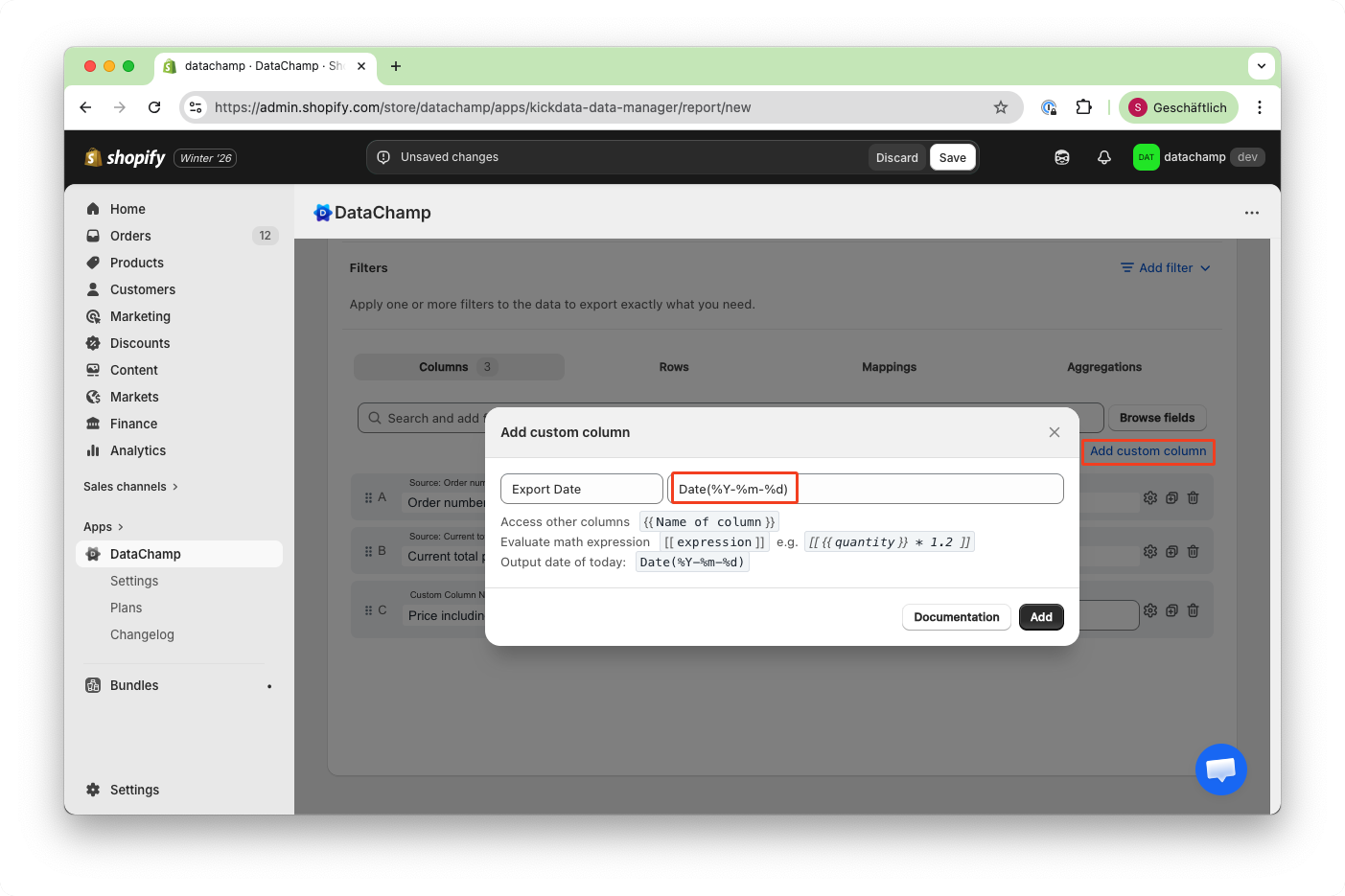
For example, you can use the function Date(%Y-%m-%d) to insert today's date into a custom column for every line in your export:
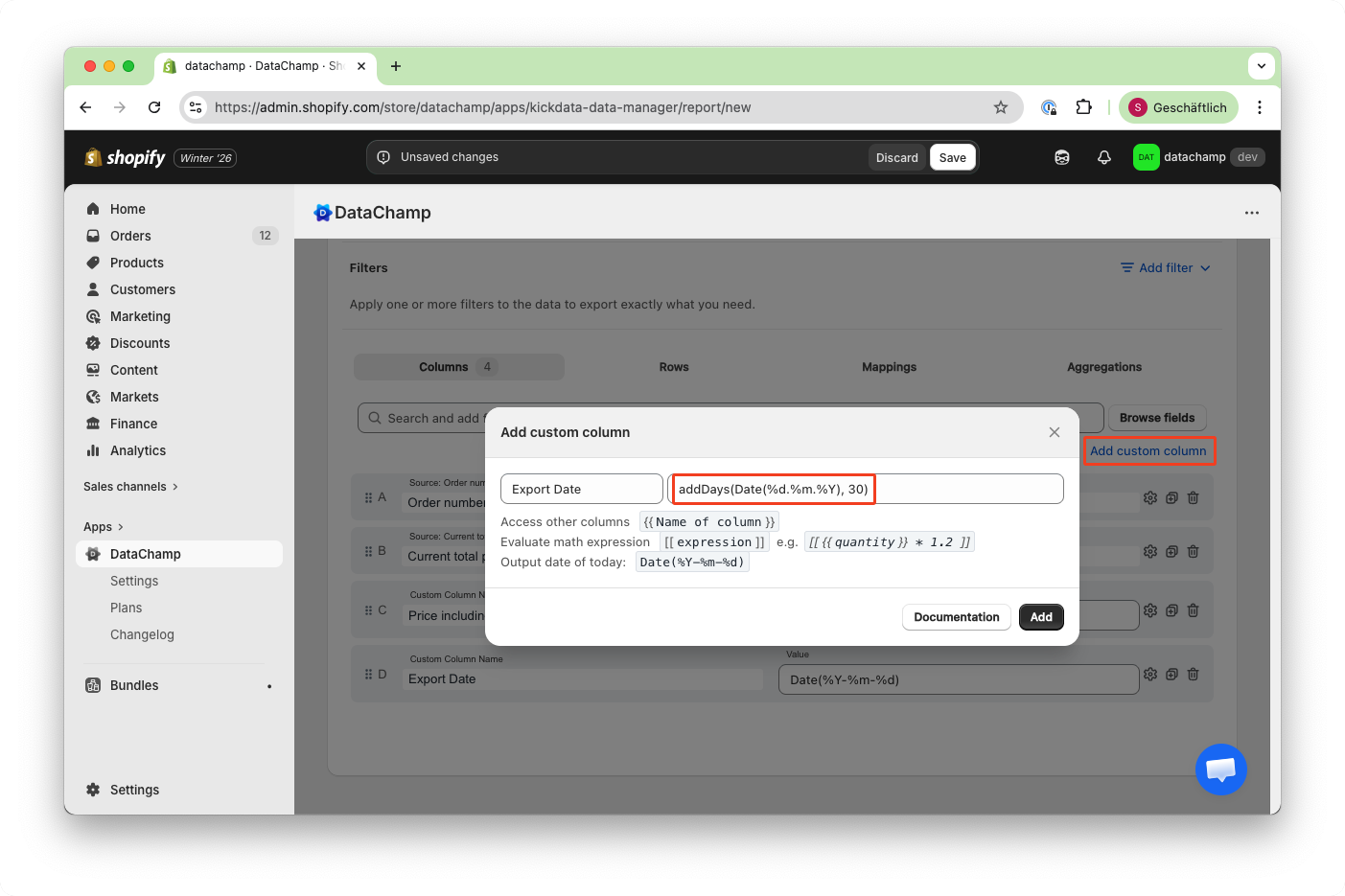
Add days: addDays(Date(%d.%m.%Y), 30). This function adds 30 days to the current date.