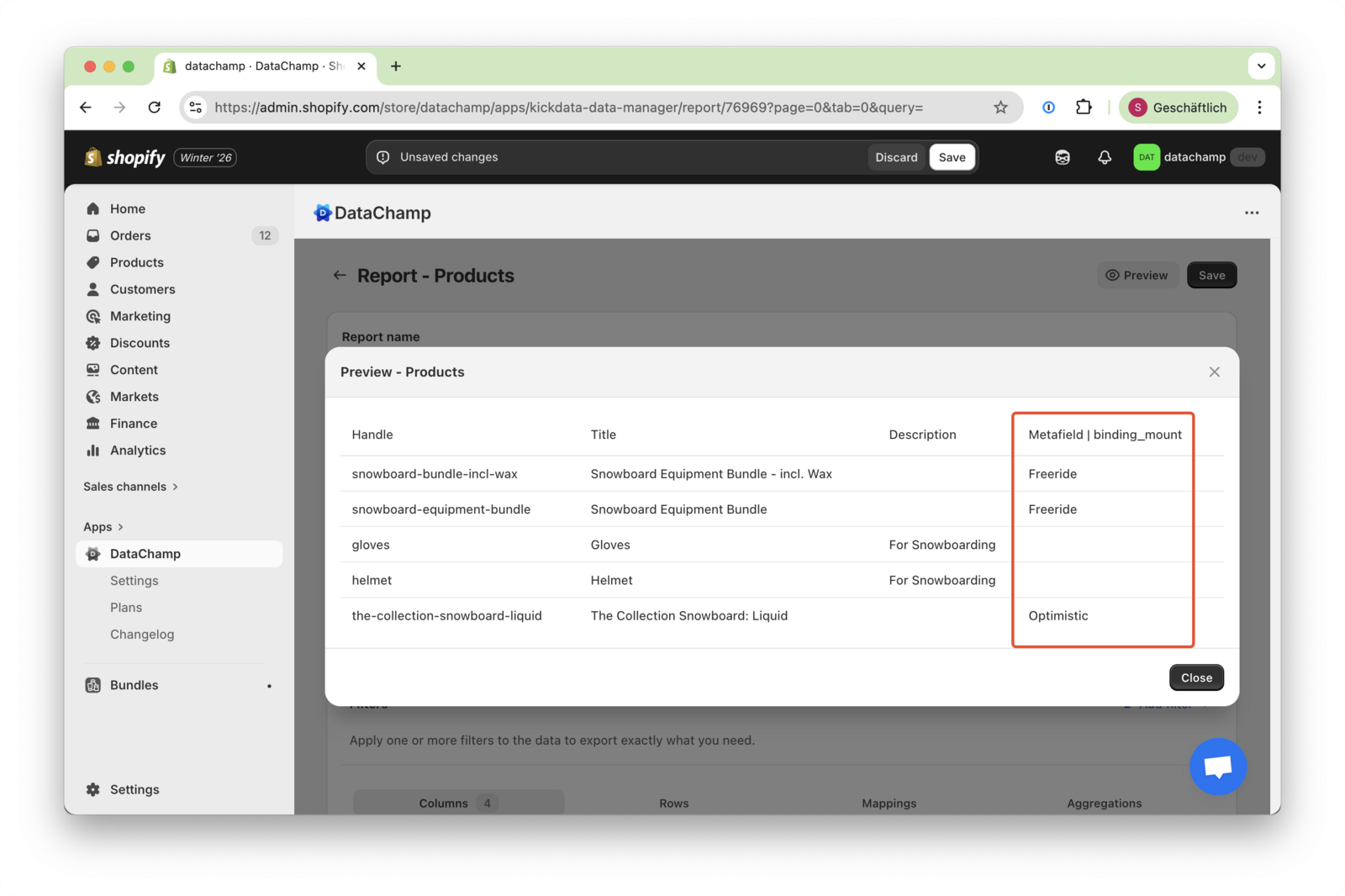
Export Custom Attributes and Metafields
Updated on
Columns for Custom Attributes and Metafields
In this tutorial, we’ll demonstrate how to use metafields in DataChamp.
The tutorial below shows how to modify the layout. It serves as an example illustrating that any metafield or custom attribute works in a consistent way.
- First, setup up your report
- Create a new report and choose a product report.
- Include the columns you need. In this example, we included the Product Handle, Title, Description and Metafields.
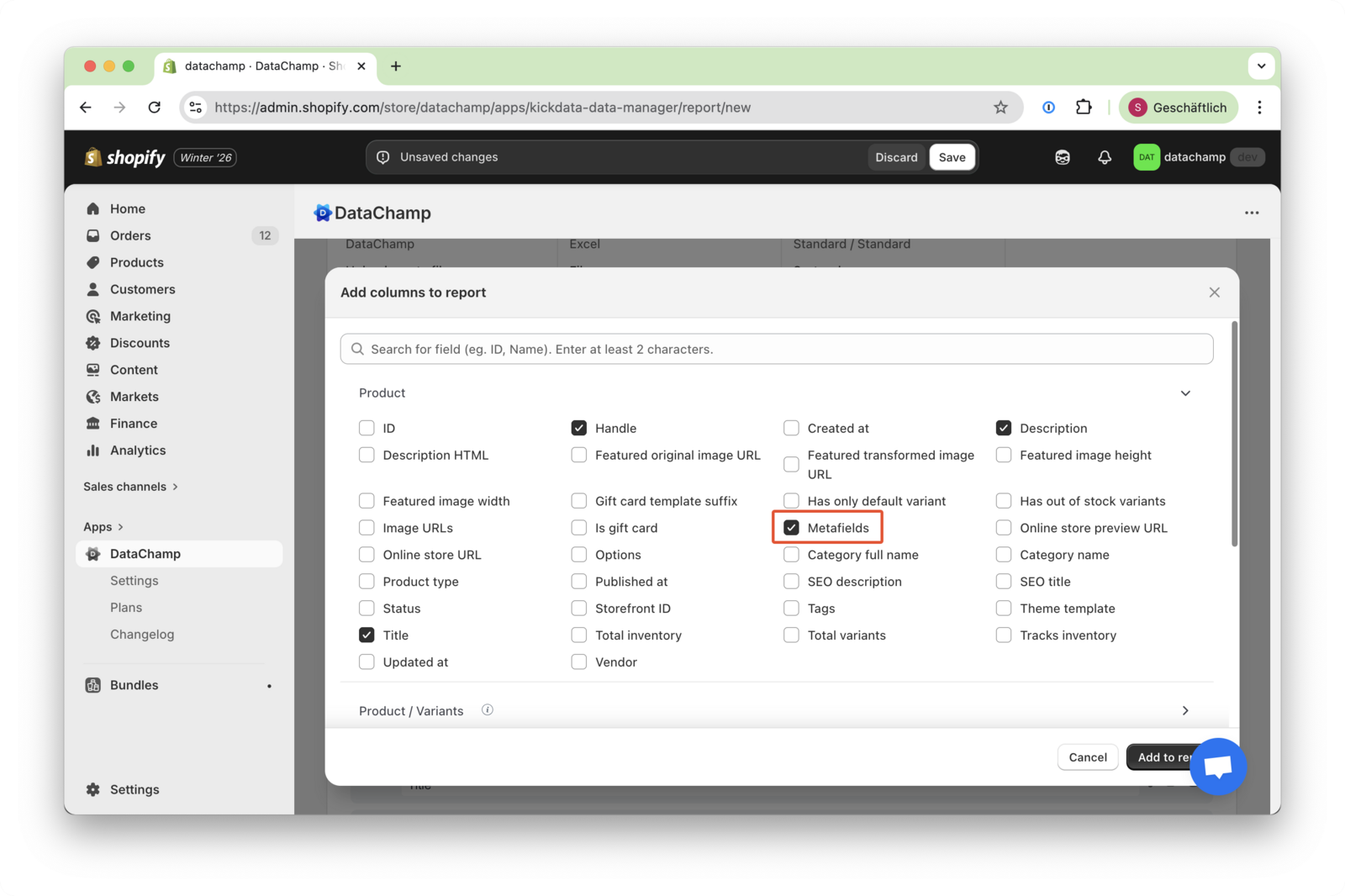
- DataChamp will now export all metafield or custom attribute keys. To see the results and the metafield keys, click the “Preview” button in the top-right corner of the report dashboard.
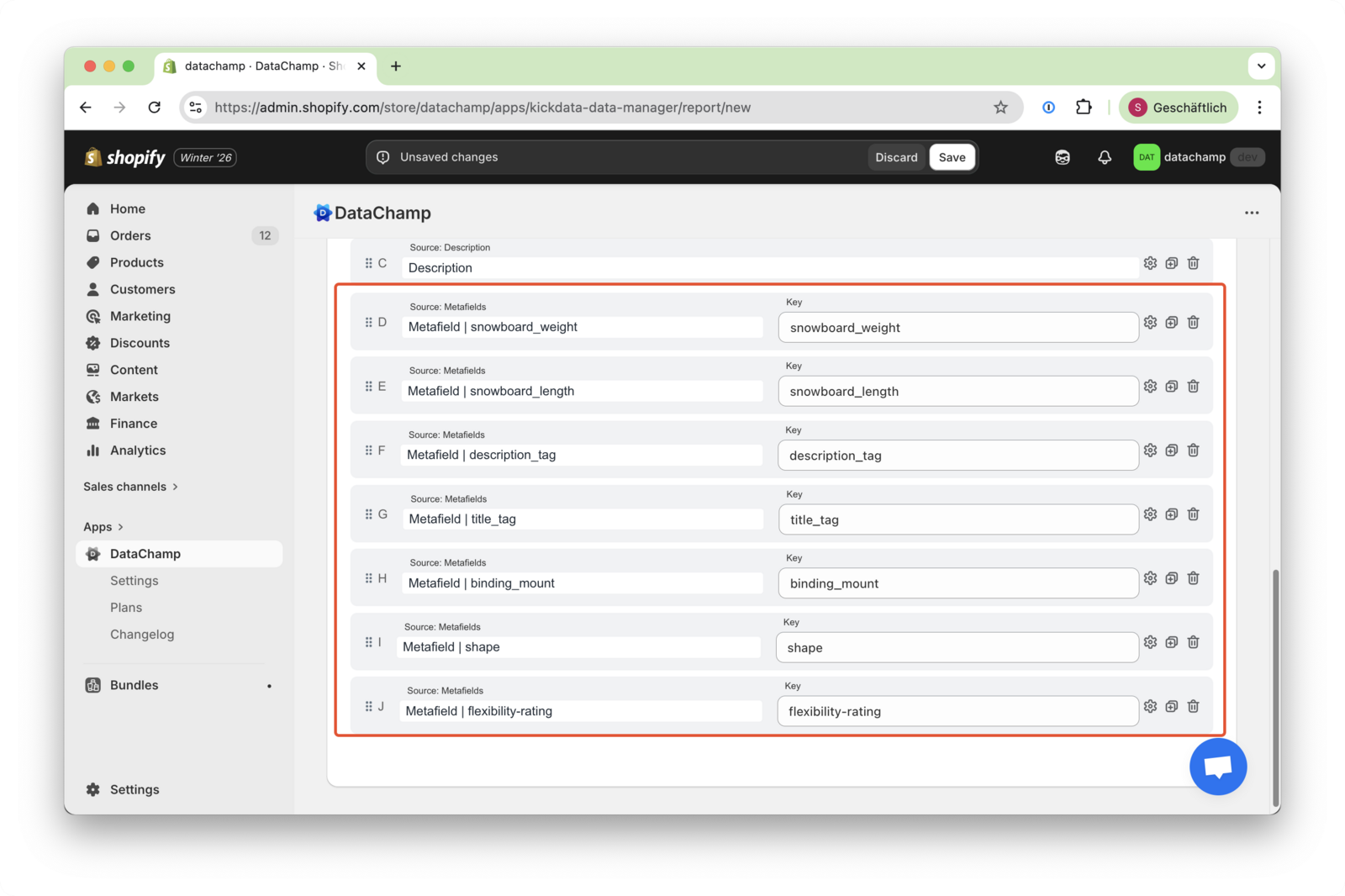
- Customizing Metafields
- You can delete any metafields you don’t need in your report.
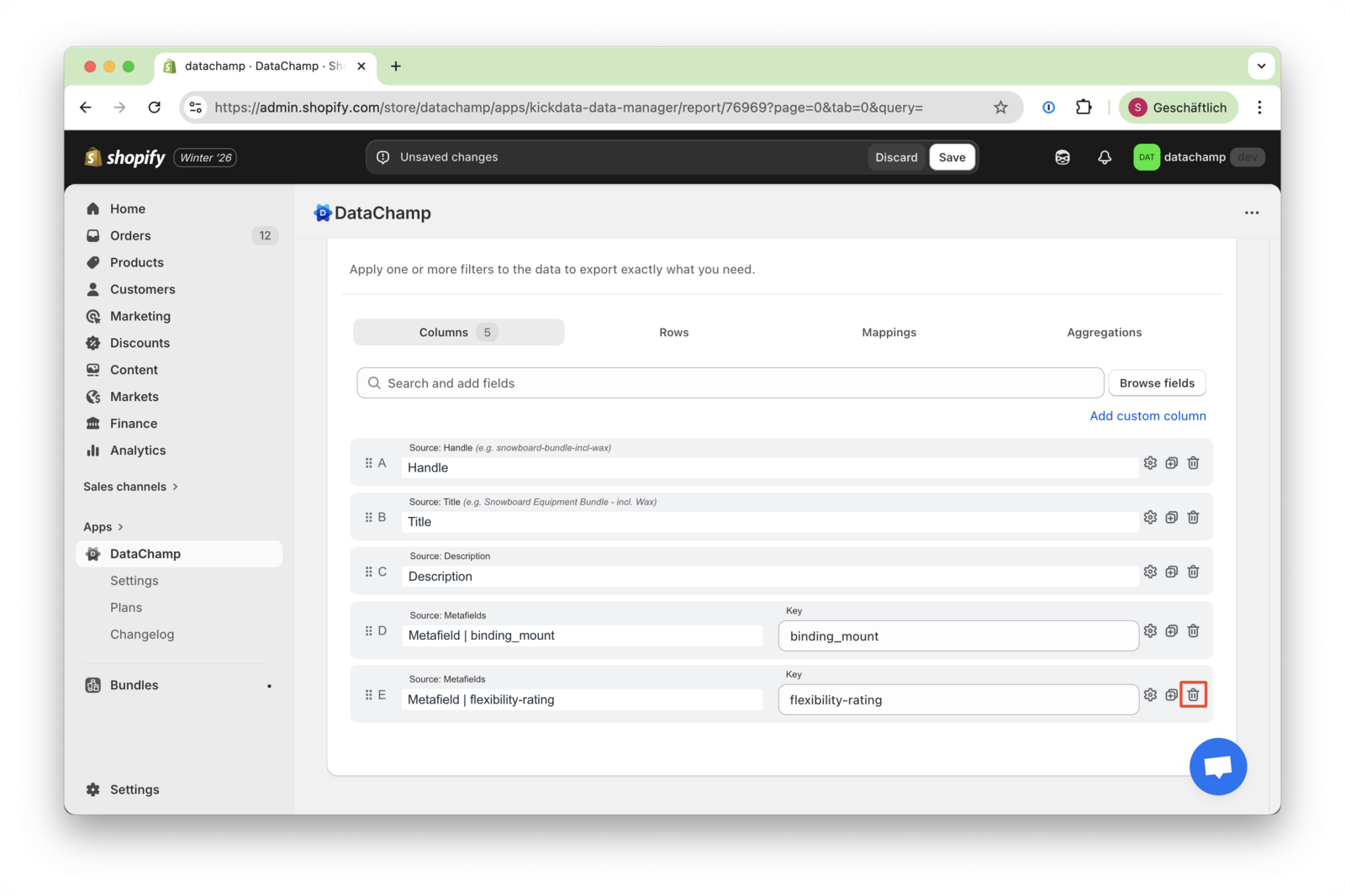
- If you want to add a metafield, simply click the "Duplicate" button and select the desired key.
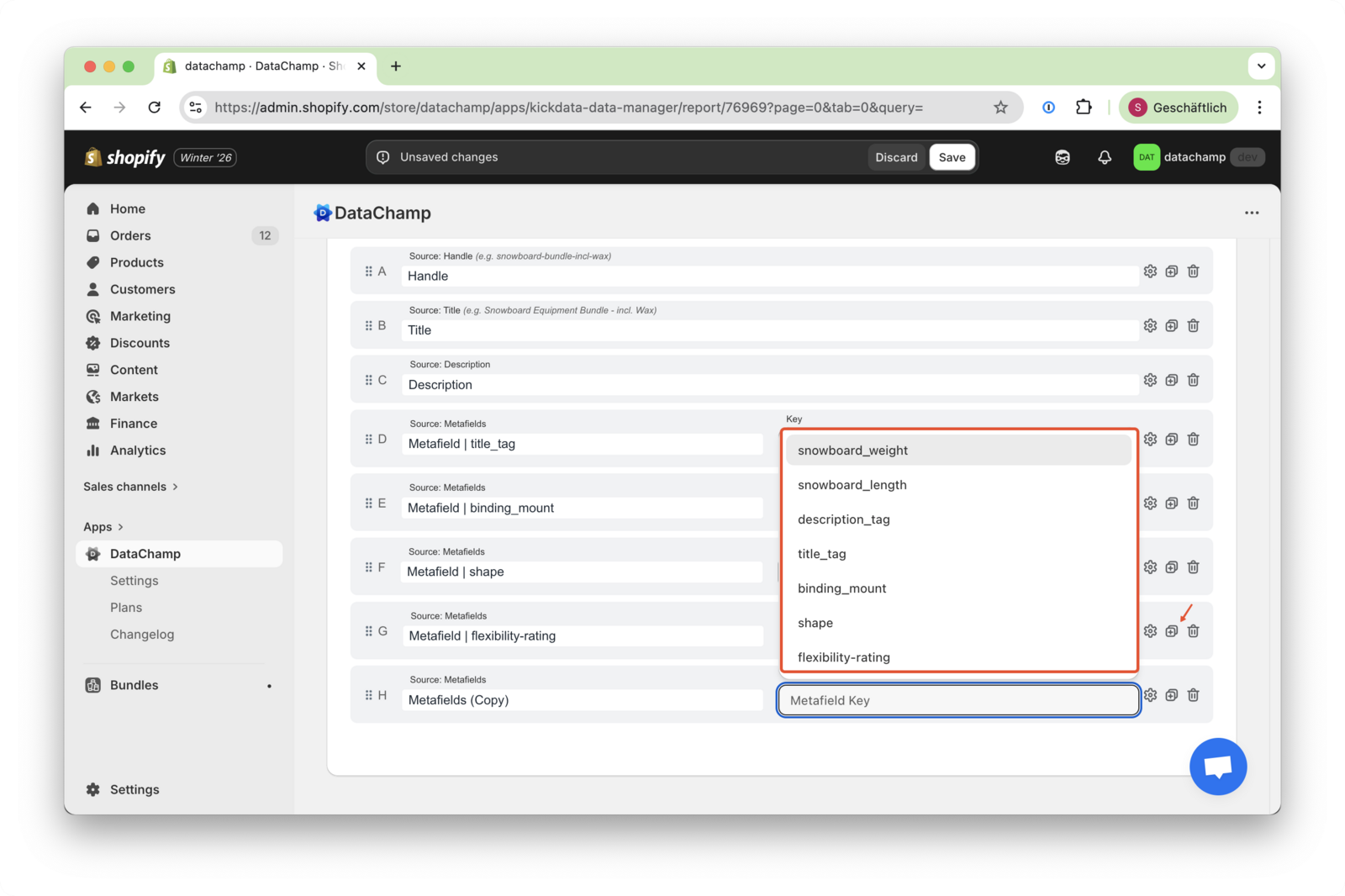
- Now, only the selected metafields will be exported.