How Can I See Whether My Products Are Tracked?
Updated on
Inventory tracking means Shopify keeps track of how many units of a product you have in stock. This tutorial shows how to find out which of your products have inventory tracking enabled and how to export only those you need.
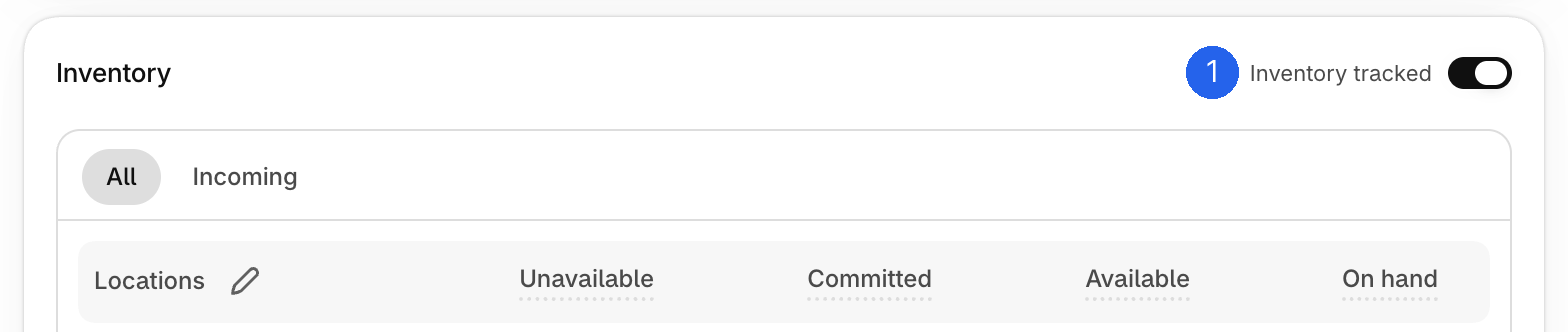
In Shopify, you turn inventory tracking on or off with the switch Inventory tracked 1 in the section Inventory of a product.
1. Create a locations report
Click New Report, open the tab Locations and choose Start from scratch.
2. Add the tracking column
Type "tracked" into Search and add fields 1 and click Location / Inventory levels / Product tracked 2. The column Inventory levels: Product tracked is added to your report.
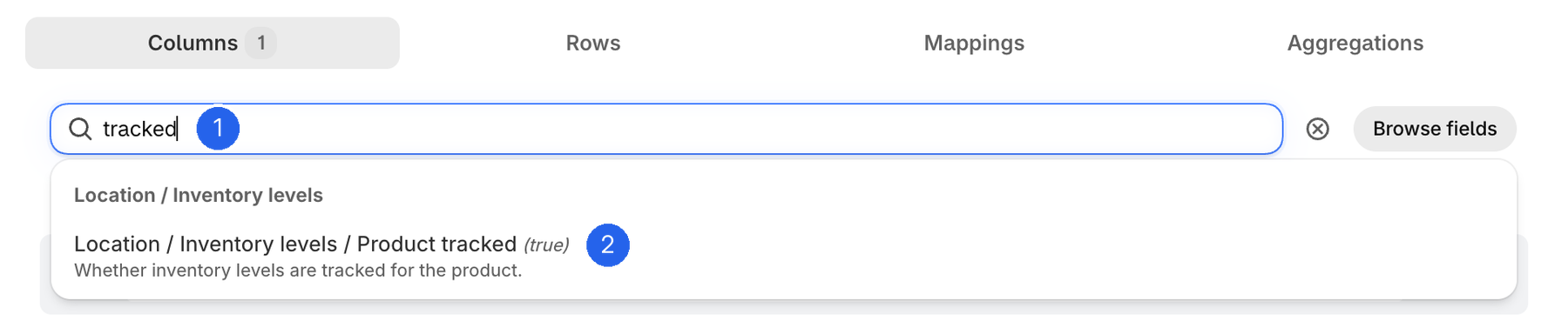
Add Location / Inventory levels / Product title the same way, so you can see which product each row belongs to.
3. Preview the report
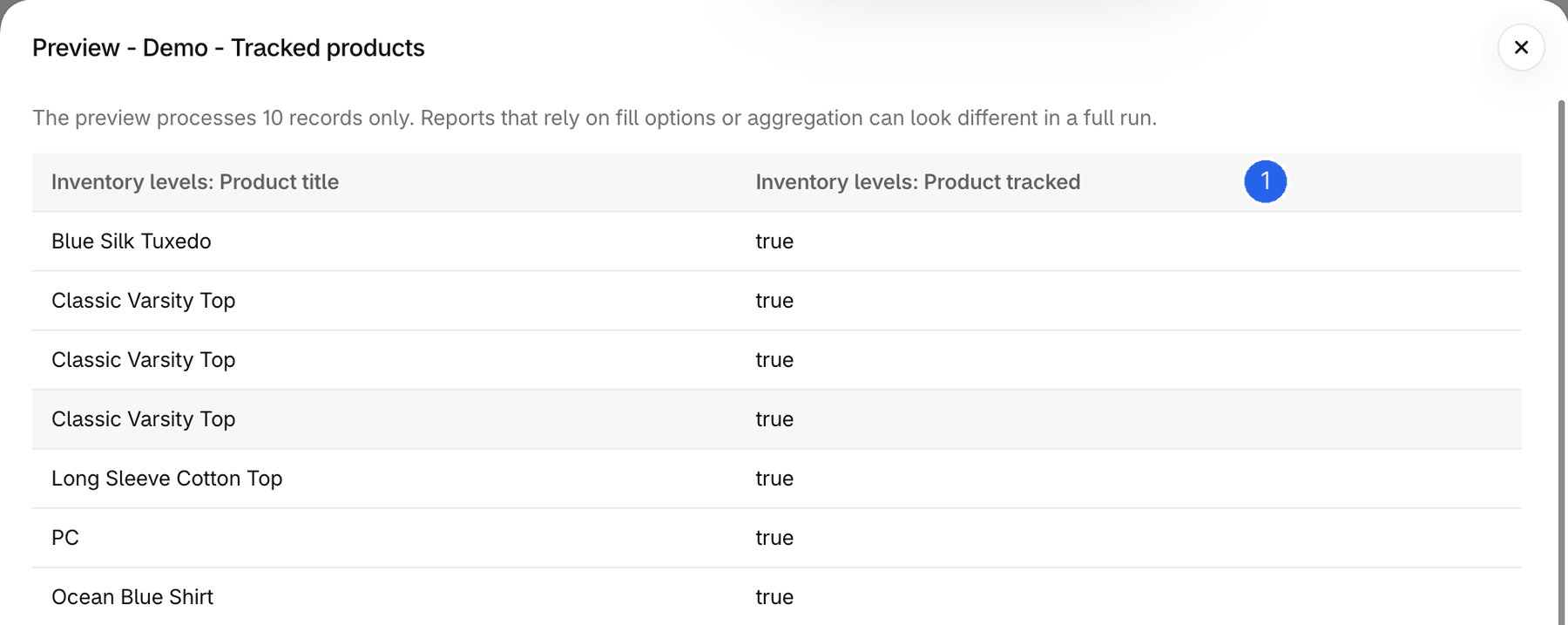
Click Preview. The column Inventory levels: Product tracked 1 shows true if inventory tracking is enabled for the product and false if it is not. A product can appear in several rows.
4. Filter by tracked status
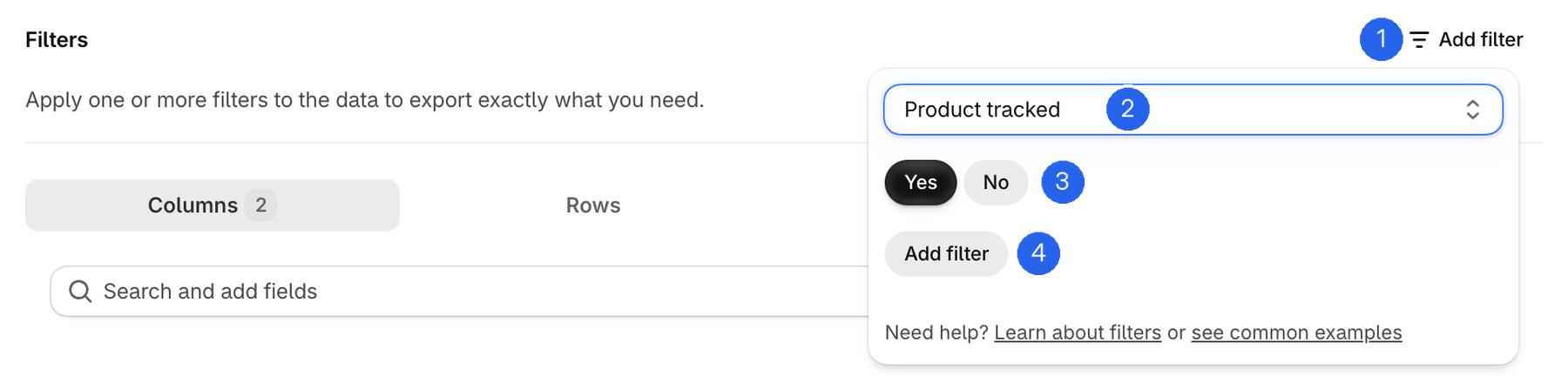
Click Add filter 1 and select the field Product tracked 2. Choose Yes or No 3 and click Add filter 4:
- Tracked products only: Product tracked – Yes
- Untracked products only: Product tracked – No
The preview only loads a few of the latest items and applies the filter to them. If it finds no matching items, save and run the report to get the complete result.
Please note: Inventory tracking only applies to physical products. Services cannot be stocked, so they are not part of this report.