How to View and Filter Orders by Delivery Method
Updated on
This tutorial shows how to see the delivery method of your orders, such as shipping, local delivery or pickup, and how to export only the orders with a certain method.
1. Create an order report
Click New Report, open the tab Orders and choose Start from scratch or one of the templates.
2. Add the column Delivery method type
Add the columns you need for your report. For the delivery method, type "delivery" into Search and add fields 1 and click Order / Fulfillment Orders / Delivery method type 2.
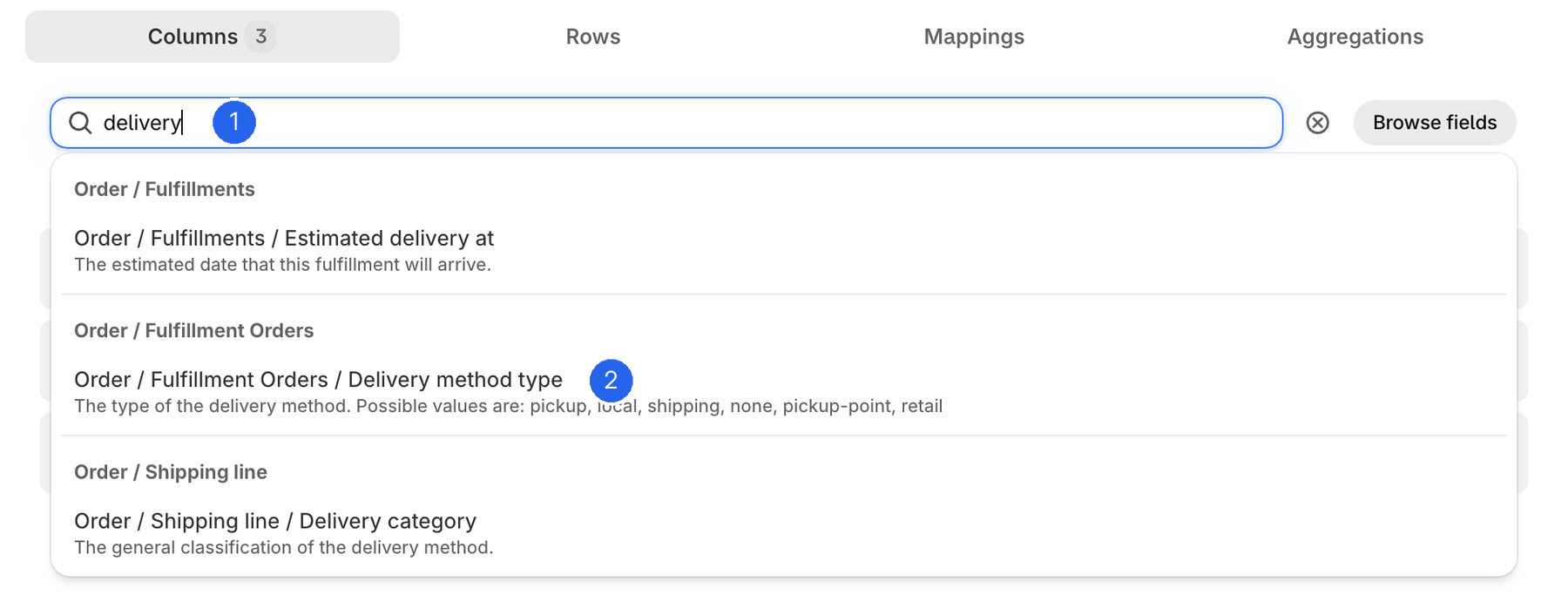
The column Fulfillment Orders: Delivery method type shows how each order is delivered. Possible values are pickup, local, shipping, none, pickup-point and retail.
3. Filter by delivery method
To export only orders with a certain delivery method, click Add filter 1 and select the field Delivery method 2. Tick one or more methods, for example Shipping 3, and click Add filter 4.
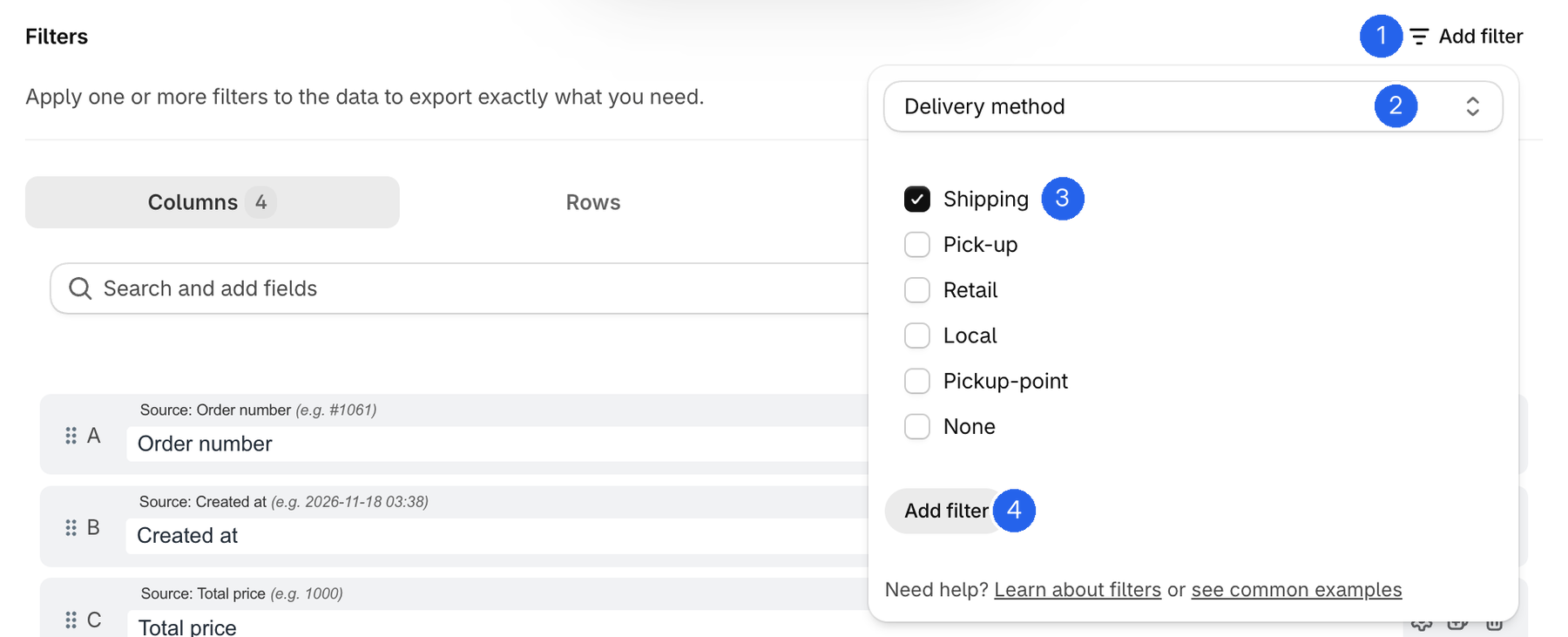
You can choose from Shipping, Pick-up, Retail, Local, Pickup-point and None.
4. Preview the filtered report
Click Preview. You now see only the orders with the selected delivery method 1. The value is written in capital letters, for example SHIPPING.
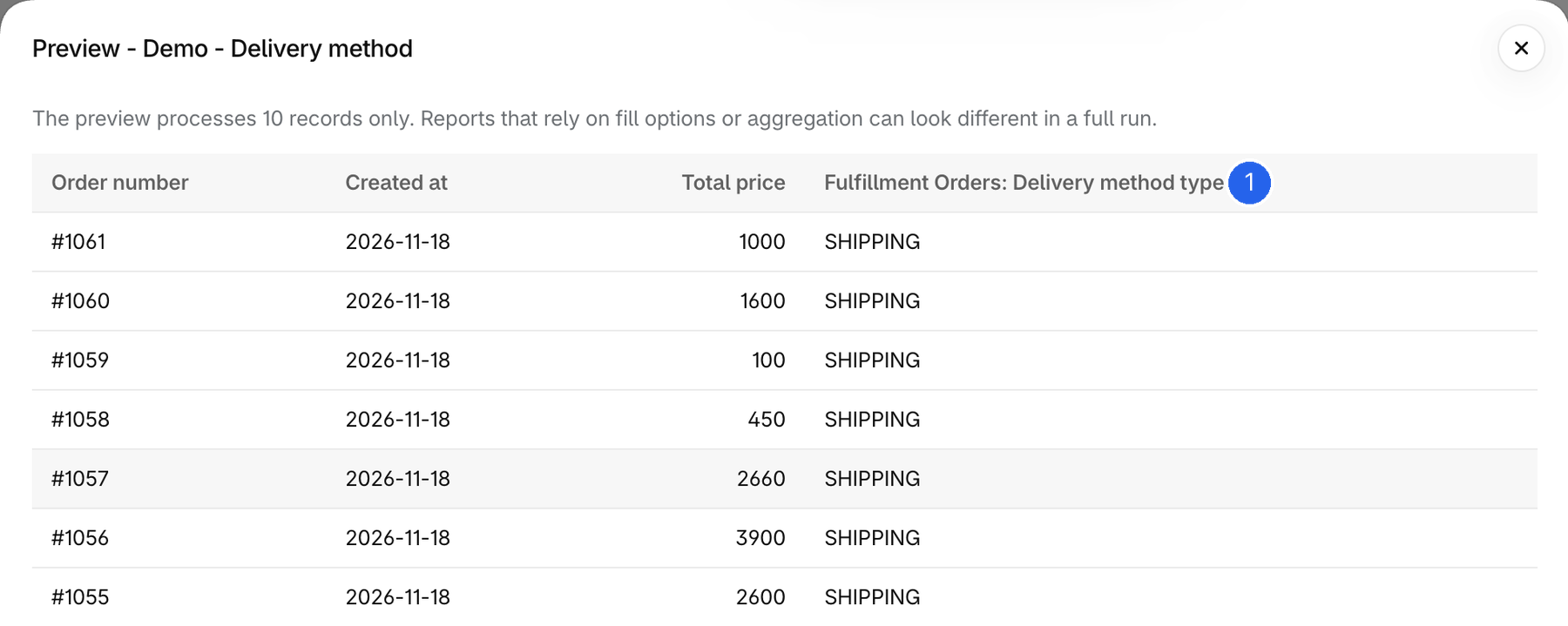
The delivery method belongs to the fulfillment order. An order with more than one fulfillment order gets one row for each of them.
5. Save and run
Give your report a clear name, click Save and then Run.