Post Filters in Datachamp: What They Are and What Makes Them Different
Updated on
You add every filter the same way: click Add filter, select a field, choose how to compare and click Add filter. Behind the scenes there are two kinds of filters, and the difference matters for large shops.
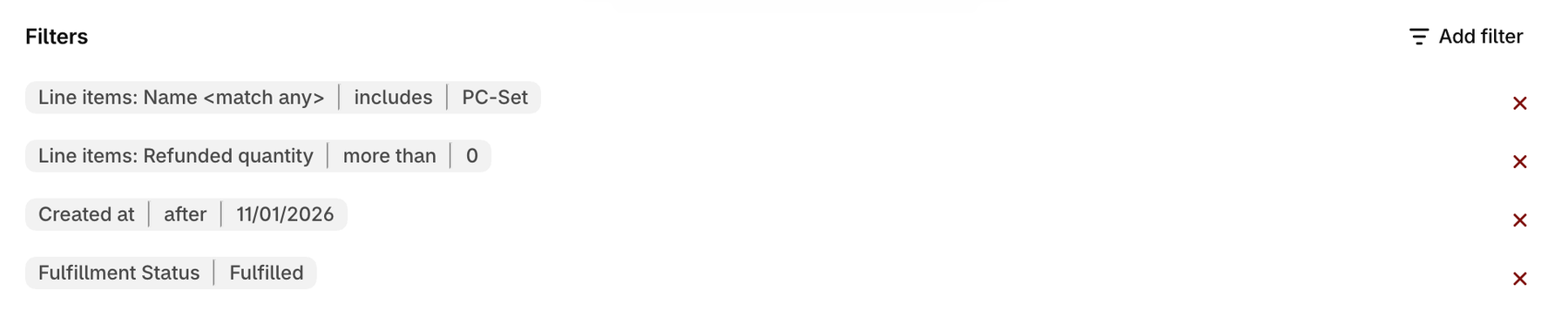
Post Filters
Post filters are applied after the data has been loaded into the report. They cover conditions that cannot be applied at the data source. In an order report these are mainly the fields of sub-items, such as Line items: Name, Line items: SKU, Line items: Refunded quantity, Refunds: Created at or Transactions: Gateway, as well as Metafields and Custom attributes. Custom columns of your report also appear in the field list and work as post filters.
Text post filters offer equals to any of, not equals to any of, is empty, is not empty, starts with, does not start with, includes and does not include. Number post filters offer equals, less than, more than, equals or less than and equals or more than.
Example post filters:
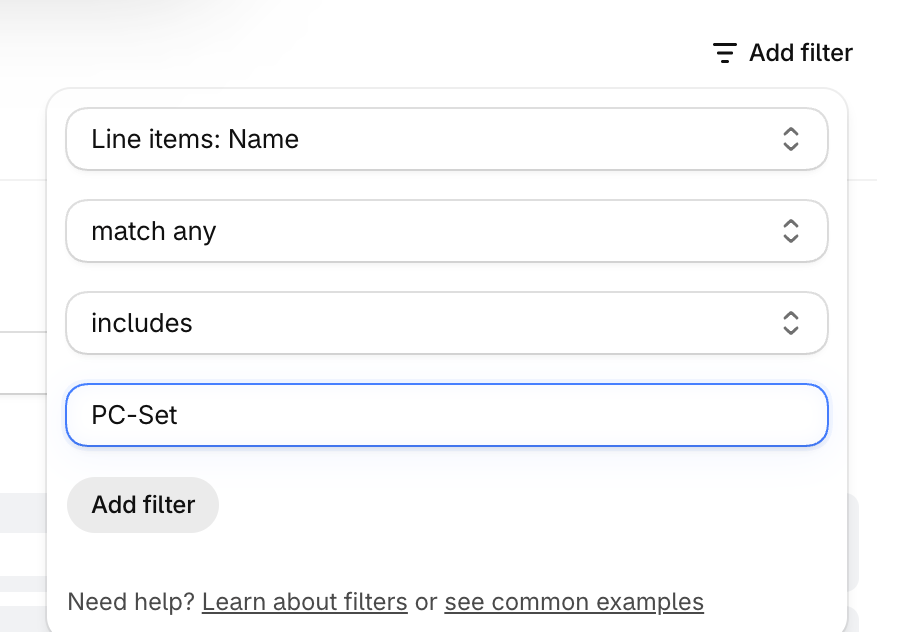
- Line items: Name – includes – "PC-Set"
→ Finds orders that contain a product with "PC-Set" in its name
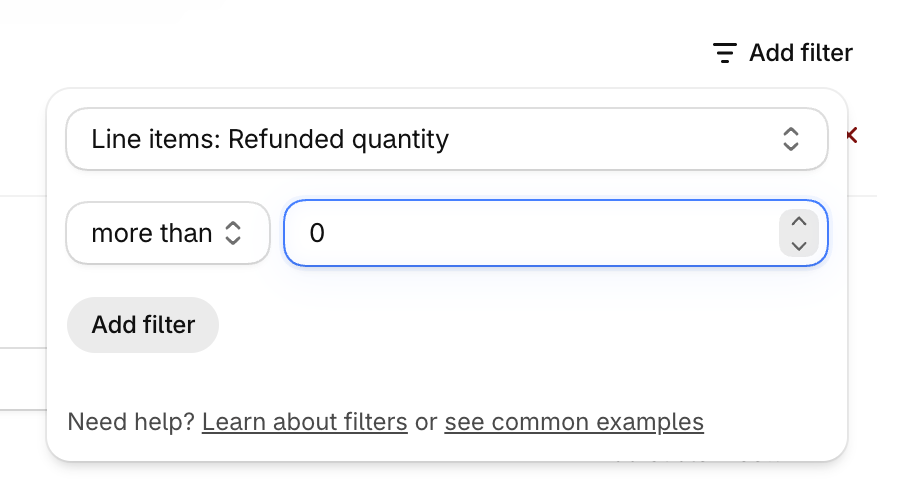
- Line items: Refunded quantity – more than – 0
→ Finds orders with refunded line items
For Line items: Name and Line items: Product tags you also choose how the line items of an order are checked:
- match all: the order is exported only if all of its line items match.
- match any: the order is exported if at least one line item matches.
- filter lines: only the matching line items are exported.
To export only bundle orders, add a custom column with the value {{Line items: Bundle sku}} and filter this column with is not empty.
Please take a look at our article and YouTube video on how to export bundle orders in Datachamp:
If your plan is limited to e.g. 1000 items, but you apply a post filter to a dataset containing more items (e.g., 5000), the export will not be possible. This is because the system must first process all 5000 items in order to apply the post filter. That total processing volume exceeds the 1000-item limit of your plan.
Therefore, it is recommended to restrict the data volume at the source level whenever possible, e.g. filter by date, status or other criteria, so that fewer than 1000 items are loaded in the first place. If your workflow requires scanning a large database, you will need a higher pricing plan to support the required processing volume.
Regular Filters
Regular filters are applied before the data is loaded into the report. They limit the data directly at the source, so only matching records are retrieved from Shopify. This reduces the data volume and makes the report faster. In an order report these include Created at, Updated at, Fulfillment Status, Financial Status, Delivery method, Order number and Tag.
Example filters:
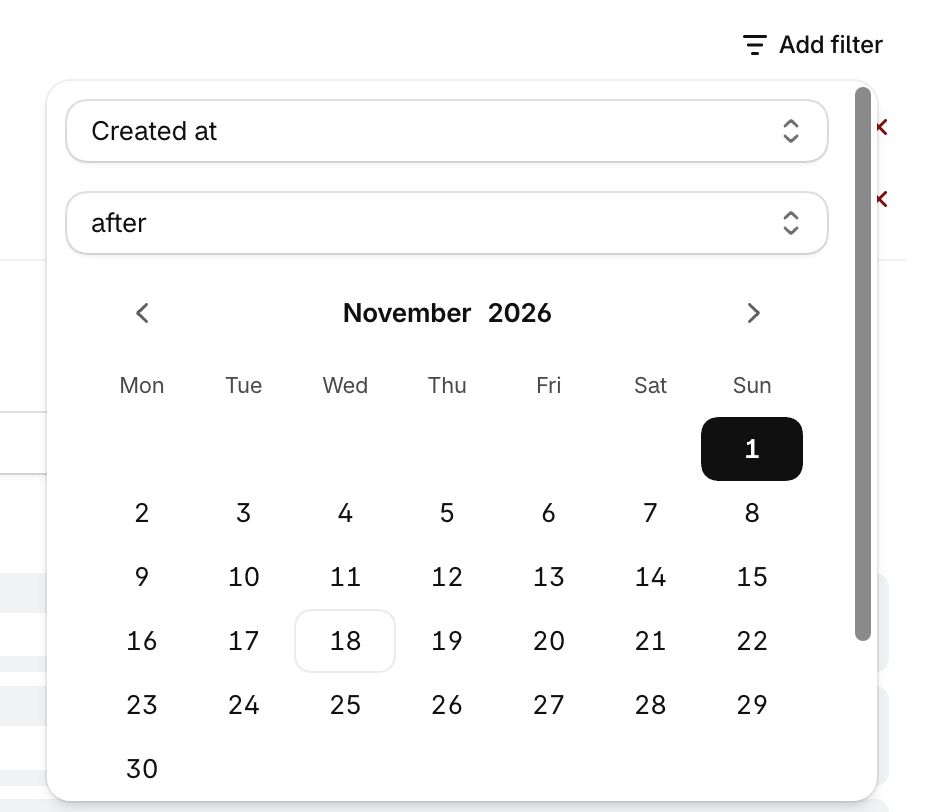
- Created at – after – 11/01/2026
→ Loads only orders created after this date
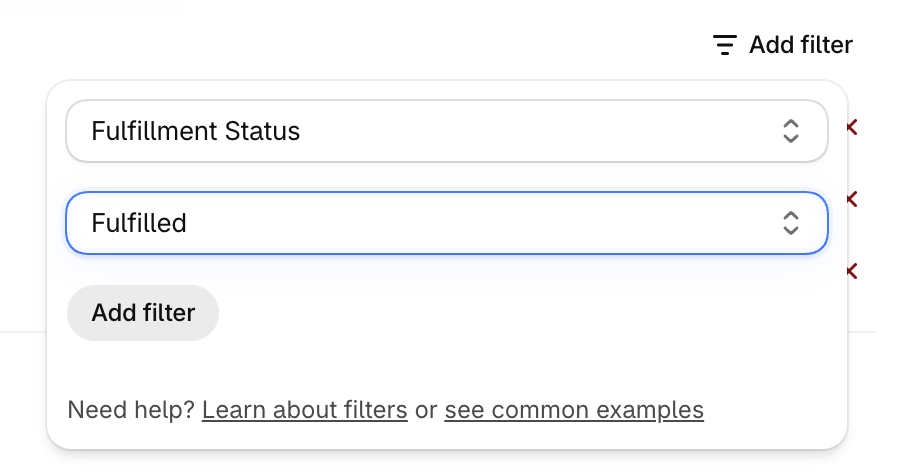
- Fulfillment Status – Fulfilled
→ Loads only fulfilled orders
Combine both kinds: a regular filter, for example on the date, keeps the amount of loaded data small, and a post filter then picks the records you need.
For more details, please refer to: Filter