Which Mappings Are Most Frequently Used In DataChamp, and What Do They Do?
Updated on
This article explains the mappings that users ask about most often in DataChamp. You create a mapping in the tab Mappings of the report with New mapping or Add another mapping.
1. Show a 0 instead of an empty cell
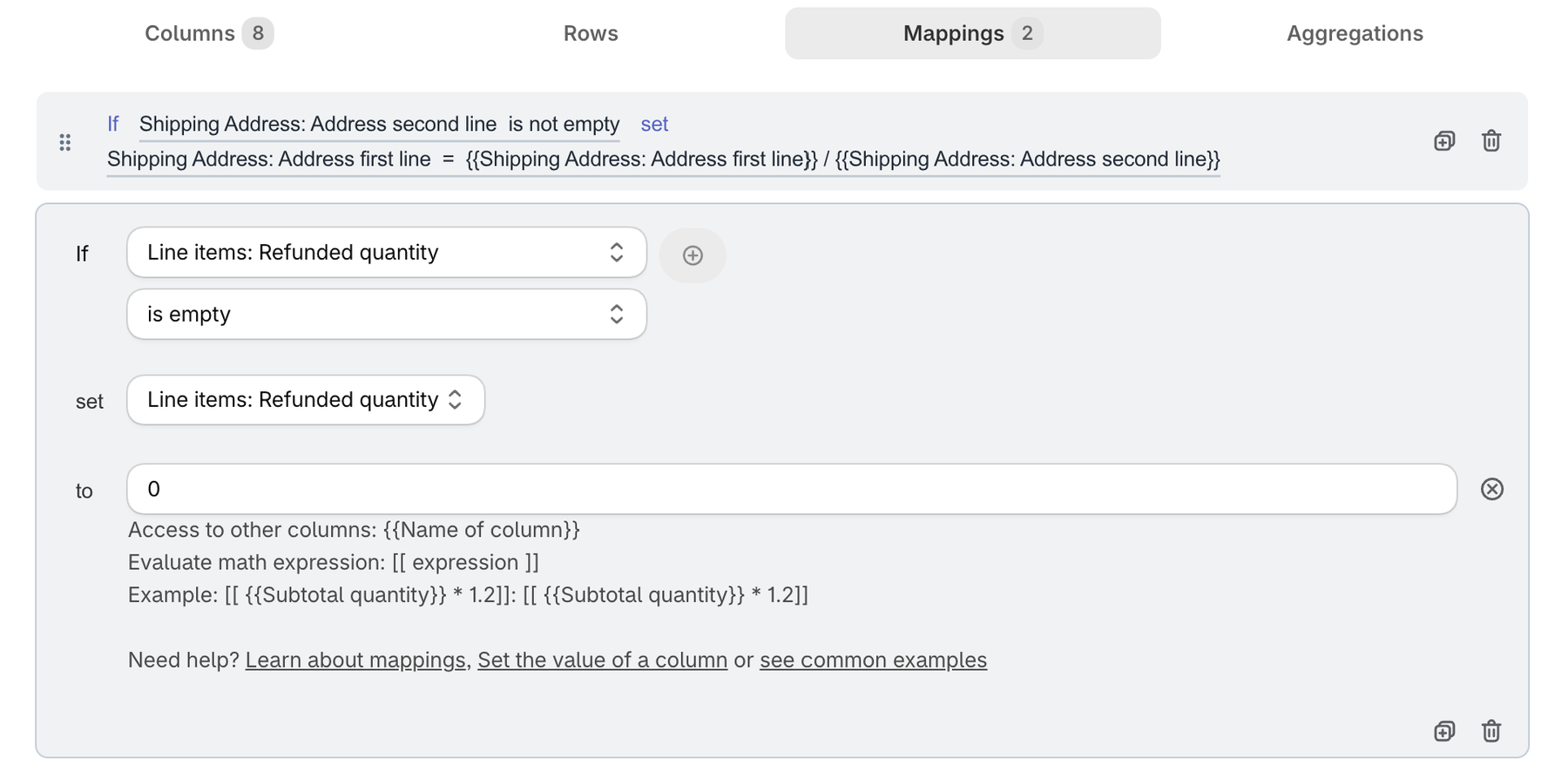
Some quantity columns are empty when there is nothing to count. Line items: Refunded quantity, for example, is empty for line items without a refund. This mapping writes a 0 instead:
- If "Line items: Refunded quantity" is empty
- set "Line items: Refunded quantity"
- to 0
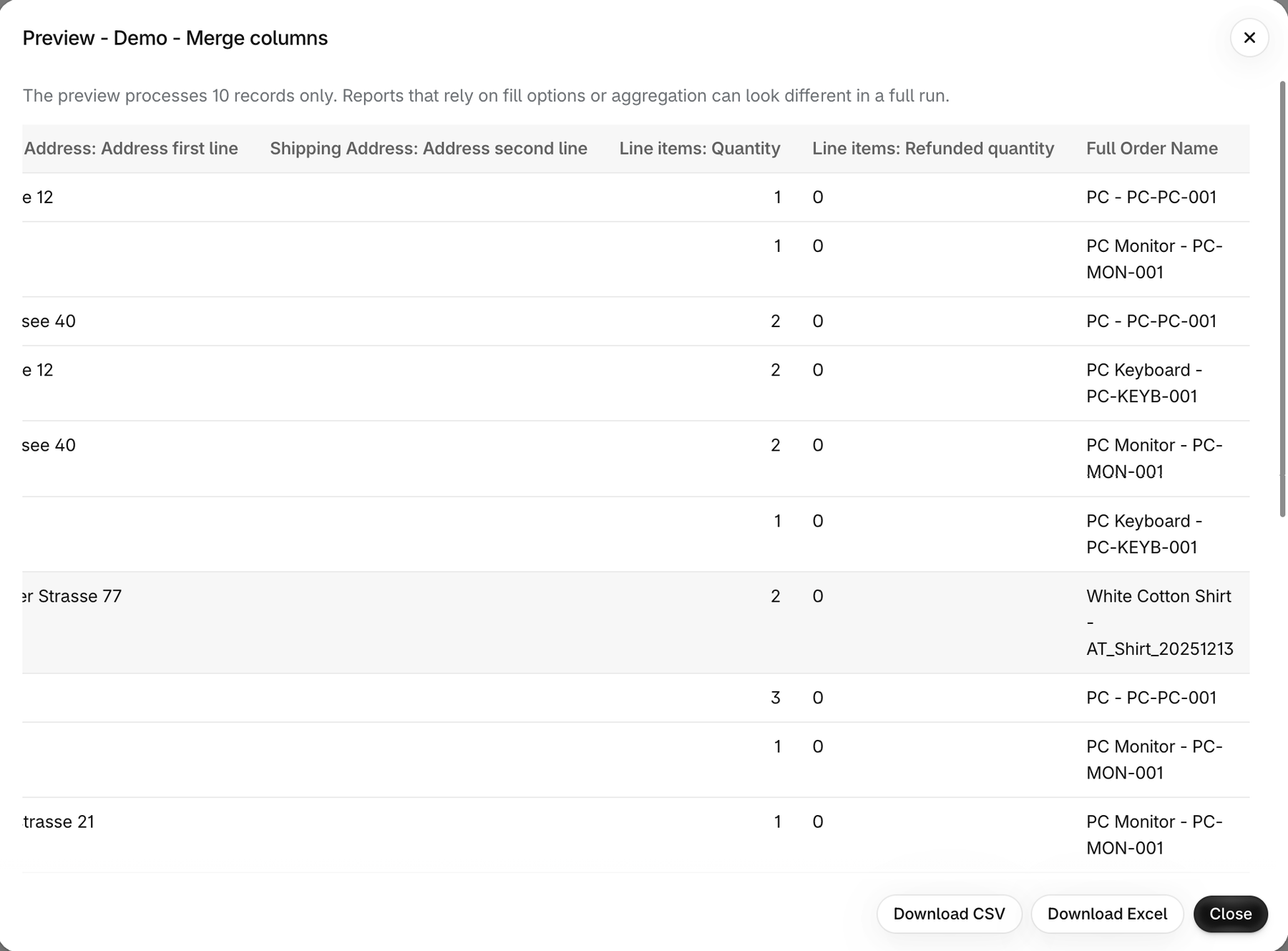
In the preview, the column Line items: Refunded quantity now shows 0:
2. Combine both lines of the shipping address
If the second line of the shipping address is filled, this mapping merges "Address first line" and "Address second line" into a single complete address:
- If "Shipping Address: Address second line" is not empty
- set "Shipping Address: Address first line"
- to
{{Shipping Address: Address first line}} / {{Shipping Address: Address second line}}
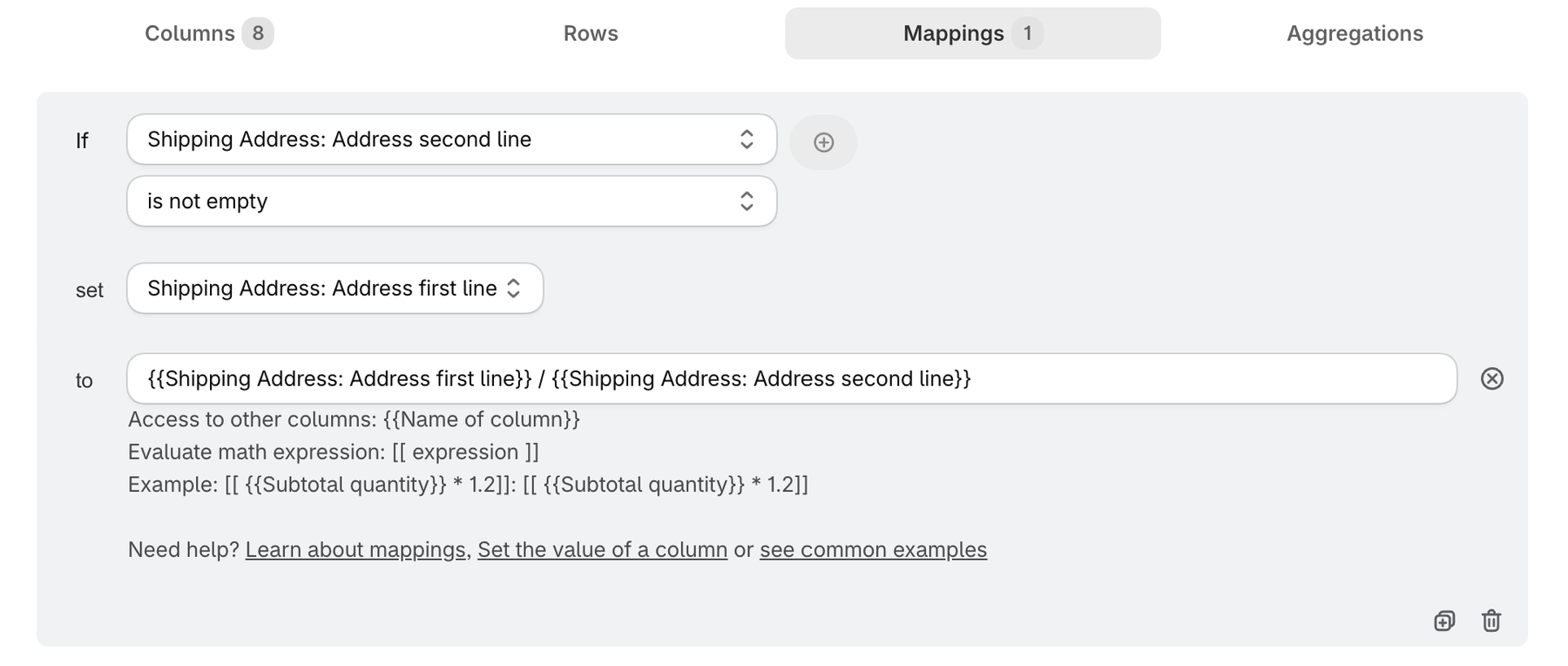
Both fields must be columns of the report. The names in the curly brackets must match the column names exactly.
Please refer to the Mappings article for detailed explanations of mappings.